Set up a free class
About 10 minutes, once. After that, every lesson uses the same class: students' work is saved to their accounts, and you can open any of it from your class page.
1Make your teacher account
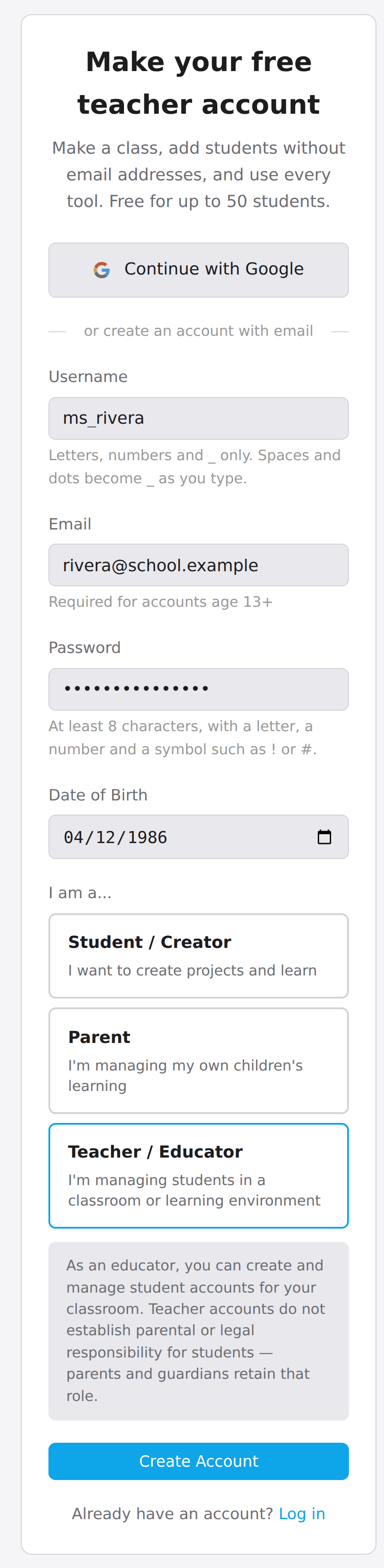
- Go to mytekdev.com/signup?role=teacher. The page says Make your free teacher account.
- Choose Continue with Google, or fill in Username, Email, Password (at least 8 characters, with a letter, a number and a symbol) and Date of Birth.
- The I am a... choices appear after the date of birth. Check that Teacher / Educator is selected.
- Click Create Account.
Your username is what students see, so pick one you are happy for a class to read.
2Create a class
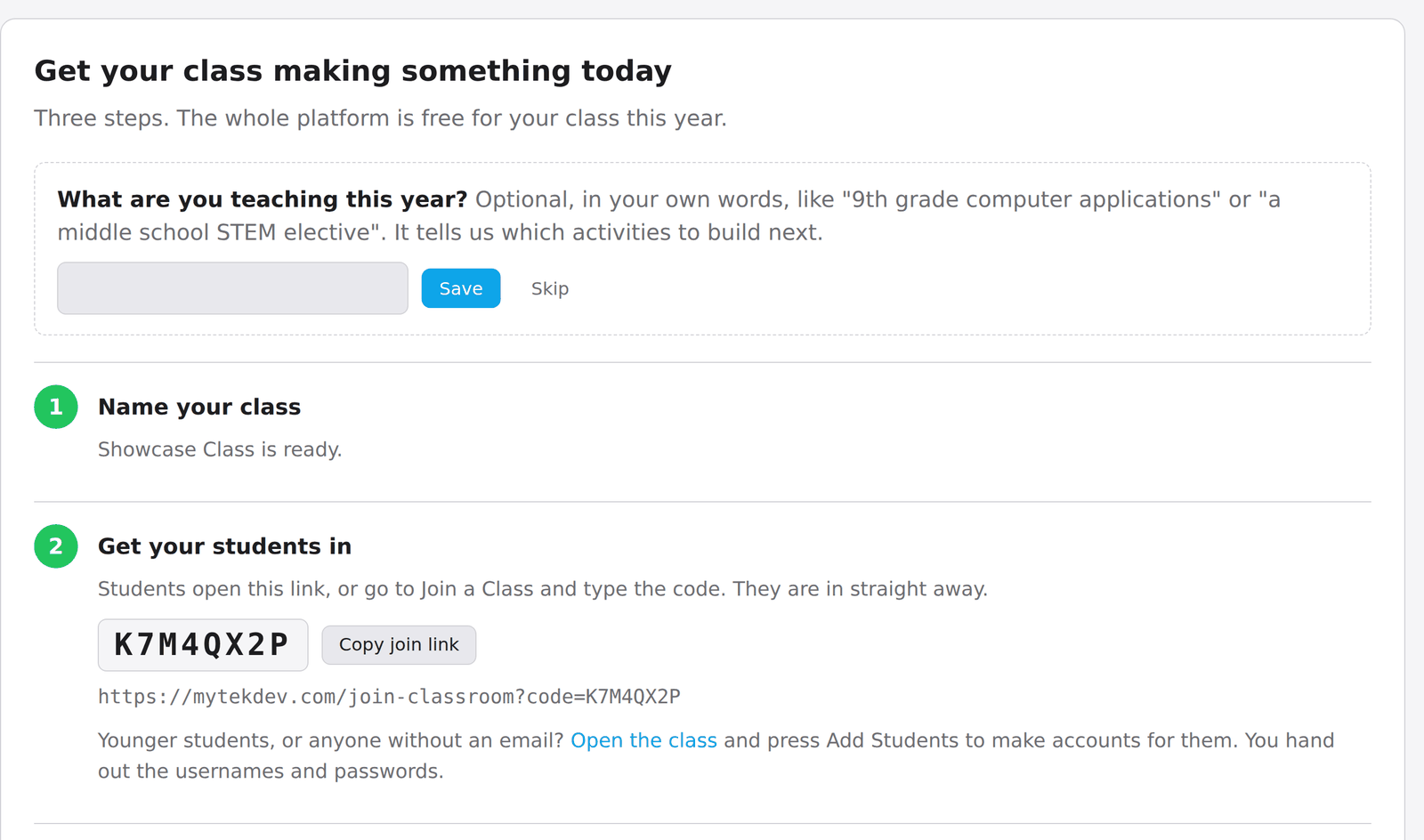
You land on your teacher dashboard, on a panel titled Get your class making something today.
- Under Name your class, type a name such as "Period 3 Art".
- Click Create class.
The class gets an 8-character join code and a join link straight away. Students who use the link are in the class at once, with no approval step.
More classes later: Create Classroom under My Classrooms on the dashboard.
3Add your students
Pick one of two ways. Making the accounts yourself is faster with younger students, because nobody has to type a date of birth.
A. They join with your link
Best for grades 6 and up. Each student makes their own account in about a minute. No email needed when they come in through your link.B. You make their accounts
Any grade, and the easier choice for K-5. Type the names, print the logins, hand them out. About two minutes for a class of 30.A. Students join with your link
- Click Copy join link and share it in your LMS, an email, or on the board.
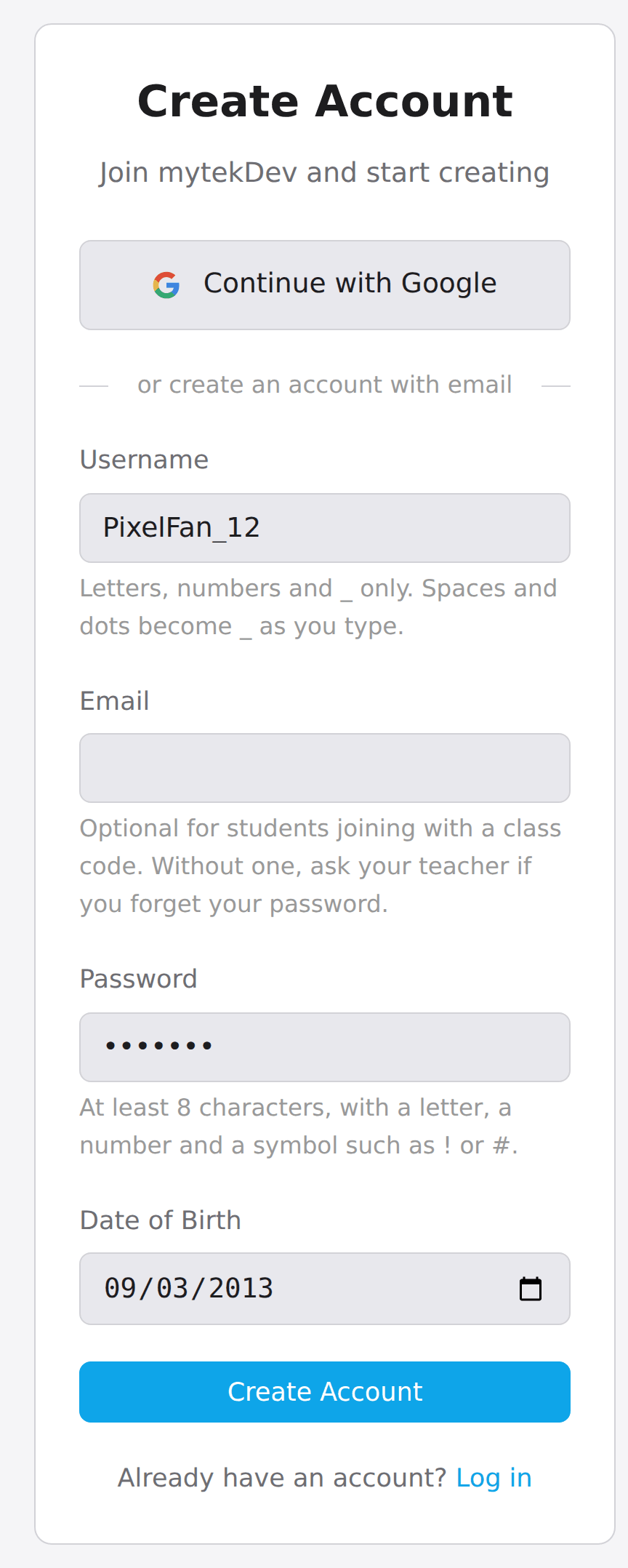
- Each student opens it and fills in Username, Password and Date of Birth. The email box is optional for them.
- They click Create Account and are in your class.
Students who already have an account go to mytekdev.com/join and type the class code.
B. You make their accounts
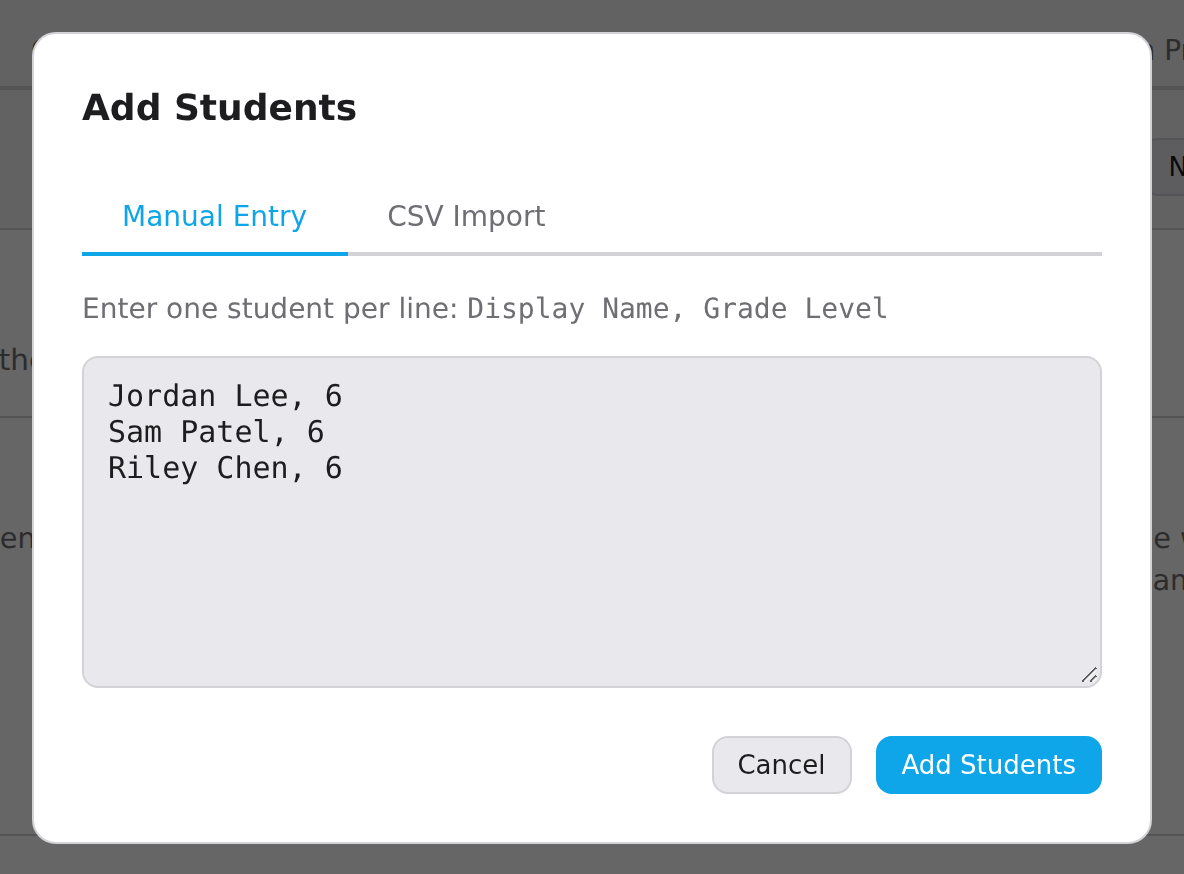
- Open your class. On the Students tab, click Add Students.
- On Manual Entry, type one student per line: name, then grade, like
Jordan Lee, 6. Or use CSV Import with the columnsdisplay_name, grade_level. - Click Add Students.
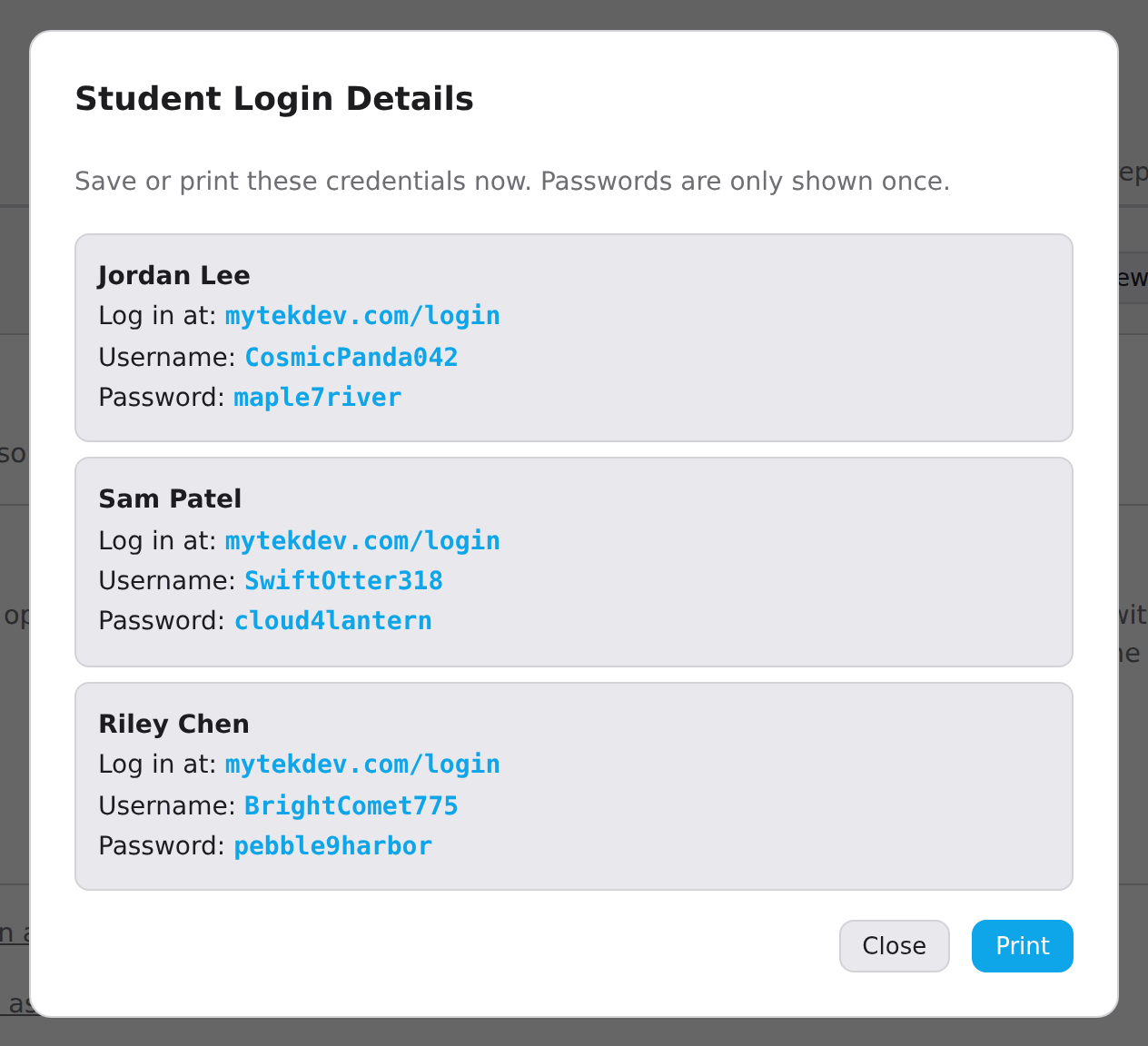
- A Student Login Details window lists each student's username and password. Click Print now: the passwords are shown only once.
- Students log in at mytekdev.com/login with the username and password on their card.
Lost the printout? New passwords for everyone on the Students tab makes new ones and shows them again.
4Give students the lesson
Each lesson names its app. In a class, students use the app's class link, which saves their work to their account.
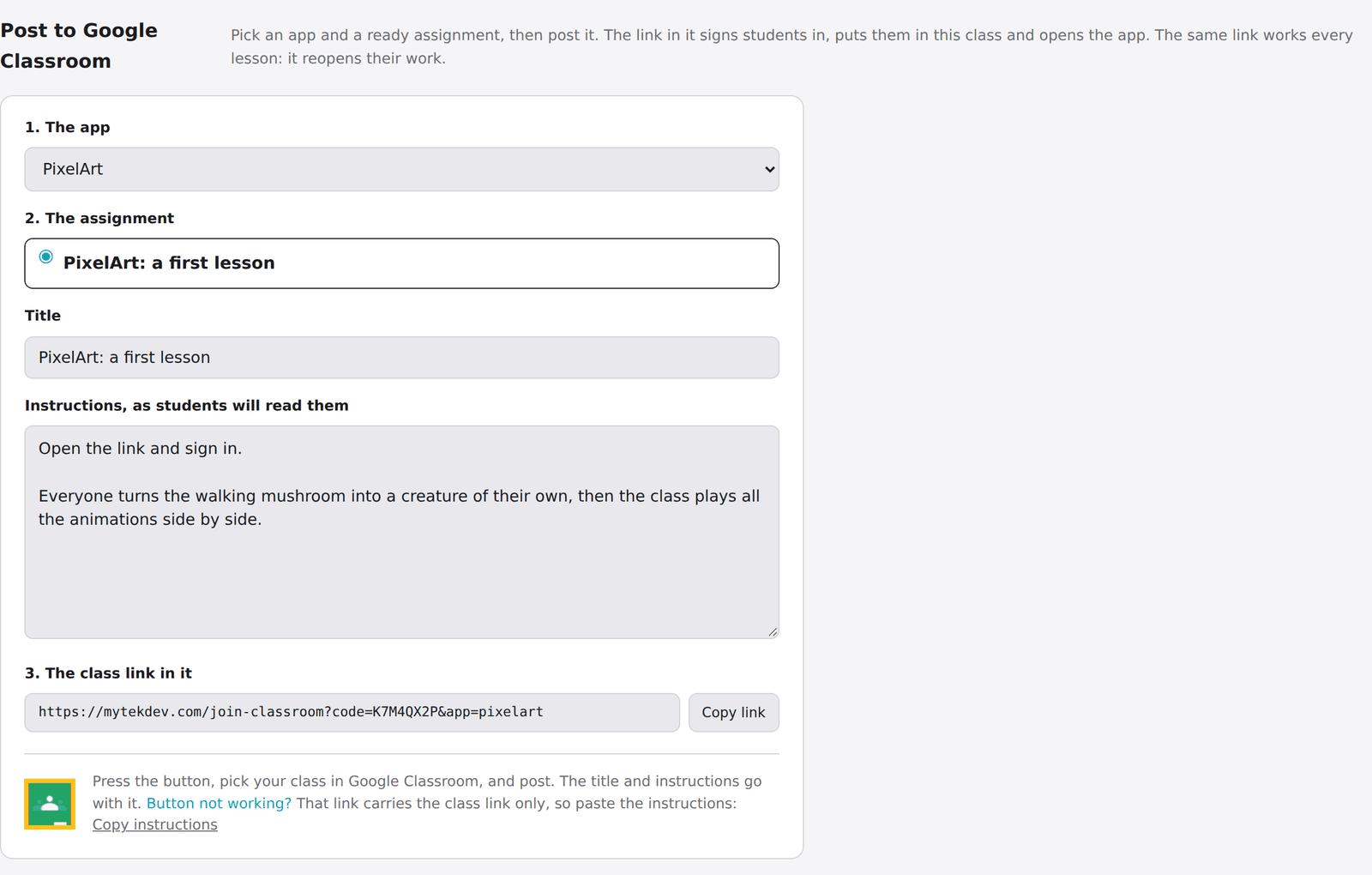
With Google Classroom: open your class, go to the Google Classroom tab, pick the app, and use the share button. The link it posts signs students in, puts them in your class and opens the app. The same link reopens their work next lesson.
Without it: copy the class link from that tab (Copy link) and post it wherever your students look.
Seeing their work: open your class and choose the Projects tab. It lists every student's projects, private ones included, and filters by app.
If something goes wrong
A student forgot their password.
Open your class, find the student on the Students tab, and click the key icon (Reset Password) in their row. This works for accounts you made and for students without an email. A student who signed up with an email resets it from Forgot password? on the login page.
I lost the printed passwords.
On the Students tab, New passwords for everyone makes new passwords for every account you created and shows them again, ready to print.
A student made an account on their own before class.
They open your join link while signed in, or go to mytekdev.com/join and type the class code.
A student's work is missing.
They were probably not signed in, so the work stayed in that browser tab. Work done while signed in saves to their account.
Do I have to make a class to use a lesson?
No. Every lesson has a no-account link, and the whole activity works there. A class is what saves the work and lets you see it.
Still have a question? Ask us, and a person will write back.