Learning kitGrades 2-3
Computer science: robotics
Drive a robot
Match everyday things to the six simple machines, play a mystery box game to see how robots sense, give step-by-step drawing instructions, then program a robot in a browser simulator: drive it to a green square, and follow a taped path with a right turn and a left. Ages 7 to 9 or grades 2 to 3.
- Time
- About 75 minutes, in two sittings
- Steps
- 5 steps, 2 of them in Robotics
- You need
- A computer or Chromebook with a mouse or trackpad, a friend or grown-up for steps 2 and 3, a small box or sock, and paper and crayons. No account needed.

The 5 steps
- 1Create a simple machineRead and quizA robot is a machine that follows instructions. Its moving parts are made from simple machines, the same ones you use every day.
- 2Test your robot sensesRead and quizYou have five senses that tell you what is around you. Robots need to know what is around them too, so they have sensors.
- 3Learn about programmingPicture programAn algorithm is a list of steps, in order. When the steps are written so a computer or robot can follow them, it is a program. Practice by giving someone steps to draw your secret picture.
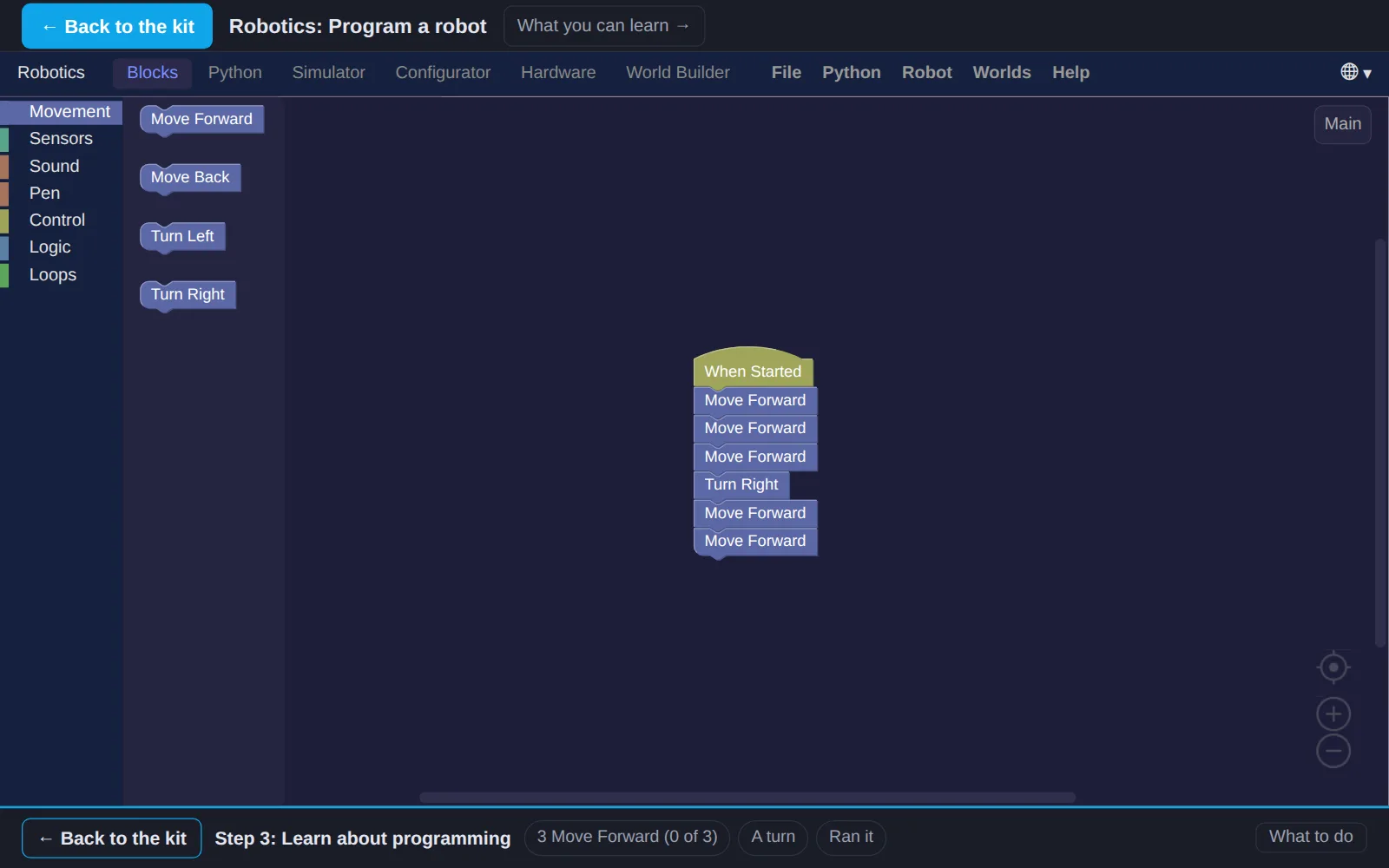
- 4Try simple programmingIn RoboticsNow program a robot in a simulator. Plan every move first, snap the blocks together, then watch the robot drive.
- 5Code a robotIn RoboticsSome robots follow lines on the floor, like robots in a warehouse. Program this robot to follow the yellow tape all the way to the green square.
Work on a computer. The apps need a keyboard and a bigger screen than a phone: a laptop, desktop or Chromebook. You can pay here and open the emailed link on the computer.
One learner
Unlock the kit, $5
- All 5 steps, worked on screen, with a lesson you can print if you like paper
- Robotics activities that check the work as it is done
- A numbered certificate with a page of the learner's own work: your secret picture, your robot programs and your notes
Have a discount code?
Co-ops and classes: unlock it for a group
One payment and one code. Each learner types the code to unlock the kit on their own computer, and gets their own certificate at the end. Your pack page shows who has started and finished.
See a sample certificate (PDF) · Already paid? Find your link