Learning kitGrades 6-8
Computer science: robotics
Program a robot vacuum
Tell robots from other machines, learn how a switch circuit becomes a touch sensor, give a simulated robot a distance sensor so it patrols a room on its own, plan the vacuum's route and test it on a partner, then program a robot vacuum in a browser simulator to clean a room in rows with a loop and drive back to its charger. Ages 11 to 14 or grades 6 to 8.
- Time
- About 2 hours, in two or three sittings
- Steps
- 5 steps, 2 of them in Robotics
- You need
- A computer or Chromebook with a mouse or trackpad, and a partner and some floor space for step 4. Building the switch in step 2 is optional: aluminum foil, cardboard, tape, a coin battery and an LED. No account needed.

The 5 steps
- 1Learn how robots workRead and quizNot every machine is a robot. A robot senses the world, decides what to do with a program, and acts on its own.
- 2Build a robot part: simple sensorsRead and quizMany robot sensors are simple circuits. When something in the world changes, the circuit changes, and the controller notices.
- 3Make a box robot model with sensorsIn RoboticsA sensor lets a robot work on its own. Give this robot its distance sensor and a program that keeps it driving around the room without hitting anything, with nobody steering.
- 4Learn about programmingPlan the routeAn algorithm is a list of steps that solves a problem, and a program is an algorithm a computer can run. Before you code the robot vacuum in step 5, plan its algorithm on a map and test it on a person: people make great literal-minded robots.
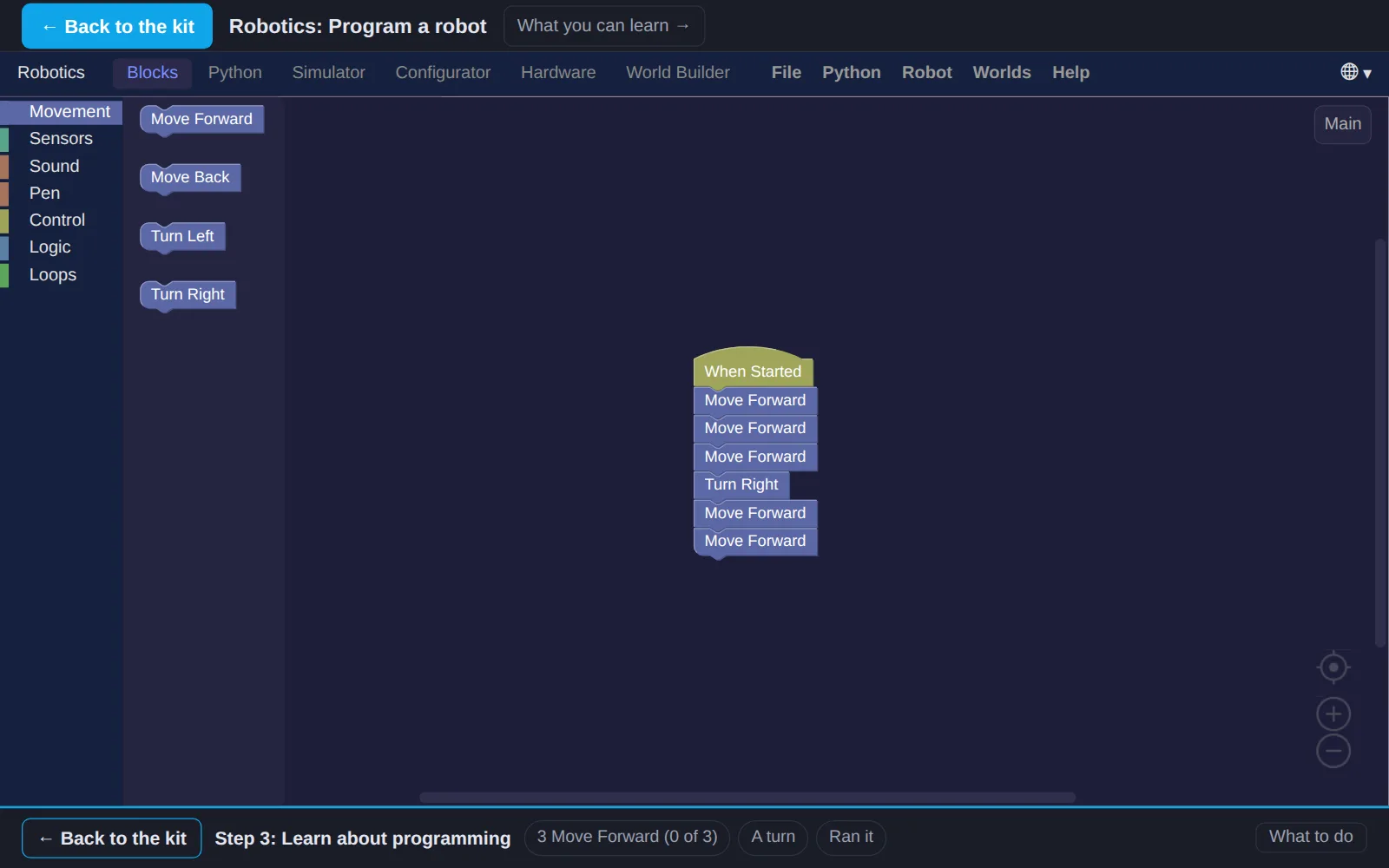
- 5Write a program for a robotIn RoboticsProgram a robot vacuum. It starts on its charger, the blue square, cleans the room in rows, and drives back to charge. A loop keeps the program short.
Work on a computer. The apps need a keyboard and a bigger screen than a phone: a laptop, desktop or Chromebook. You can pay here and open the emailed link on the computer.
One learner
Unlock the kit, $5
- All 5 steps, worked on screen, with a lesson you can print if you like paper
- Robotics activities that check the work as it is done
- A numbered certificate with a page of the learner's own work: your switch notes, your algorithm and your robot programs
Have a discount code?
Co-ops and classes: unlock it for a group
One payment and one code. Each learner types the code to unlock the kit on their own computer, and gets their own certificate at the end. Your pack page shows who has started and finished.
See a sample certificate (PDF) · Already paid? Find your link