miniPaint
miniPaint is a free, open-source image editor that runs in the browser. It has the parts of a photo editor people actually use: layers, selections, brushes, text, shapes, color corrections and dozens of effects. It opens on a poster for a club star party, built from separate layers for the sky, the stars, the moon, the hills and each line of words. Hide a layer, recolor the moon, rewrite the title, and the rest of the poster stays where it was. Free, no account needed to try it.
Using this with a class? Make a free class and add your students yourself: each gets a username and password, with no email or Google account needed. Or give them one join code. Using Google Classroom? Post the link there; with a free class, the link also puts each student in your class, so you see their work. mytekDev is also available from the Google Workspace Marketplace, so your school's Google admin can install it for everyone.A first lesson: Everyone gets the same star party poster and twenty minutes to turn it into a poster for a real event at school, keeping at least three of the original layers, then explains which layers they changed, added or hid.
Set up a free class Share to Google ClassroomWhat a student actually does
They click the eye beside Moon in the Layers panel and the moon disappears while everything else stays put, then click it again. They pick the Title layer, press Edit text... and type the name of their own event. They drag the moon to a new spot with the select tool, type a new width in Layer details, then open its Fill color and slide the hue until the moon turns orange. Ctrl+Z takes back any step, and Ctrl+Y puts it back.
From there it is a full image editor. File, Open brings in a picture from the computer as a new layer, and the tools on the left draw with a brush or pencil, erase, fill, select a rectangle or ellipse, add text, shapes and gradients, clone, crop, blur and sharpen. The Image menu has resize, rotate, flip, color corrections and a histogram, and the Effects menu has filters such as grayscale, sepia, blur, mosaic, oil painting and vignette. With a free account the work saves as a project with every layer kept, and File, Export saves a flat PNG, JPG, WEBP or BMP picture into the student's files.
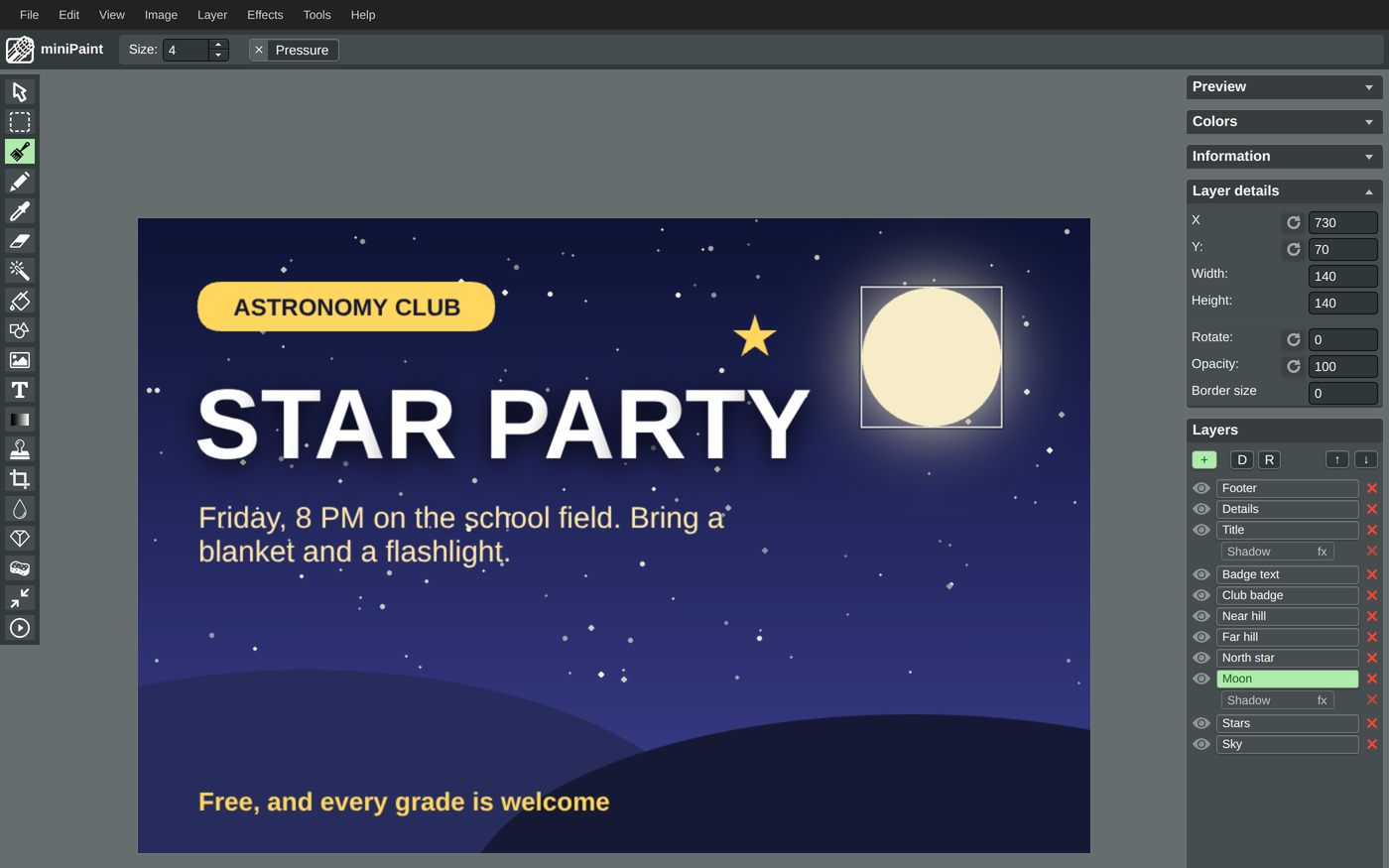
The moon is a plain circle. The glow is a Shadow filter, listed under the layer like a note attached to it: the circle underneath is untouched, so the glow can be changed or deleted at any time. Layer details shows what the moon really is to the computer, a position, a size and a color, which is why it can be moved and resized without getting blurry.
What they are learning while they play
Nothing here is presented as a lesson. This is what the activity is made of.
| What the student does | What it is |
|---|---|
| Hides the Moon layer with the eye button | Layers. A picture can be built from separate sheets stacked on top of each other. Changing one sheet leaves the others alone. |
| Moves the Title layer up or down with Layer, Move | Stacking order. The layer higher in the list is drawn on top. The same shapes in a different order make a different picture. |
| Applies an Instagram-style filter to the Stars layer | Pixels and raster images. The Stars layer is a grid of colored dots, so pixel effects work on it. The moon and the words are stored as shapes and text, and Layer, Convert to Raster turns them into pixels. |
| Halves the poster with Image, Resize | Resolution. Shapes and text are redrawn sharp at any size. A picture made of pixels has to throw some away to shrink, and cannot get them back. |
| Slides the R, G, B and H, S, L sliders in the Colors panel | Color models. A color on a screen is three numbers. RGB says how much red, green and blue light; HSL says which hue, how strong and how light. The hex code is the RGB numbers written short. |
| Draws a box with the selection tool on the Stars layer and presses Delete | Selection. A selection limits a change to one part of a layer. Everything outside the box is protected. |
| Adds Grayscale from Common Filters, then deletes it | Non-destructive editing. A filter that sits on top of a layer can be removed later. An effect that rewrites the pixels can only be undone. |
| Exports a JPG at quality 90 and again at 20, watching File size | Compression and file formats. JPG makes files smaller by throwing away detail the eye barely notices, and more at lower quality. PNG keeps every pixel exactly, so it is larger. |
How to tell whether it landed
Ask, and let them show you. A student who has understood it can answer these without help.
- Why did nothing else change when you hid the moon?
- The title is hidden behind something. What would you change to bring it to the front?
- Which layer on this poster is made of pixels, and how can you tell?
- You want the moon black and white but the stars still colored. How would you do it?
- Why would you send a JPG to a friend but keep a PNG of a logo?
Use it in your subject
Not a technology class? Then the app is how students show what they learned in your unit. More projects for every subject.
Art and design
Design a poster for a real school event with a clear order of reading: what the eye sees first, second and third, and which layer does each job.
Computer science
Export the same picture as PNG and as JPG at three quality settings, record the file sizes in a table, and explain where the bytes went.
Science
Use the RGB sliders to mix screen colors from red, green and blue light, and compare the results with mixing paint.
Practical notes
- AgesAges 9 through high school. Younger students hide layers, recolor and rewrite the poster; older ones build their own layered designs, edit photos and compare file formats.
- TimeA minute to the first change. A poster of their own takes thirty to sixty minutes.
- EquipmentA computer or Chromebook with a modern browser and a mouse or trackpad. Nothing to install.
- CostFree. The app has no paid tier.
- PrepNone. Open the page and go. Reading this page first takes about three minutes.
- In a groupEveryone can start from the same poster, so a whole class works from one shared starting point and compares what each student changed.
For co-ops, microschools, and classrooms
Hand everyone the same poster and the same brief. The posters that come back look different, but every one is made of named layers, so a student can point at the exact layer that does each job and explain what they changed, which makes the thinking easy to see and easy to check.
- Layers, selections, text, shapes, color corrections and dozens of effects.
- Projects save with every layer kept, so work can continue another day.
- Exports PNG, JPG, WEBP or BMP pictures into the student's files.
- No install, no per-seat license. Student work is private by default.
Common questions
Is this the original miniPaint?
It is miniPaint, the free and open-source image editor by ViliusL and its contributors, used under the MIT license. This is our hosted copy, not the official miniPaint site. The editing tools are miniPaint's own. Our build adds saving each picture to a free account as a project with every layer kept, a preview in the student's project list, and exported pictures that go into the student's files instead of only the downloads folder.
Do I need to download anything?
No. It runs in the browser on Chromebooks, Windows, Mac and Linux, with nothing to install. Pictures from the computer open with File, Open.
Is it only for students?
No. It is a full image editor for anyone. Much of this page is written for teachers and parents because many of the people who use it are students.
Is it a free Photoshop alternative?
For everyday work, yes: layers, selections, text, color corrections and filters cover most of what students and many adults use a photo editor for. It is not a match for professional tools in depth, and it works on one picture at a time in the browser.
Is it free?
Yes. It runs in your browser and there is no paid tier. A free account adds saving and keeping exported pictures, but nothing on this page is behind a paywall.
Does my child need an account to try it?
No. The demo on this page is the complete app with the poster loaded. Saving the project and keeping exported pictures in their files need a free account, and the poster they changed comes with them as their first project.
What ages is it for?
Ages 9 through high school. Hiding layers and changing words works for younger students; photo editing, selections and comparing file formats suit older ones.
Is their work public?
No. Projects are private by default. A student can choose to share a picture, and in a class the teacher can see students' projects.
What subject can I log this as?
Most families log it as art or computer science. Layout and color are art and design, and pixels, resolution, color models and file compression are computer science. The table above lists specifically what is covered, so you can pick the label your records need and point at the evidence.
Still have a question? Ask us, and a person will write back.
Where to go next
Start with miniPaint
Trying it costs nothing and takes about five minutes. An account is what makes the work last.
miniPaint is one of the making apps on the platform. It is a place to make things, not a course, and it is not a substitute for a teacher: it is at its best when an adult asks the questions above and takes the answers seriously.
miniPaint is by ViliusL and contributors, used under the MIT license. Source.
Page last reviewed October 2026.
Google, Google Classroom and Chromebook are trademarks of Google LLC.