Operating system simulators: computer history your students can boot
Reading about the history of operating systems is not the same as using one. Here students boot nine of them in a browser tab, in order: a 1972 teletype that prints on paper, a Commodore 64 that starts at READY, MS-DOS, Windows 3.1, 98 and XP, a black and white Macintosh, and a modern desktop. In one class period they see the command line, the mouse, windows and the Start menu arrive, and they find out what never changed. Free, it runs on Chromebooks, and no account is needed to boot them.
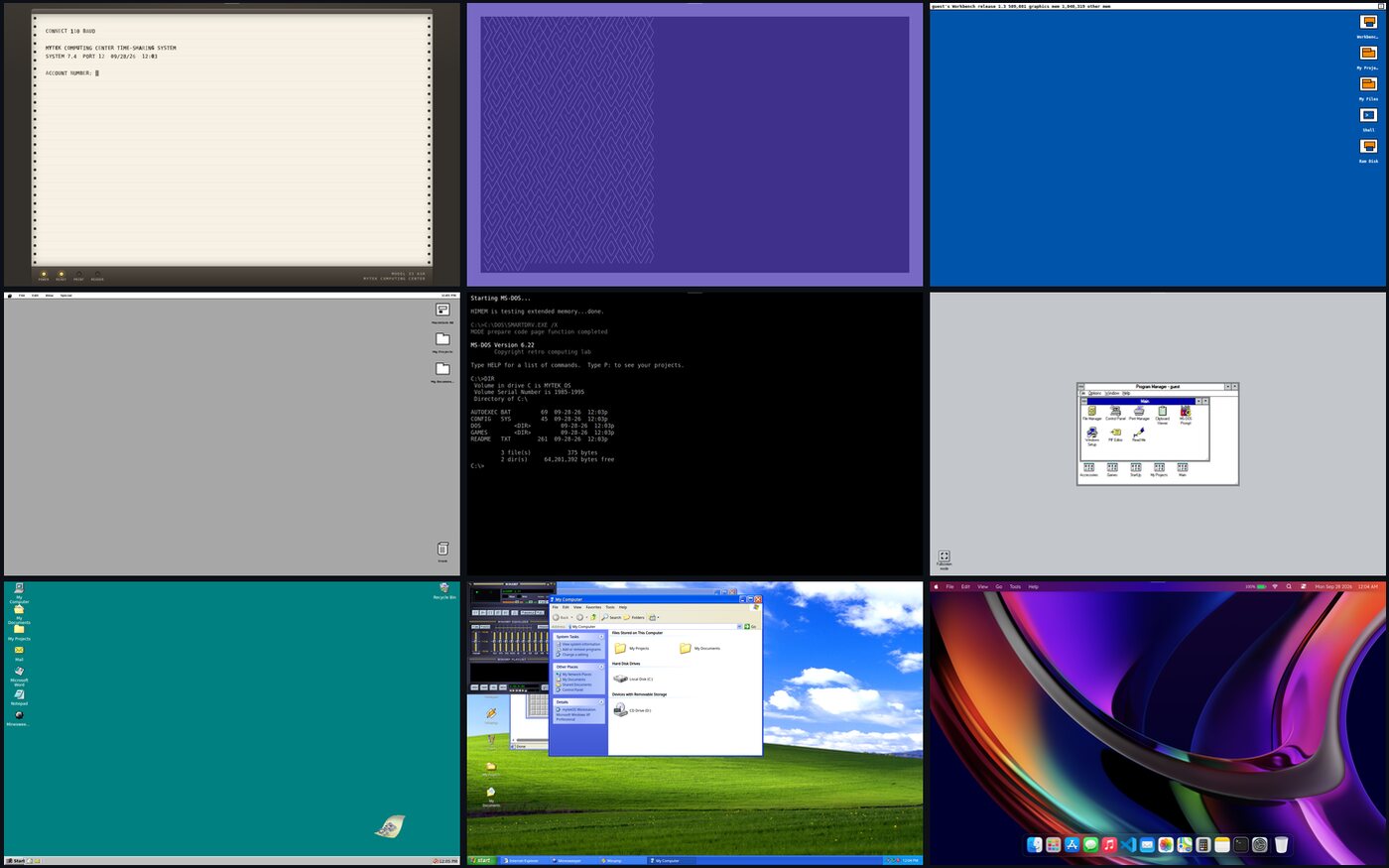
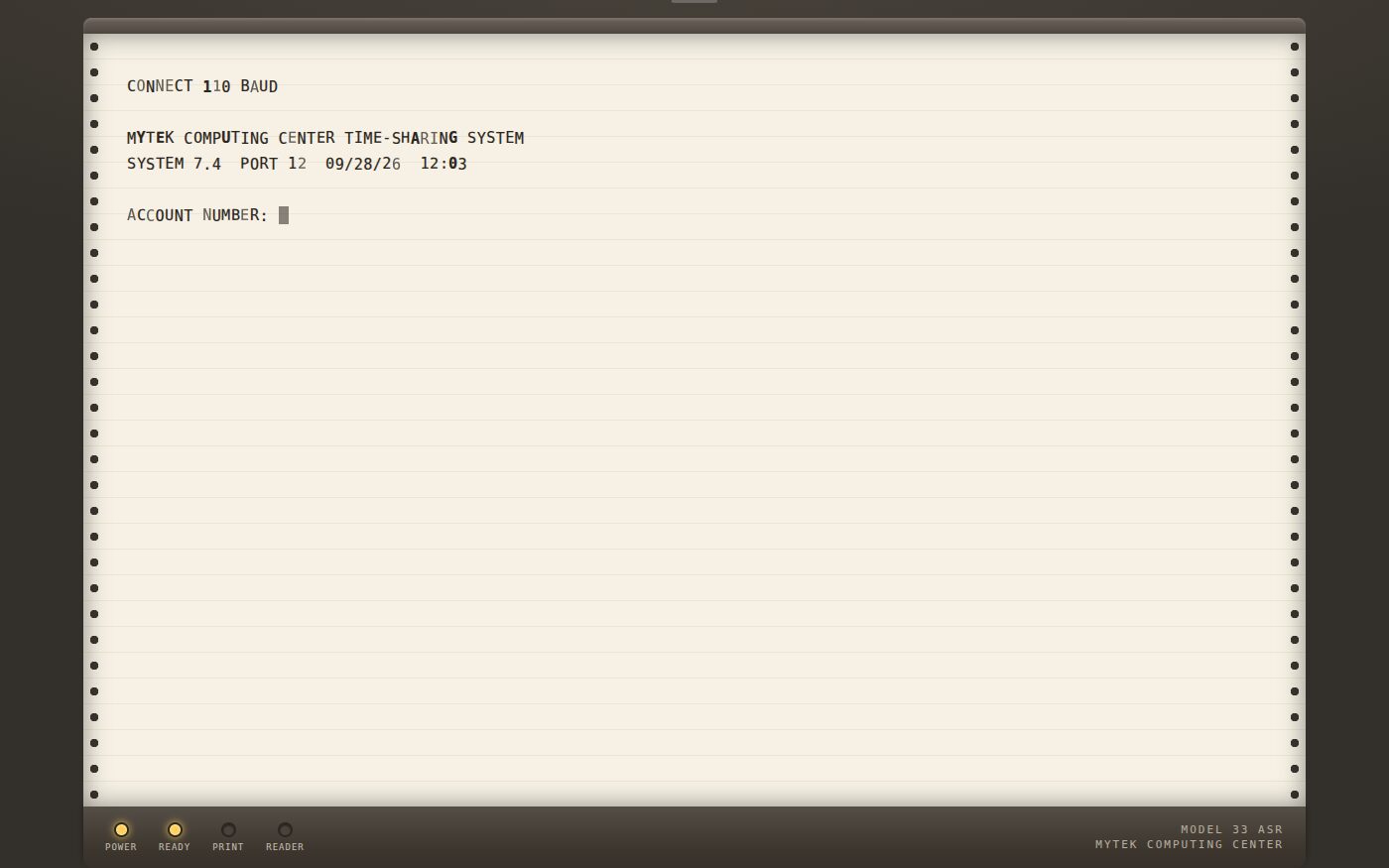

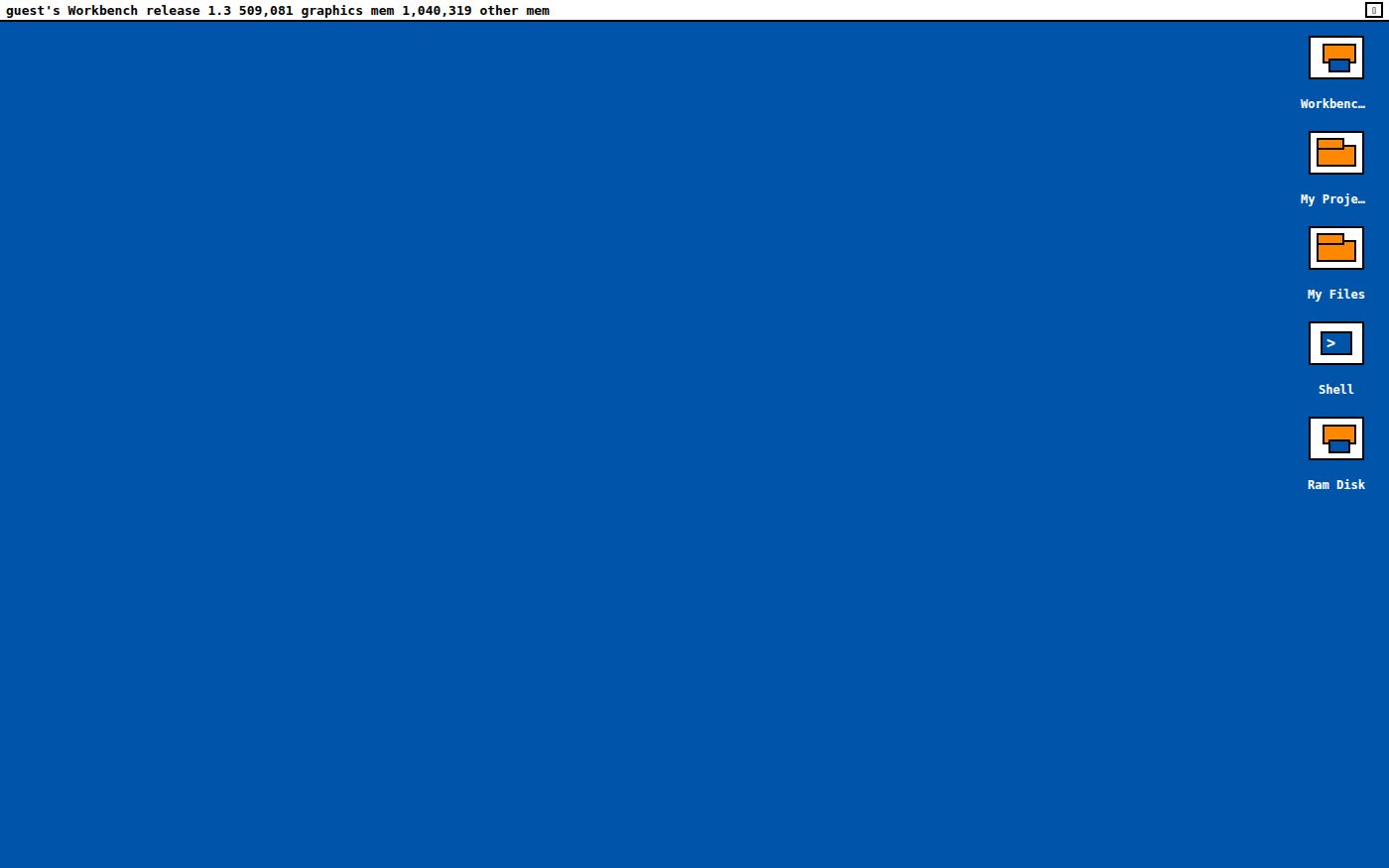
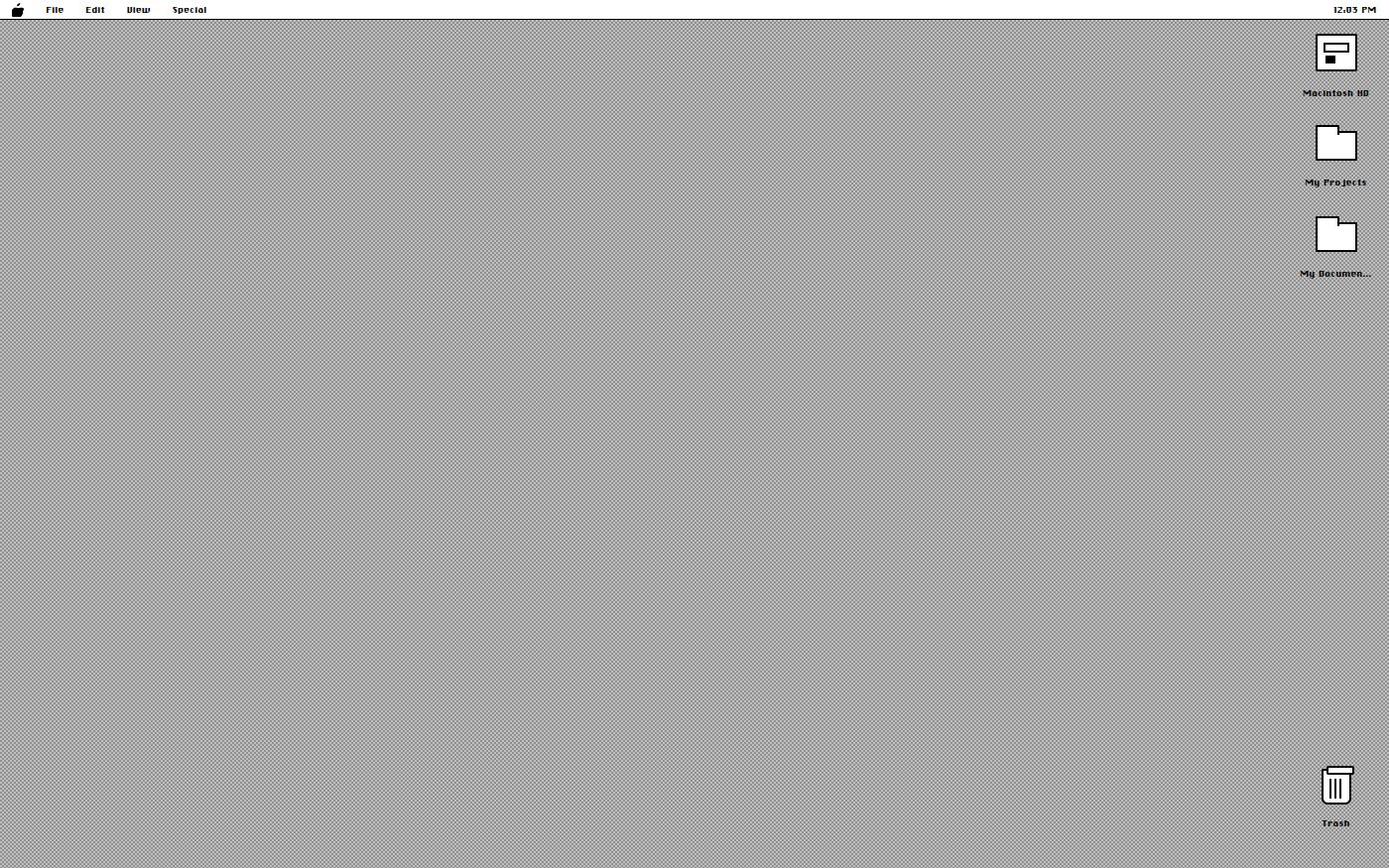
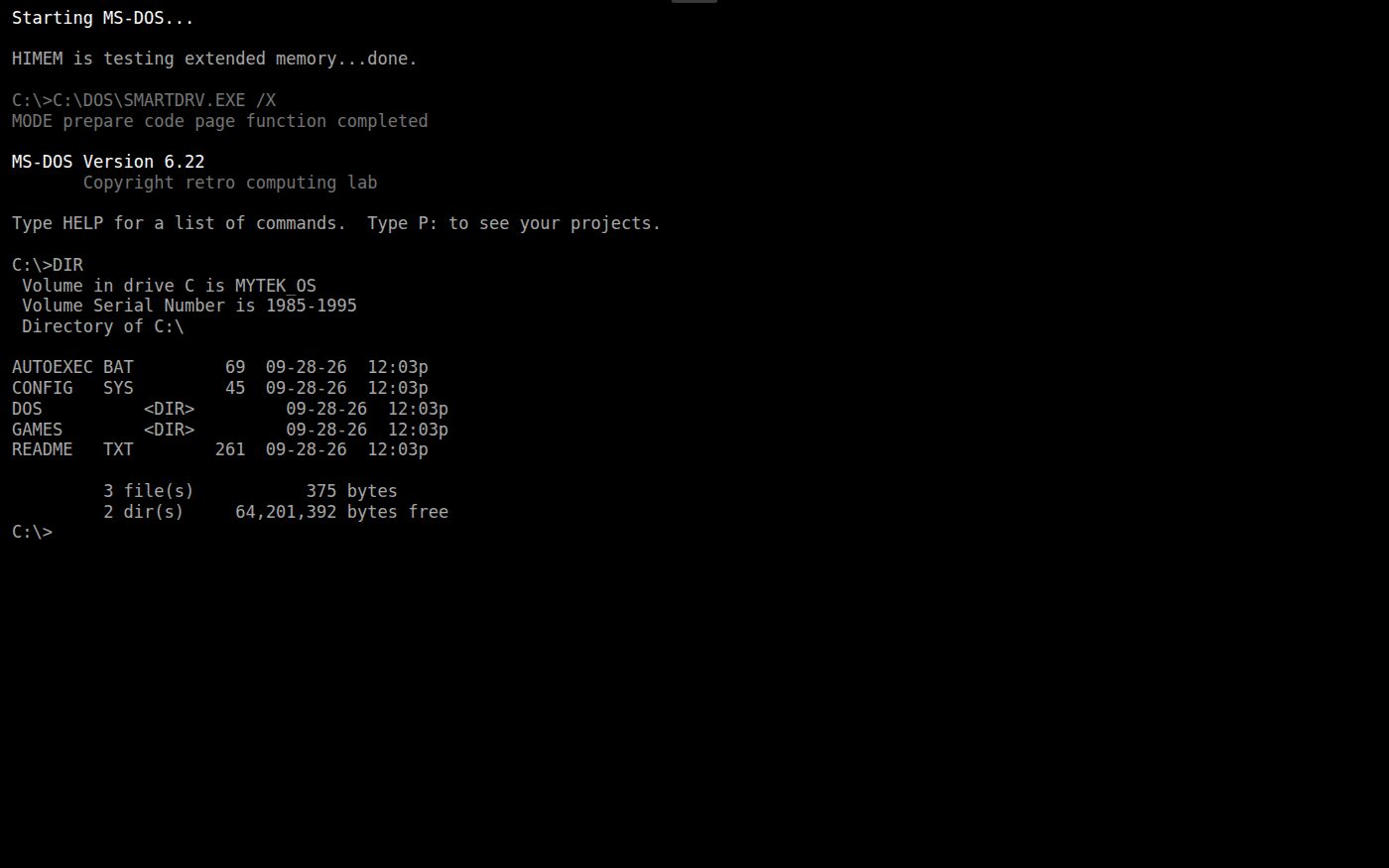
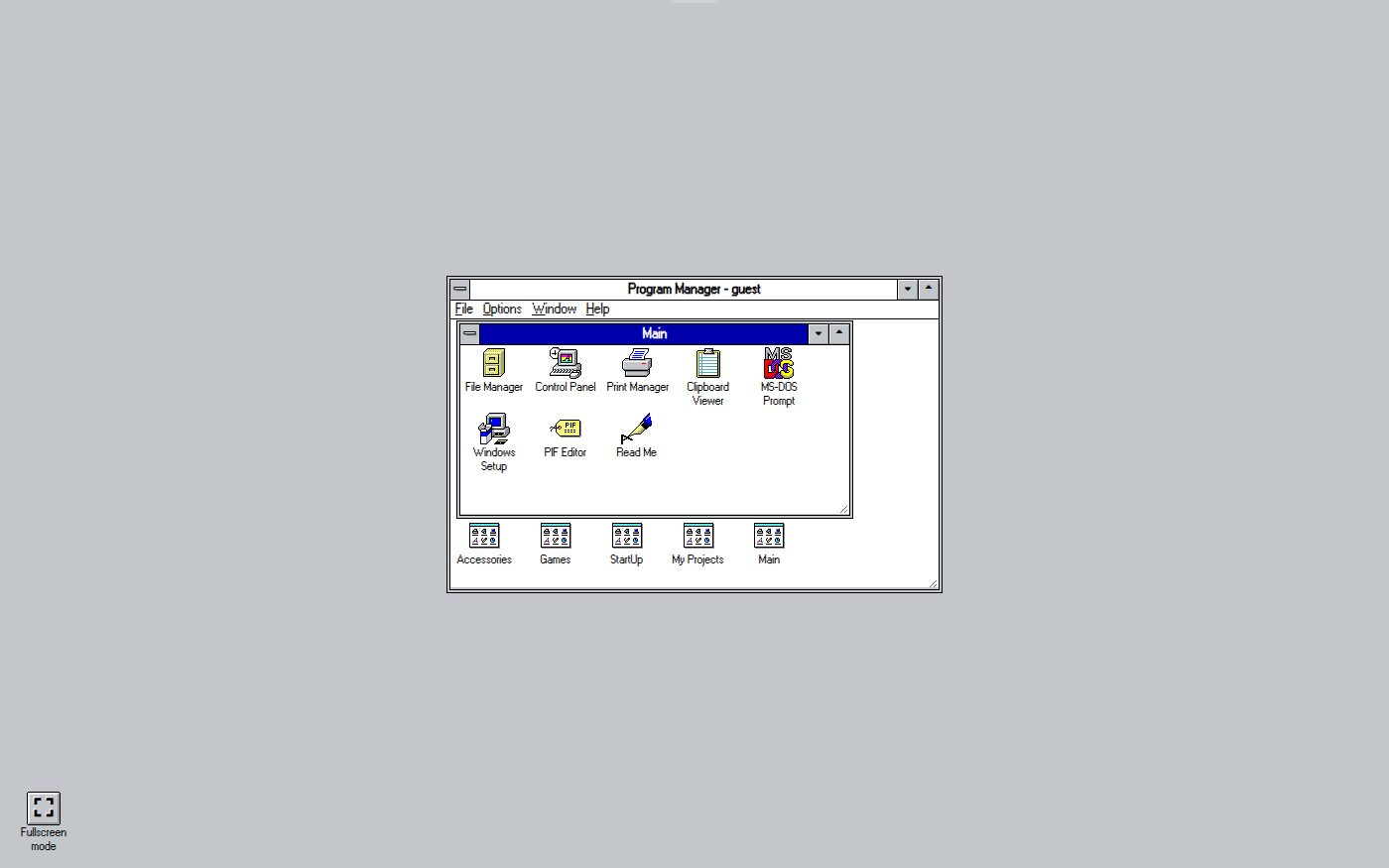
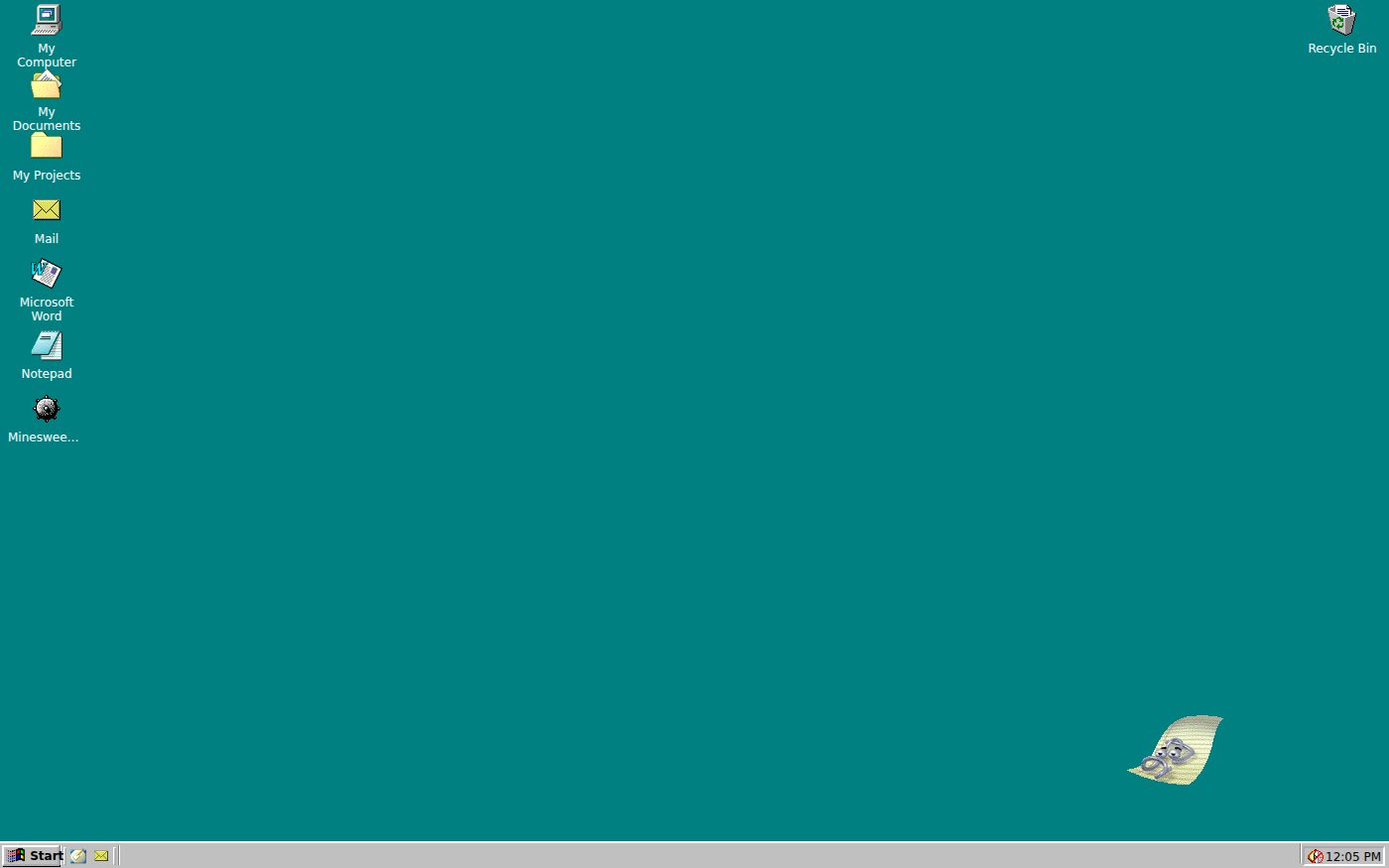
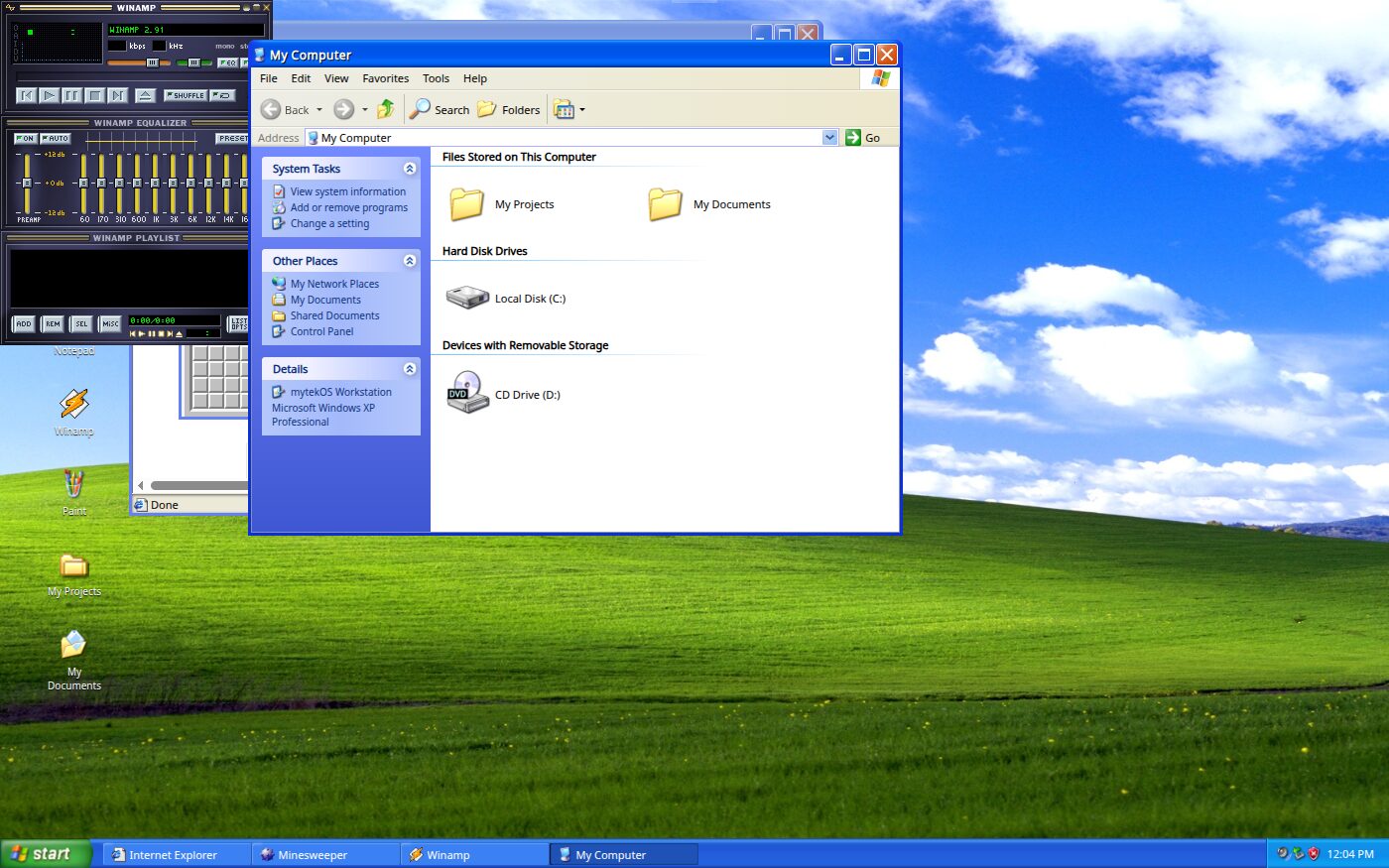
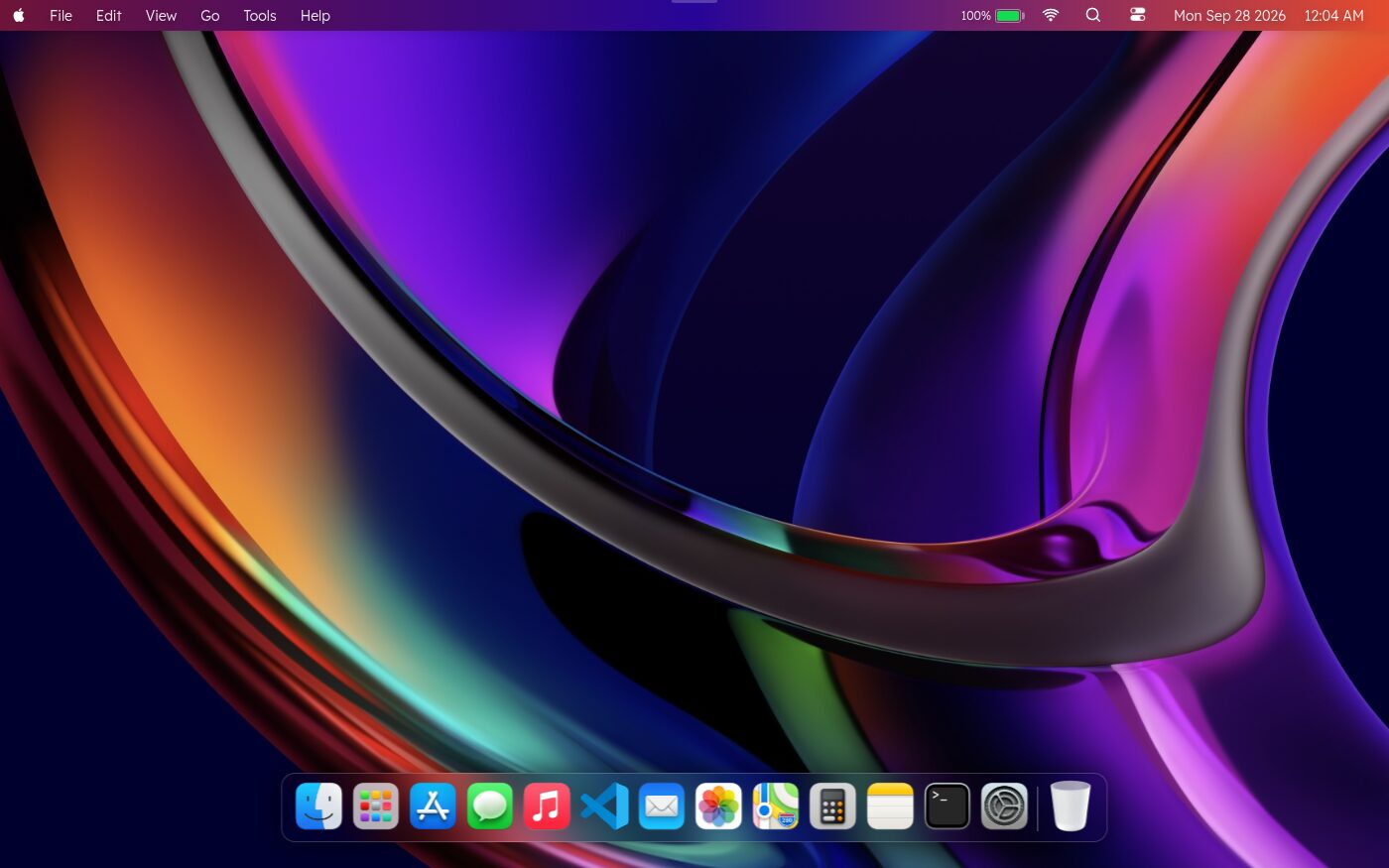
Screenshots taken as a visitor with no account. Click a picture or Boot it to start that machine in this tab. To come back, pause at the top edge of the screen or press Ctrl+Shift+X.
Using this with a class? Make a free class and add your students yourself: each gets a username and password, with no email or Google account needed. Or give them one join code.A first lesson: Pairs boot two machines at least ten years apart and write down three things that changed and one that did not. The class puts every pair's list on one timeline.
Set up a free classWhat a student actually does
They boot the machines in order and use each one the way people did. On the teletype they type and watch it print, and they find out that ink cannot be deleted. On the Commodore 64 they load a one-line program and run it. In MS-DOS they type DIR and CD to find a game, because there is nothing to click. In Windows 3.1 they meet windows on top of DOS, in Windows 98 the Start menu and the taskbar, and in Windows XP the desktop most of their parents grew up with.
Then they compare. What does a user have to know to open a file on each machine? Where did the command line go, and why does every modern computer still have one? A guided reading, Forty Years of Computers, walks through the same machines with one thing to try on each. With a free account, students also see their own projects on every machine, and a drawing they save in Paint on Windows XP lands in their own files.
What they are learning while they play
Nothing here is presented as a lesson. This is what the activity is made of.
| What the student does | What it is |
|---|---|
| Types on the teletype and watches it print | Time-sharing. One big computer shared by many users, each renting a few minutes through a terminal. |
| Runs a program from the READY prompt | The home computer. The computer on the desk, programmed by its owner, with no apps and no menus. |
| Finds a game with DIR and CD in MS-DOS | The command line. Paths, directories and commands typed by name. The same ideas are in every terminal today. |
| Opens a folder on the Macintosh | The desktop metaphor. Files, folders, a trash can and a menu bar, borrowed from an office desk. |
| Starts Windows 3.1 from DOS | An interface on top of a system. A graphical layer can sit on top of an older system, and fall back to it. |
| Uses the Start menu and the taskbar in Windows 98 | Multitasking you can see. Several programs open at once, with a place to switch between them. |
| Finds the terminal on the modern desktop | What stayed. The command line never left. Admins and programmers use it every day. |
How to tell whether it landed
Ask, and let them show you. A student who has understood it can answer these without help.
- On the teletype you could not delete a mistake. Why not, and how did people work around it?
- How do you open a file in MS-DOS, and how do you open one on the Macintosh? What did a user need to know for each?
- Windows 3.1 started from the DOS prompt. What does that tell you about how it was built?
- Name one thing that appears on every machine from the Macintosh onward.
- Every modern computer still has a command line. Why has it lasted when so much else changed?
Practical notes
- AgesAges 10 through high school, and college introductions to computing and operating systems. Younger students tour and compare; older ones connect each machine to the ideas in an operating systems course.
- TimeOne class period for the tour. Each machine is worth five minutes; the Commodore 64 and MS-DOS reward more.
- EquipmentAny computer or Chromebook with a modern browser and a keyboard. Some machines take several seconds to start. Nothing to install.
- CostFree. No account is needed to boot the machines.
- PrepNone. Open this page and click Boot it. Reading this page first takes about four minutes.
- In a groupPairs work well: one drives, one writes down what changed.
For co-ops, microschools, and classrooms
Put the timeline on the board and give each pair two machines. Everyone boots, compares and reports back, and the class ends with one timeline of what changed and what did not. With a free class, students also see their own projects on every machine, which makes the point that an operating system is a way of getting at your work.
- Nine machines from 1972 to today, each opened with one click.
- No account needed to boot them; a free class adds each student's own projects and files.
- Students with accounts can boot any machine from the Linux terminal with commands like boot dos.
- A free teacher account covers up to 50 students, and student work is private by default.
Common questions
Is it free, and do students need an account?
It is free, and no account is needed to boot the machines from this page. A free account adds the student's own projects and files on every machine, and saving.
Are these the real operating systems?
No. They are recreations built for teaching, running in the browser. They look and behave like the originals in the ways that matter for the lesson: the prompts, the menus, the windows and the everyday programs. None of the original software is copied or distributed.
Will they run on our school Chromebooks?
Yes. Everything runs in a browser tab with nothing to install. Some machines, Windows XP especially, take several seconds to start.
How do students get back out of a machine?
Pause the mouse at the top edge of the screen and a Back link appears, or press Ctrl+Shift+X. Some machines also have their own way to shut down.
Is there a reading to go with it?
Yes. Forty Years of Computers is a guided page with the same machines in order, a short history of each, and one thing to try on each.
Can students start them from the terminal?
Yes. In the Linux terminal, boot teletype, boot c64, boot amiga, boot mac, boot dos, boot win31, boot win98, boot xp and boot macos each start a machine, and startx opens the Linux desktop. The free guest terminal can boot the machines too.
What subject can I log this as?
Computer science or information technology: operating systems, user interfaces and the history of computing. The table above lists what is covered, so you can point at the evidence.
Still have a question? Ask us, and a person will write back.
Where to go next
Start with Operating System Simulators
Everything on this page comes with a free account. A free class adds your students, each with a username and password and no email needed.
The operating system simulators are part of the platform, not separate products. They are at their best with a teacher who asks the questions above. Windows, MS-DOS, Mac, macOS, Commodore and Amiga are trademarks of their owners; these machines are recreations for teaching, not affiliated products.
Page last reviewed September 2026.