A Linux desktop, and forty years of computers before it
Students grow up with one kind of computer and assume it is the only kind. Here they get a Linux desktop with windows, a launcher, a file manager and a system monitor, and it shares its files with the terminal: a file written in nano appears in the file manager, and a file dragged to the trash is gone from ls. Then they type boot in the terminal and sit down at DOS, Windows 3.1, a classic Mac or a Commodore 64, and see where the desktop came from.
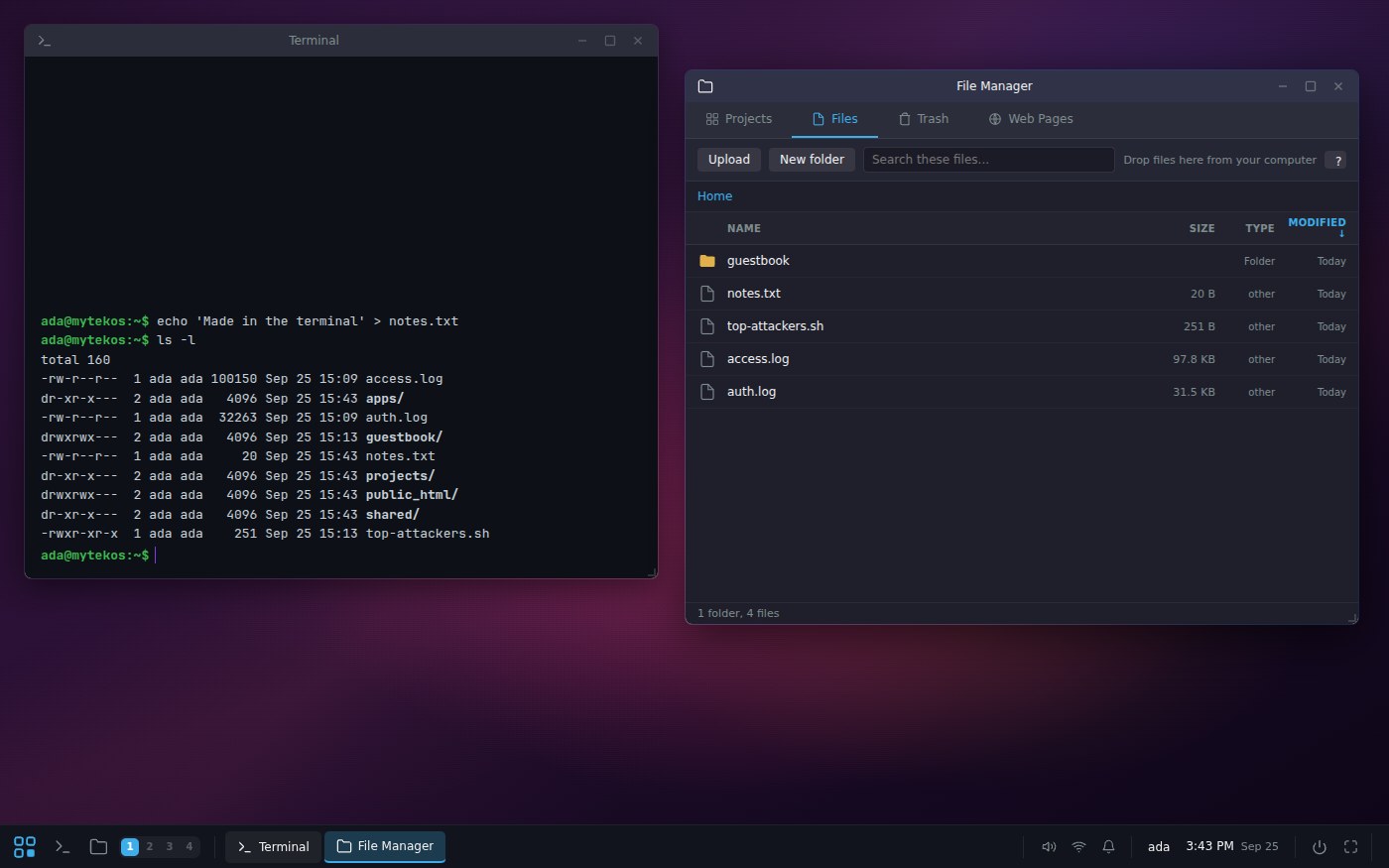
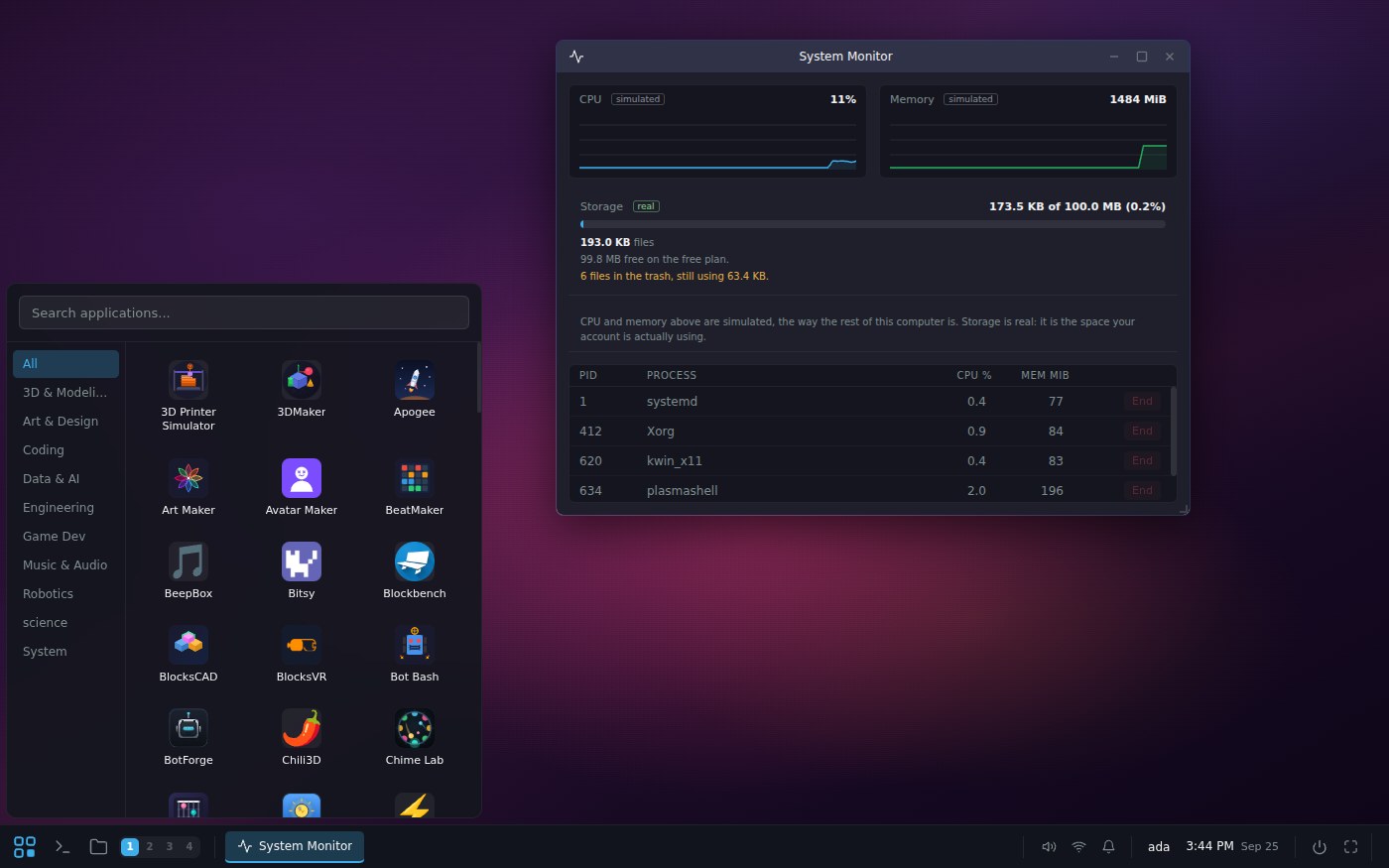
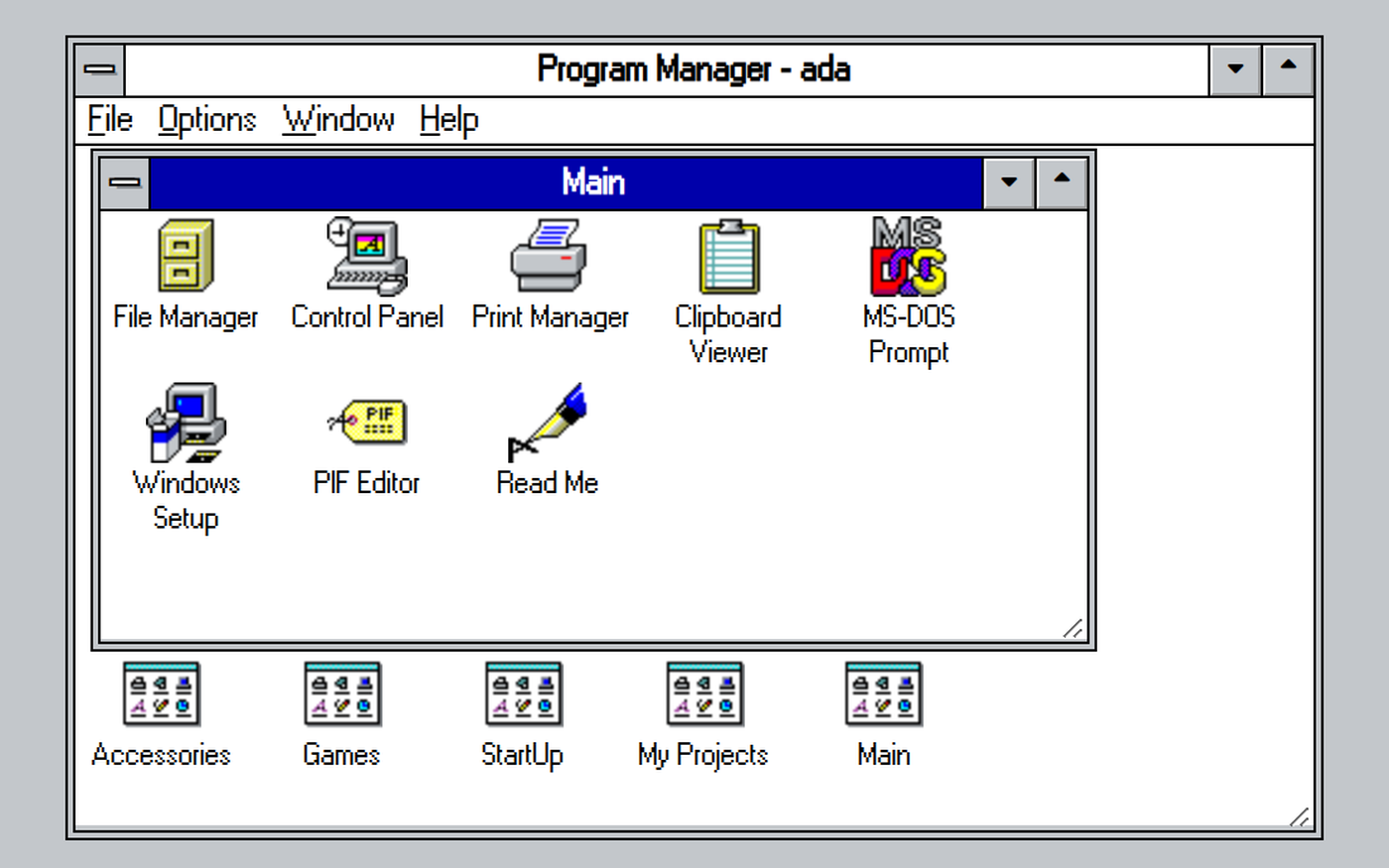
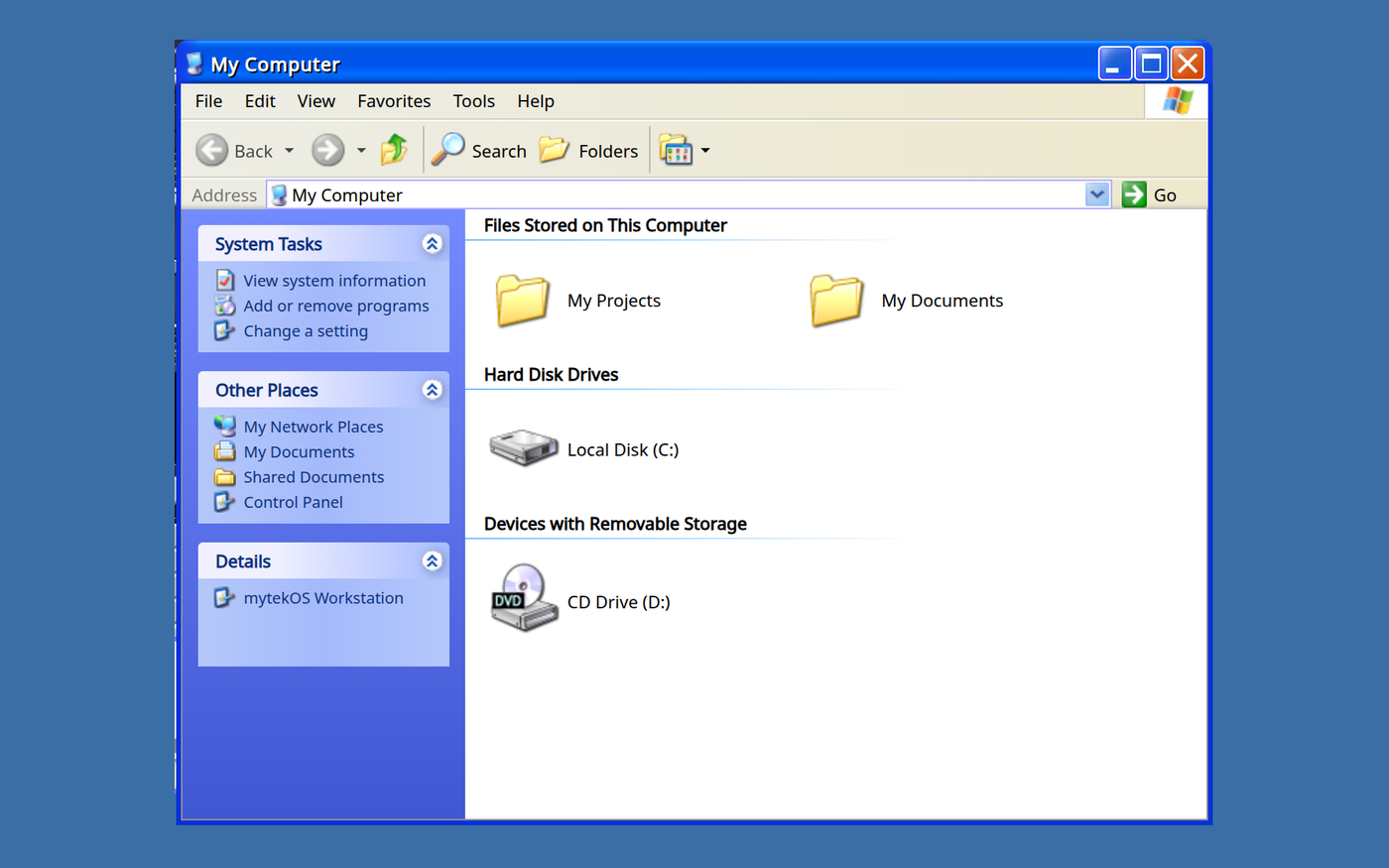
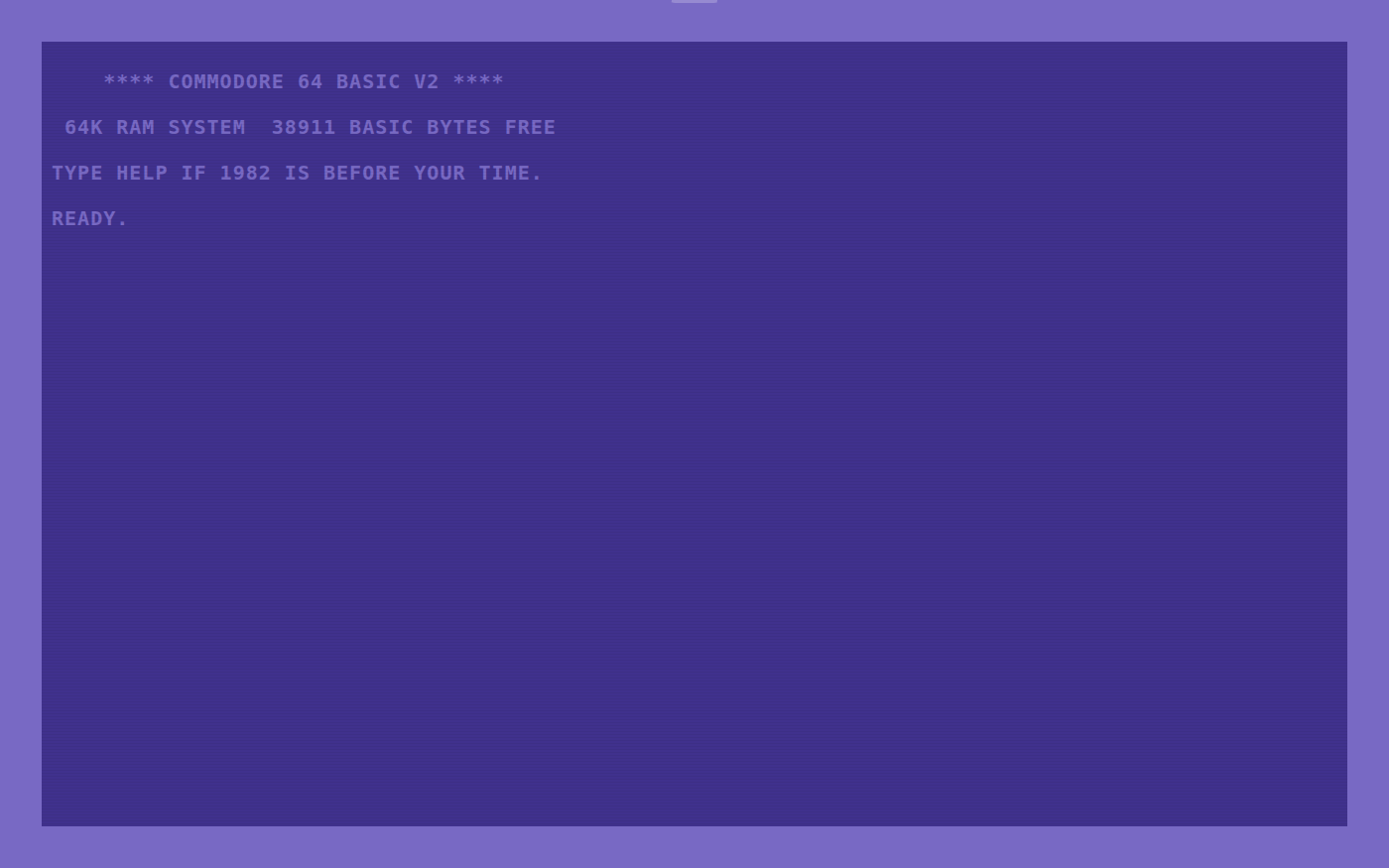
Screenshots from a showcase account. Click any picture to see it full size.
Using this with a class? Make a free class and add your students yourself: each gets a username and password, with no email or Google account needed. Or give them one join code.A first lesson: Everyone makes the same text file three ways, in the terminal, in the desktop's editor and in DOS, then explains why all three are the same file or why they are not.
Set up a free classWhat a student actually does
They type startx in the terminal and watch a boot log scroll by before a desktop appears. They open the file manager and find the files they made at the prompt, open a terminal window beside it, make a new file, and watch it appear. They drag windows to the screen edges to tile them, open the system monitor and see a process for every window, and set their own drawing as the wallpaper.
Then they go back in time. boot dos drops them at a C:\> prompt with their own files on a drive. boot win31 opens Program Manager, boot xp opens the desktop their parents remember, boot mac opens System 7, and boot c64 gives them a READY prompt and a blinking cursor. Each one is wired to the student's real projects, so the question of how computers used to work turns into something they can try.
Everything in it
The desktop
- Windows that move, resize, minimize, maximize and snap to screen edges
- A panel with a launcher, taskbar, clock, calendar and notifications
- A launcher with search, every platform app and the student's own published apps
- Open windows come back after a reload
Built-in programs
- File manager with projects, files, trash and web pages
- Terminal, text editor and calculator
- A web browser that opens the student's own site
- A system monitor with a process table and real storage use
One file system, two front ends
- The desktop and the terminal read and write the same files
- One trash for both
- Web pages saved in public_html are live at the student's own address
- Viewers for images, audio, video, PDFs, fonts and 3D models
Make it theirs
- Seven wallpapers, or any picture the student has made
- Clock format, panel position and transparency
- Desktop shortcuts and pinned apps
- Keyboard shortcuts for switching windows
Retro computers, from the terminal
- A teletype, a Commodore 64 and an Amiga
- MS-DOS 6.22, Windows 3.1, Windows 98 and Windows XP
- A classic Mac with System 7, and a modern macOS
- Each connected to the student's own projects and files
For the class
- The same desktop on every computer or Chromebook, nothing to install
- A parent or teacher can switch off the retro computers for a student
- Work saves to the student's account, not the machine
- A computer history timeline to go with the retro machines
What they are learning
| What the student does | What it is |
|---|---|
| Finds a terminal-made file in the file manager | Files and interfaces. A graphical desktop and a command line are two views of the same files. Neither one is the computer; both are ways to talk to it. |
| Watches the boot log after startx | What an operating system does. Before the desktop appears, programs start in order: the display server, the window manager, the panel. Each one is a process. |
| Opens the system monitor | Processes and resources. Every open program is a process with a number, using memory and processor time the operating system hands out. |
| Snaps windows side by side | The window manager. A program whose only job is deciding where windows go and which one is in front. |
| Saves a page to public_html | Local files versus the web. The same file becomes public once it sits where a web server looks. Where a file lives decides who can see it. |
| Boots DOS, then Windows 3.1, then XP | Computing history. Each interface grew out of the one before. The command line never went away; it moved behind the windows. |
How to tell whether it landed
Ask, and let them show you on the screen.
- You made a file in the terminal. Why is it in the file manager?
- Open three windows. How many new processes did the system monitor show, and why?
- What could you do in DOS that you still do today in the terminal?
- Why did computers get windows at all, if the command line could already do everything?
- Where would you put a page so the whole class could open it?
Practical notes
- AgesAges 9 through high school. Younger students explore the desktop and the retro machines; older ones connect it to processes, files and the terminal.
- TimeA first tour takes twenty minutes. The retro machines make a good one-period history lesson.
- EquipmentAny computer or Chromebook with a current browser. A mouse helps. Nothing to install.
- CostFree with an account. A free class holds up to 50 students.
- PrepMake a free class and add your students.
- In a groupEveryone gets the same desktop on whatever machine they have, which makes it easy to teach from the front.
For computer literacy, IT and computer science classes
Chromebooks hide the operating system, and school computers are locked down so students cannot see how anything works. This desktop gives every student one they can open up, with the terminal underneath and forty years of computers a single command away.
- A full Linux-style desktop, the same on every device.
- Shared files with the terminal, so the idea of a file system is something they can see.
- Retro machines from a teletype to Windows XP, each wired to the student's own work.
- No install, no per-seat license. Student work is private by default.
Common questions
Is this a real operating system?
No. It is a desktop built for the browser that behaves like a Linux desktop, sharing its files with a simulated Linux terminal. That is what makes it safe to give every student, and the same on every computer.
Are the retro computers real?
They recreate each system's look and way of working in the browser, connected to the student's own files, so the point is to use them, not to install old software.
Is it free?
Yes. It comes with a free account, and a free teacher account holds a class of up to 50 students.
Can I turn the retro computers off?
Yes. A parent or teacher can switch them off for a student, and the terminal will not open them.
What ages is it for?
It works from about age 9. Younger students explore; older students connect what they see to files, processes and the terminal.
What subject can I log this as?
Most schools log it as computer science, computer literacy or technology. The retro machines fit a history of computing unit.
Where to go next
Start with Linux Desktop
Everything on this page comes with a free account. A free class adds your students, each with a username and password and no email needed.
The Linux Desktop is part of the platform, not a separate product. It is at its best with a teacher who asks the questions above. Windows, Mac and Commodore are trademarks of their owners; the retro machines are recreations for teaching, not affiliated products.
Page last reviewed September 2026.