Free Linux and operating systems activities for your class
An operating systems course usually needs a lab: machines to image, virtual machines that will not start on a Chromebook, and a student who deletes something important in the wrong folder. Here every student gets a Linux terminal and a Linux desktop in a browser tab, sharing the same files, plus short walkthroughs of what an operating system actually does with memory, processes and files. It is grouped the way an introductory OS or Linux course runs, and each activity has a line on what it is good for in class.
Click any picture to see it full size.
What an operating system does
The ideas under everything else: the layers, memory, the scheduler, and how we got here.
The first lesson: the layers from apps to kernel to hardware, and how one CPU juggles many processes.
The OS is the program that runs every other program. Explore the layer cake (apps, kernel, hardware), how the scheduler juggles many processes on one CPU, why virtual memory and files are useful illusions, and the family tree of Linux, macOS, Windows, and friends.
Guided walkthrough · 3-5 min How Memory WorksRAM, cache and storage, and why the difference matters for speed.
RAM, cache, and storage - understand where your computer keeps things.
Guided walkthrough · 3-5 min The Language of BinaryBits and bytes, for students who need it before memory and permissions make sense.
How computers think in 1s and 0s - and how you can too.
Guided walkthrough · 3-5 min How Compression WorksWhat a file really is, and how the same information fits in less space.
Make files smaller without losing information - the magic of compression algorithms.
Interactive Forty Years of ComputersBoot machines from a 1972 teletype to a modern desktop and watch the same ideas get reinvented.
From a 1972 teletype that printed on paper to the desktop you use now. Boot each machine, open your own projects on it, and watch the same ideas get reinvented over and over.
Free app, no account PC WorkshopThe hardware the OS manages: build a PC, boot it, open the BIOS and install an operating system on the drive you fitted.
Pick the parts to a budget, build the machine, press the power button.
The command line
From the first ls to pipes, redirects and processes.
What Linux is and where it runs: the kernel, the file system and the shell, with a terminal to try.
Discover what Linux is, where it runs, and why it matters. Explore the kernel, filesystem, and shell through interactive diagrams, then try real commands in an embedded terminal.
Guided walkthrough · 3-5 min Command Line Basics: Master the TerminalThe handful of commands every later lesson assumes.
Learn the essential commands that power every computer.
Guided walkthrough · 8 min Terminal Recipes: Hands-On PracticeGuided practice beside a live terminal. Good for a lab day.
Practice real terminal workflows with guided recipes alongside a live terminal.
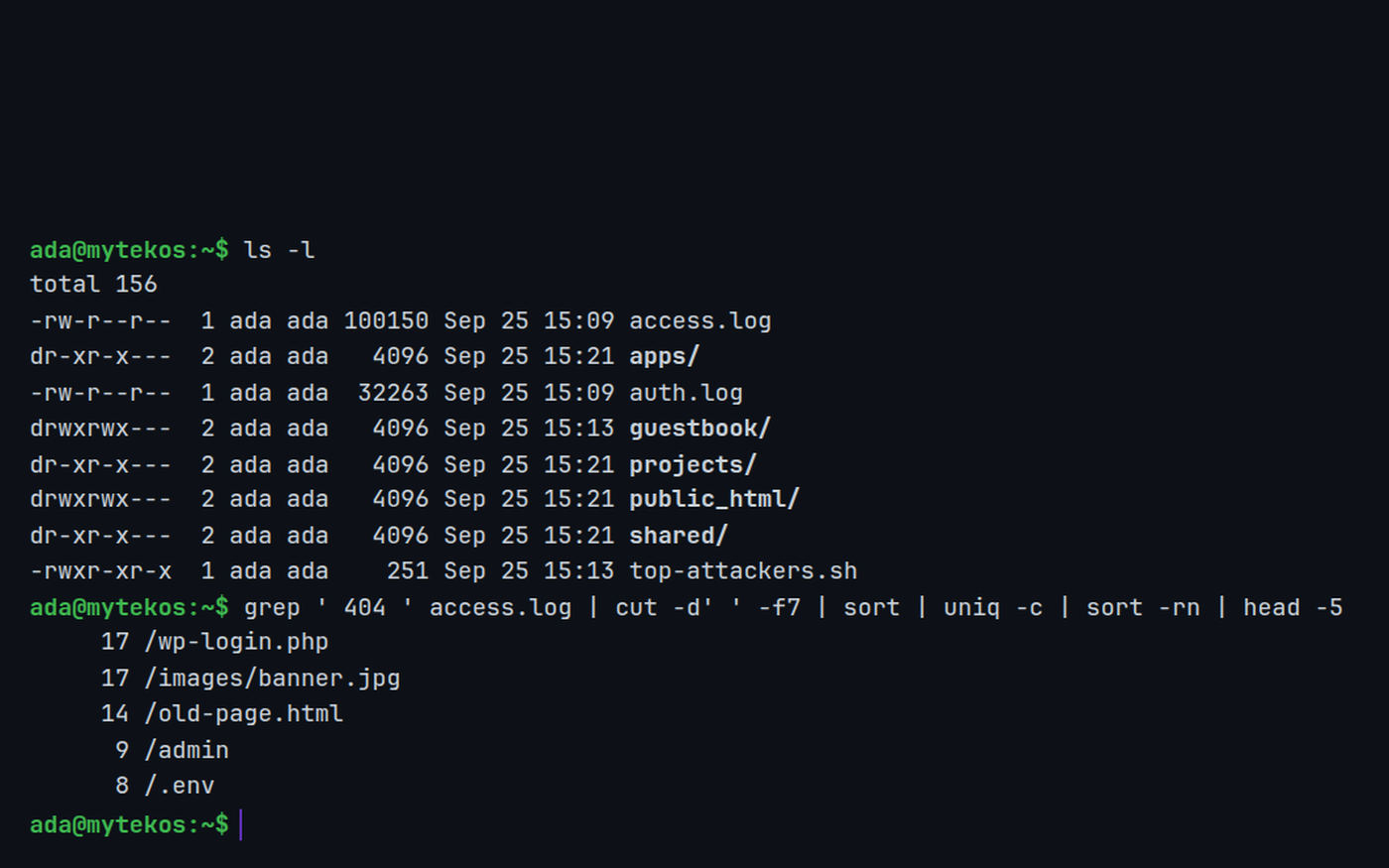
Guided walkthrough · 5-8 min Terminal Power User: Pipes, Redirects & ProcessesPipes, redirects, sort and uniq, and watching processes with top.
Master the pipe operator, redirect output to files, wrangle data with sort and uniq, and monitor processes with top. Level up from beginner to power user.
Guided walkthrough · 5-7 min Coding in the TerminalWrite and run Python, JavaScript, C++ and more from the prompt, the way it is done on a server.
Learn to write and run code in Python, JavaScript, Lua, C++, Ruby, TypeScript, PHP, Scheme, and BASIC right from the terminal.
Free account Linux TerminalEach student's own terminal for the whole course: 170 commands, bash scripts, nano and vim, cron, git.
A real command line, with a filesystem and logs, in a browser tab.
Files, users and permissions
How an operating system decides who can read, write and run what.
Have students predict from ls -l who can read a file, then check the answer here.
Click rwx boxes, watch the octal update live. Run users at the file and see who gets allowed or denied.
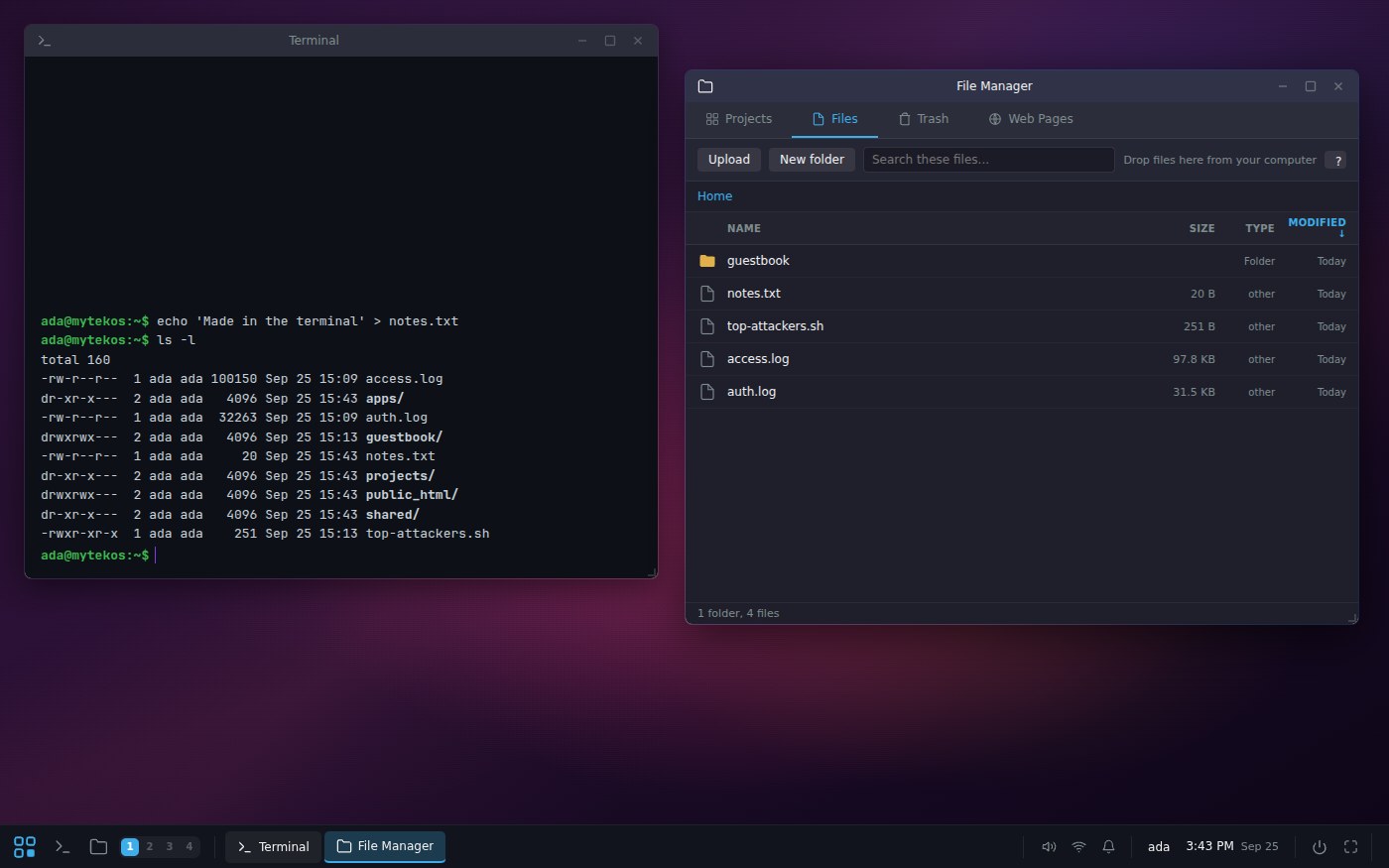
Free account Linux DesktopThe same files seen two ways: a file manager and a terminal on one file system, plus the retro systems to compare.
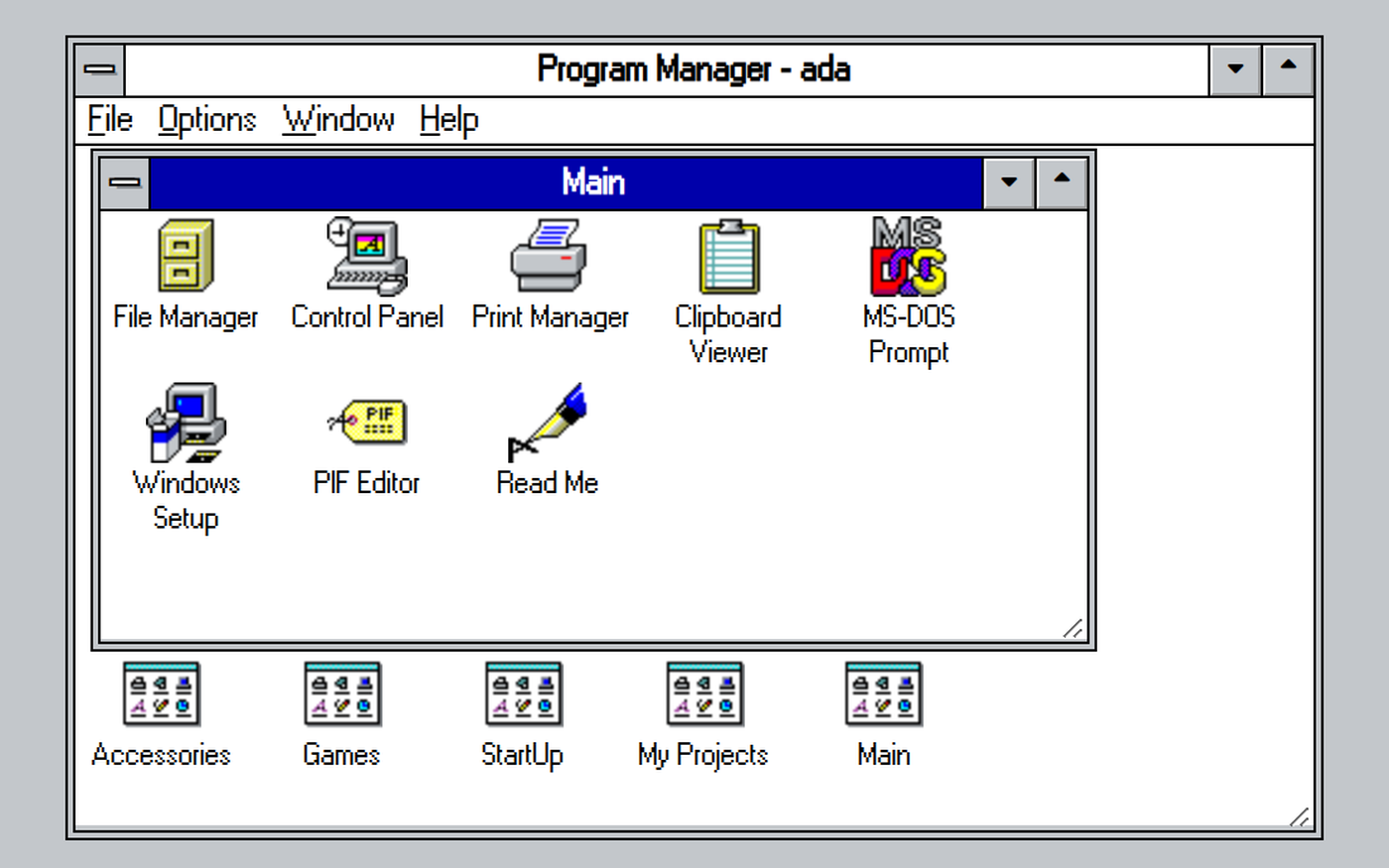
A Plasma-style desktop that shares its files with the terminal, plus retro machines from a teletype to Windows XP. Free for classes.
Free account System Design LabReal users, groups and sudo on each student's own server, with apt and systemctl.
Servers, websites, databases, load balancers, DNS and a class network, in a browser tab. Free for classes.
Servers, services and logs
The operating system at work: running services, writing logs, and recovering from mistakes.
What a server is, the services on it, and how virtual servers share one machine.
Send HTTP requests, explore server services (web/app/db/OS), and visualize virtual servers sharing physical hardware.
Guided walkthrough · 8-10 min Log Analysis: Reading the Server's StoryStudents read server logs with head, tail and grep, and find their own activity.
Explore actual server logs using head, tail, grep, and wc. Find your own activity hidden among hundreds of entries and learn how sysadmins debug problems.
Guided walkthrough · 5-8 min Monitoring: Is My Server Healthy?Watch CPU, memory and errors live, add load, crash the server and see the health checks respond.
Watch live server metrics (CPU, RAM, requests, errors), add load, crash the server, and see health checks respond in real time.
Guided walkthrough · 5-8 min Snapshots & Backups: Saving Your InfrastructureSnapshot a server, break it, restore it, and learn the 3-2-1 backup rule.
Take snapshots of a live server, break it, then restore. Learn the 3-2-1 backup rule and real-world disaster stories.
Using it with a class
The guided walkthroughs are short enough to open a lesson or to assign as homework. The terminal, the desktop and the servers need a free account, and a free class gives every student one without an email address. Nothing is installed, and nothing a student types can harm a real computer, so rm -rf in the wrong folder costs a laugh rather than a morning.
- Hand out a file to the whole class at once in the shared folder, and ask one question only a pipeline can answer in a line.
- Compare operating systems for real: have students do the same task on DOS, Windows 3.1 and the Linux desktop, and write down what the operating system did for them each time.
- Permissions as a puzzle: set a file to 640 and ask which users can read it, then check the answer with the Linux Permissions activity.
In short
These are free activities for Linux and operating systems courses in high school and introductory college: a simulated Linux terminal with more than 170 commands, a Linux desktop that shares its files with the terminal, interactive file permissions, guided walkthroughs on memory, processes and the scheduler, servers with logs and backups, and DOS, Windows 3.1, a classic Mac and Windows XP to boot and compare. They run in the browser on Chromebooks with no install.
Common questions
Is it a real Linux machine?
No, and that is on purpose. The terminal is a simulation that behaves like a Linux shell, with the same commands, options and error messages, but a student's files live in their account. Nothing typed can damage a computer, and there is nothing to install or reimage. System Design Lab adds each student's own server, with users, packages and services.
Do students need an account?
Not for the guided walkthroughs, the Linux Permissions activity or PC Workshop; those open in the browser with no sign-up. The terminal, the desktop and the servers need a free account, and a free class of up to 50 students needs no student email addresses.
What courses does this fit?
Introductory operating systems, Linux fundamentals, IT support and computer information systems courses in high school and college, and the command-line unit of an intro computer science course.
Will it run on school Chromebooks?
Yes. Everything runs in a browser tab, including the Linux desktop and the retro systems, with no virtual machines.
Still have a question? Ask us, and a person will write back.
Start with a free class
Everything above opens with no account. A free class adds your students, each with a username and password and no email needed, so their progress and the terminal work are kept.
Page last reviewed September 2026.