Free cybersecurity and networking activities for your class
Everything here runs in a browser tab: interactive tools where students drag a subnet slider or click permission boxes and watch the result, short guided walkthroughs that end in something to try, and a real Linux terminal with capture the flag challenges and certification practice. It is grouped the way an introductory course runs, from how a packet travels to what to do when an alert goes off, and each activity has a line on what it is good for in class. Most of it opens with no account, so you can try any of it before a lesson.
Click any picture to see it full size.
How networks work
Start here: what a packet is, how it finds its way, and the models and numbers every later topic assumes.
A first lesson. Students follow their own data across the world before any vocabulary.
Packets, routers, and protocols - follow your data across the world.
Guided walkthrough · 8 min The Life of a PacketThe step after that: one packet, hop by hop, through every layer.
Follow a single packet through the entire internet.
Interactive OSI & TCP/IP ModelsSort protocols and devices into layers until the model sticks. Good as a warm-up for several days running.
Click through both model stacks, sort protocols and devices into the right layer, then drill yourself.
Interactive Common Port NumbersFlashcards and a quiz for the port numbers the exam asks about, cleartext and encrypted side by side.
Browse, flashcard, or quiz yourself on the ports the CCST exam loves. Cleartext vs. encrypted, TCP vs. UDP.
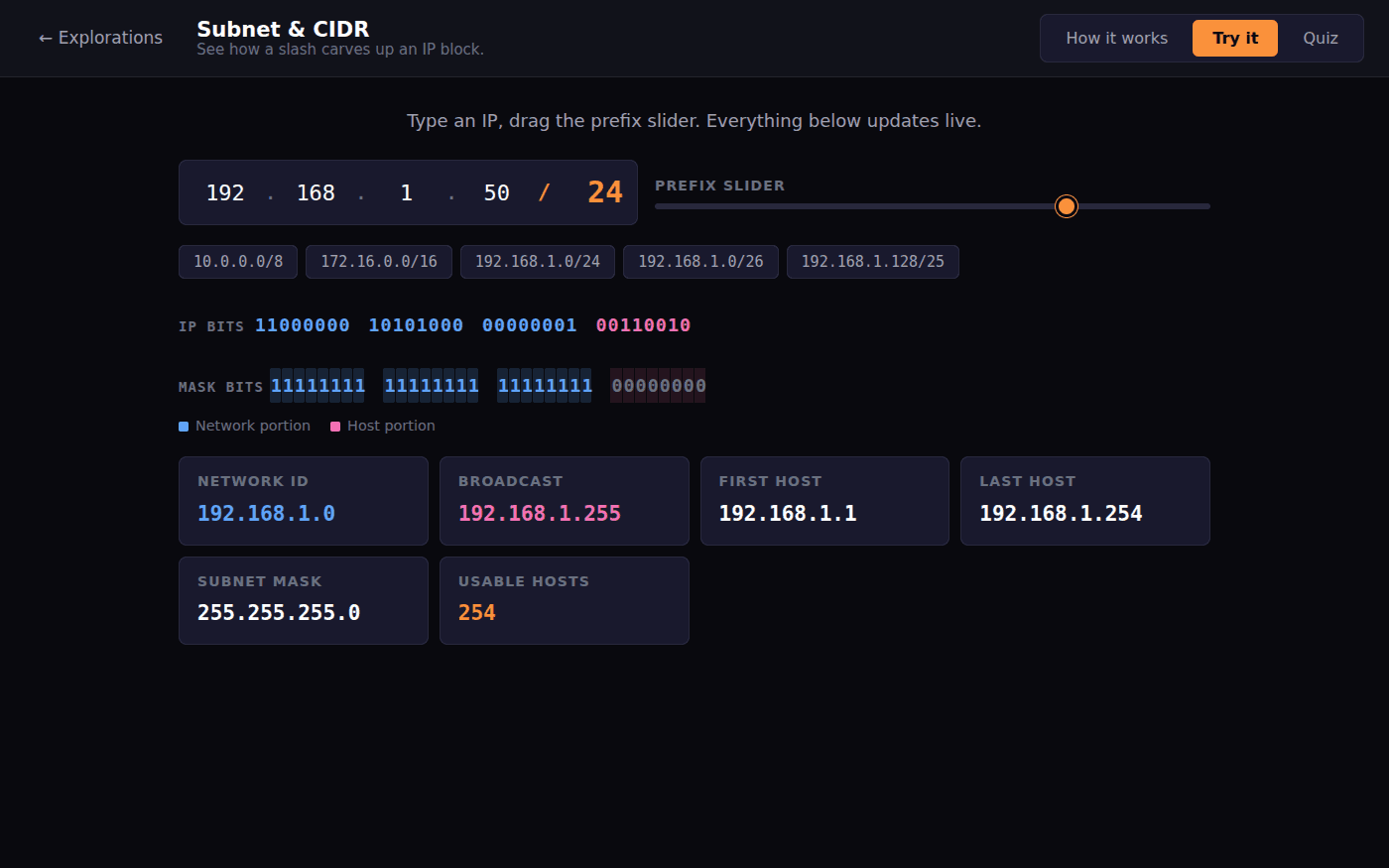
Interactive Subnet & CIDRSubnetting finally makes sense when students see the bits move. Use it before any worksheet.
Type an IP, drag the prefix slider. Watch the mask, network, and host range update bit by bit. Then quiz yourself.
Guided walkthrough · 5-8 min DNS: The Internet's Phone BookHow a name becomes an address, with record types and caching.
Watch DNS resolution step by step, explore record types (A, CNAME, MX, TXT) with zone file examples, and adjust TTL to understand caching trade-offs.
Guided walkthrough · 3-5 min Ping: Why 20ms Feels InstantLatency, explained through the thing students care about: lag in games.
Discover why some online games feel smooth and others feel laggy.
Free app, no account Network SimulatorStudents wire up switches and routers and send packets through what they built.
Free, no account. Give a computer an address, look up isp.com, and load the page through two routers, one packet at a time.
Security fundamentals
The vocabulary and ideas the rest of the course is built on.
Three sliders show why raising one of confidentiality, integrity and availability can lower another. A good discussion starter.
Drag three sliders and watch real scenarios react. See why pushing one pillar up can knock another down.
Interactive Attack & Malware VocabPhishing vs. whaling, virus vs. worm: browse, then quiz on real scenarios.
Phishing vs. whaling vs. vishing. Virus vs. worm vs. trojan. Browse, flashcard, then quiz yourself on real scenarios.
Interactive Threat Actors & MotivationsCompare attackers by skill, funding and motive, then match them to scenarios.
Compare every threat actor across skill, funding, and motivation. Then drill yourself on which one fits a scenario.
Interactive Malware TypesMalware families by what they do, with scenario drills.
Learn each malware family by behavior, then drill on identifying them from scenarios.
Interactive Social EngineeringWhy people get fooled, and how to spot it. Works for younger classes too.
Learn why social engineering works, recognize the common attacks, and drill yourself on spotting them.
Guided walkthrough · 3-5 min How Passwords WorkWhy password123 is bad: brute force and hashing, in five minutes.
Why password123 is terrible - discover brute force attacks and hashing.
Interactive Auth Factors & MFAThe five factor types, and which combinations really count as MFA.
See all five factor categories, browse every auth method, then quiz yourself on which combos actually count as MFA.
Interactive AAA & Security FrameworksAuthentication, authorization and accounting, and the frameworks behind a security program.
The three pillars of AAA, the frameworks that shape every program, and the principles that keep them honest.
Guided walkthrough · 3-5 min Your Digital FootprintA personal way in: how much data each student creates. Good for middle school.
Calculate how much data YOU create.
Protecting systems and data
Encryption, the defenses on a network, and the settings on each machine.
From Caesar ciphers to HTTPS, as an introduction.
From Caesar ciphers to HTTPS - discover how secrets stay secret.
Guided walkthrough · 5-8 min Cryptography Lab: Codes, Ciphers & Secret MessagesHands-on: encrypt, then crack a cipher with frequency analysis.
Encrypt with Caesar ciphers, crack them with frequency analysis, and explore XOR encryption with live binary visualization.
Interactive Encryption & HashingSymmetric, asymmetric and hashing side by side, and which to use when.
Compare the three big families side by side, browse the algorithms with their key sizes and status, then drill yourself on which one to use when.
Interactive PKI & CertificatesClick through a certificate chain, then drill on validation and revocation.
Click through a real-looking certificate chain, browse every related term, then drill yourself on validation levels and revocation methods.
Interactive Firewalls & Network DefensesEvery firewall generation and network defense, with scenarios for picking the right one.
Every firewall generation, every network defense, with quiz scenarios for picking the right one.
Interactive VPN & Remote AccessWhat a VPN protects, what NAC does, and why MFA matters for remote logins.
How a VPN protects a connection, what NAC does, and why MFA matters for remote logins.
Interactive Wireless SecurityWi-Fi security standards and the ciphers they use, then a quiz.
Step through every Wi-Fi security standard, browse the surrounding terms, then quiz yourself on which one uses which cipher.
Interactive Endpoint SecurityHardening one computer, with the defenses named and drilled.
Walk through how to harden an endpoint, learn the defenses by name, then drill yourself on which one is which.
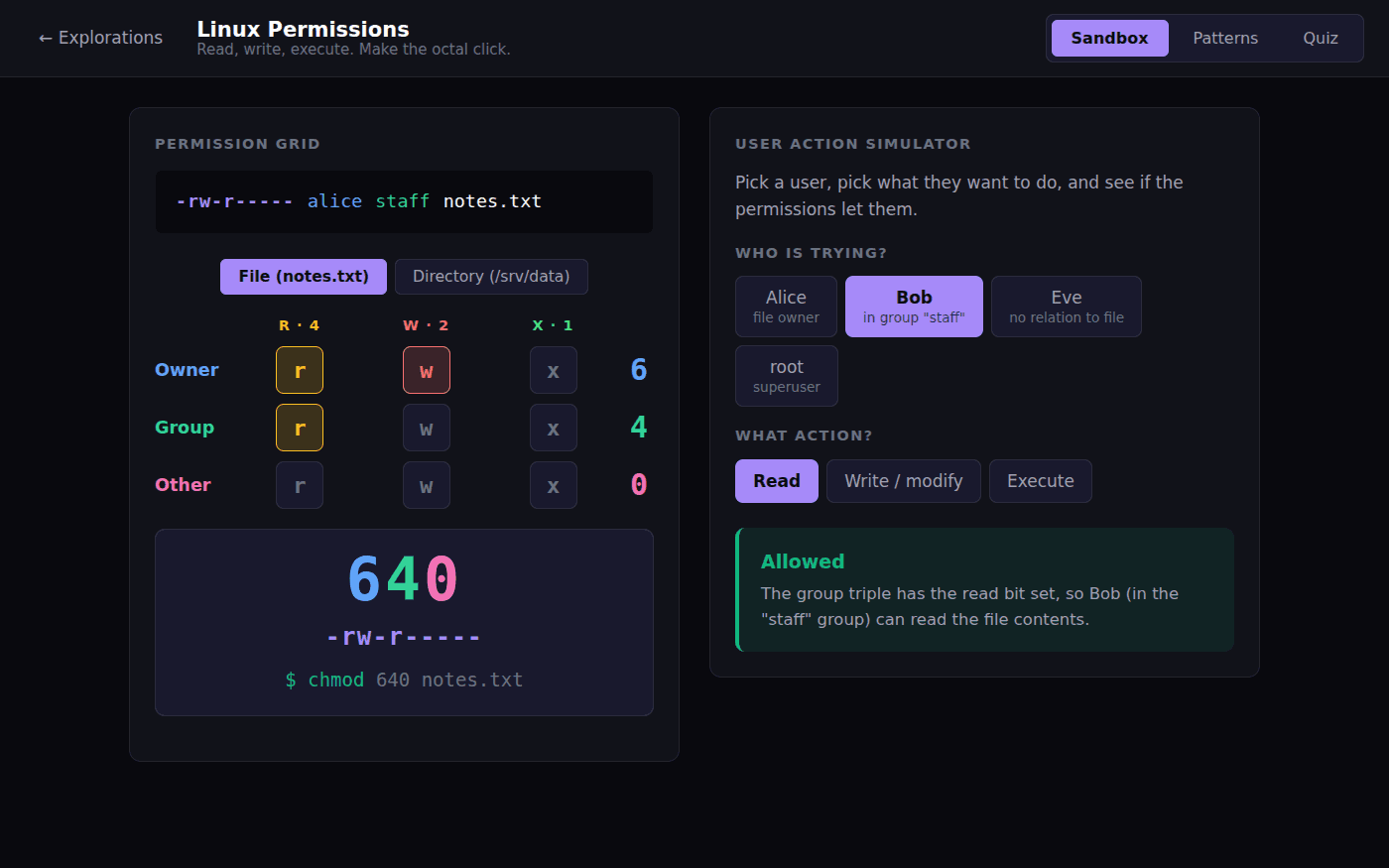
Interactive Linux PermissionsLinux file permissions made visible. Pair it with the terminal.
Click rwx boxes, watch the octal update live. Run users at the file and see who gets allowed or denied.
Detect, respond and recover
What happens after something goes wrong, and the hands-on investigation practice.
Students read real-looking server logs with head, tail and grep, and find their own activity.
Explore actual server logs using head, tail, grep, and wc. Find your own activity hidden among hundreds of entries and learn how sysadmins debug problems.
Guided walkthrough · 5-7 min Capture the Flag: Find What Somebody HidA five-minute introduction for students who have never solved a CTF.
Never solved one before? Start here. Spot the file that does not belong, cut a login log down from twenty lines to the one that matters, and build the answer out of what you found. Ends at the real board, where there are ten waiting.
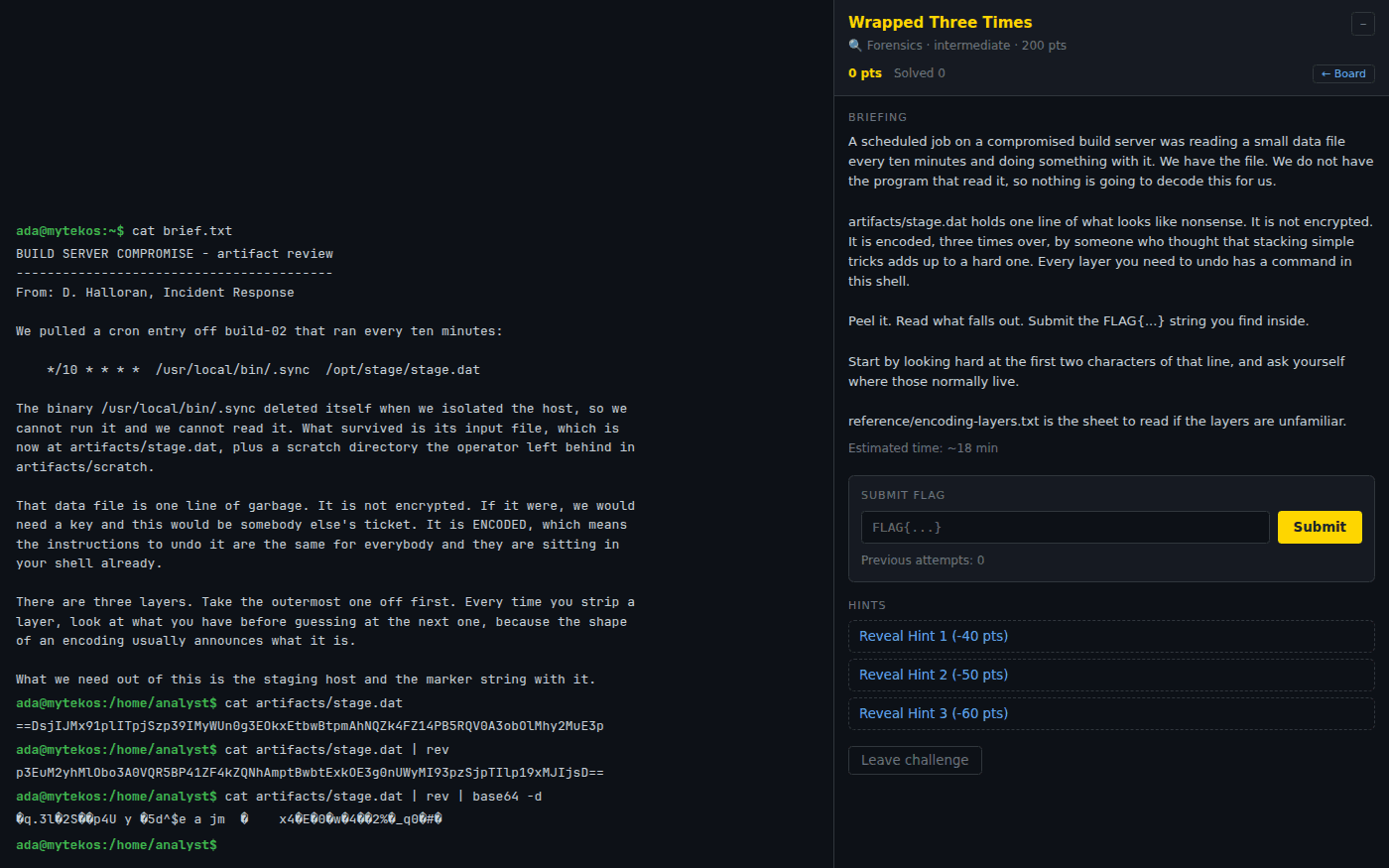
Free account Capture the FlagTen challenges in forensics and log analysis, beginner to advanced, and students can write their own.
Ten cybersecurity challenges in a real terminal, and a way for students to write their own.
Interactive Incident ResponseThe incident response lifecycle, and which phase a situation belongs to.
Walk through the IR lifecycle, learn how real SOCs handle alerts, and drill yourself on which phase a situation belongs to.
Interactive Risk & Vulnerability MgmtRisk vocabulary, the four risk treatments, and scoring a CVE with CVSS.
Pin down the core vocab, learn the four risk treatments, score a CVE with CVSS, and quiz yourself.
Interactive DR & ContinuitySet recovery targets, choose backups and standby sites, then test the plan.
Set recovery targets, choose backup types, pick the right standby site, and test the plan.
Free account Linux TerminalThe terminal the challenges run in, with the quiz command for 410 CCST Cybersecurity practice questions and Operation Lighthouse, a guided investigation of a breach.
A real command line, with a filesystem and logs, in a browser tab.
Using it with a class
The interactive tools work as ten-minute warm-ups: put one on the projector, ask a question, and let students check their answer themselves. The guided walkthroughs are short enough to assign as homework and discuss the next day. The terminal activities need a free account, and a free class gives every student one without needing an email address.
- Preparing for the Cisco CCST Cybersecurity exam: the interactive tools cover its topics, the terminal's quiz command draws from 410 practice questions, and the same questions run as timed practice exams in Exam Prep.
- A unit test in a different form: have students solve two capture the flag challenges and explain, in writing, which line or file gave the answer away.
- Nothing to install and nothing students can break. Every file in the challenges is invented, and the terminal is a simulation.
In short
These are free cybersecurity and networking activities for grades 7 to 12 and introductory college courses: interactive tools for the OSI model, subnetting, ports, firewalls, encryption, PKI and incident response, short guided walkthroughs on how the internet and passwords work, a Linux terminal with 410 CCST Cybersecurity practice questions, and ten capture the flag challenges. They run in the browser on Chromebooks with no install, and most need no account.
Common questions
Do students need an account?
Not for the interactive tools and guided walkthroughs; those open in the browser with no sign-up. The Linux terminal, the capture the flag challenges and the CCST practice quiz need a free account, and a free class of up to 50 students needs no student email addresses.
Is this aligned to the CCST Cybersecurity exam?
The interactive tools were built around the Cisco CCST Cybersecurity topics, from the CIA triad and ports to PKI and incident response, and the terminal has 410 practice questions. They are practice material, not official Cisco content.
What grade levels is this for?
Most of it suits grades 9 to 12 and introductory college courses. The guided walkthroughs on how the internet, passwords and encryption work, and the digital footprint activity, also work in middle school.
Does it teach students to hack?
It teaches them to understand and defend. The activities explain how attacks work in order to recognize and stop them, and the capture the flag challenges take the investigator's side, on invented systems.
Will it run on school Chromebooks?
Yes. Everything runs in a browser tab with nothing to install, and nothing needs a lab network or virtual machines.
Still have a question? Ask us, and a person will write back.
Start with a free class
Everything above opens with no account. A free class adds your students, each with a username and password and no email needed, so their progress and the terminal work are kept.
Page last reviewed September 2026.