Network Simulator
A student watches what really happens when a web page loads. It opens on a small internet: a home network, an internet provider, a DNS server and a web server. The computer asks for an address, looks up isp.com, and fetches the page through two routers, and every packet can be seen crossing the wires. Free, in the browser, no account needed to try it.
What a student actually does
They start with a small internet that is already wired up, and a computer that has no address yet. They right-click it and ask for one, and watch the request go out to the DHCP server and the answer come back. Then they look up isp.com and follow the question to the DNS server. Last, they open the web browser, type isp.com, and watch the request cross the home router, the internet provider's router, and arrive at the web server, and the page appear.
From there they build and break networks of their own: computers, switches, routers, firewalls and servers for DHCP, DNS, web, email and games. They can split networks with VLANs, set firewall rules, inspect any packet layer by layer the way network engineers do, and run safe demonstrations of attacks like a rogue DHCP server or a man-in-the-middle router to see why HTTPS matters.
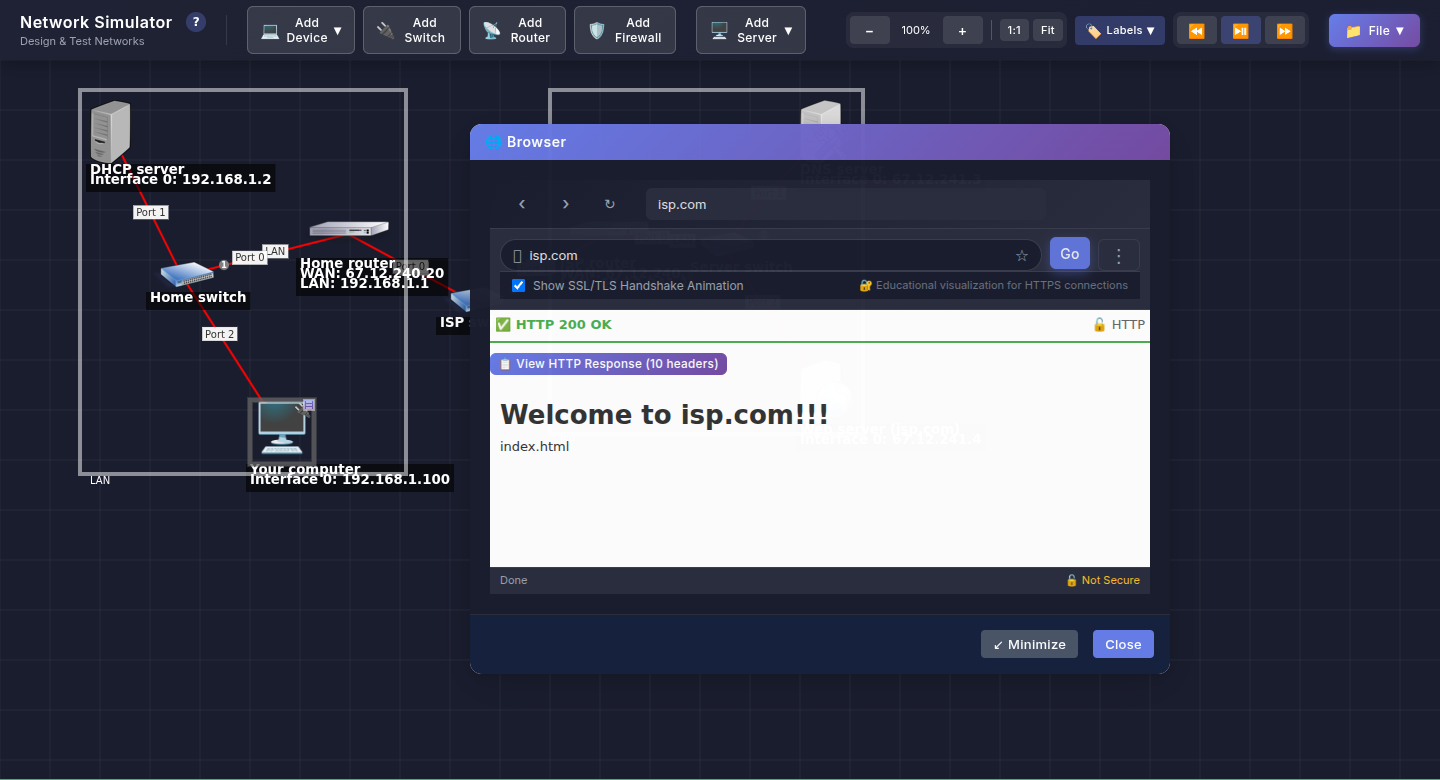
Three conversations, one page. The computer got 192.168.1.100 from the DHCP server, asked the DNS server where isp.com lives, and fetched the page from 67.12.241.4 through two routers. Typing the address directly skips the DNS question and still works, which is the clearest way to see what DNS is for.
What they are learning while they play
Nothing here is presented as a lesson. This is what the activity is made of.
| What the student does | What it is |
|---|---|
| Asks the DHCP server for an address | IP addressing. Every device on a network needs a number to be reached at. DHCP hands them out so nobody types them by hand. |
| Looks up isp.com | DNS. Names are for people; networks use numbers. DNS is the lookup that turns one into the other. |
| Loads the page by name, then by number | What DNS is for. Typing the address directly still works. The name was only ever a convenience. |
| Watches the request cross two routers | Routing. A router passes traffic between networks. Each one only needs to know the next step, not the whole path. |
| Sees the home network and the ISP in separate boxes | Subnets. 192.168.1.x is one network, 67.12.241.x another. Addresses show which network a device lives on. |
| Opens a packet in the inspector | Layers. Every packet carries an Ethernet frame, an IP header and the message itself, one inside the other. |
| Reads HTTP 200 OK in the browser | Client and server. The browser asks, the server answers with a status code and a page. 404 means the file was not there. |
| Runs the rogue router demonstration | Why HTTPS matters. A device in the middle can read plain HTTP. HTTPS keeps what it sees scrambled. |
How to tell whether it landed
Ask, and let them show you. A student who has understood it can answer these without help.
- Before DHCP, the computer's address was blank. Why could it not do anything yet?
- What did the DNS server send back, and why did the browser need it?
- You typed 67.12.241.4 instead of isp.com and the page still loaded. What step got skipped?
- Point to each router the request crossed. What does each one know about the path?
- Unplug a cable in your head: which one would stop the page from loading, and which would not matter?
Practical notes
- AgesAges 11 through high school, and adult learners starting networking. Younger students follow the three steps; older ones build networks, subnets and firewalls from scratch.
- TimeAbout two minutes for the three steps. A satisfying session is thirty to forty-five minutes of building and breaking networks.
- EquipmentAny computer or Chromebook with a modern browser and a mouse or trackpad that can right-click. Nothing to install.
- CostFree. The app has no paid tier.
- PrepNone. Open the page and go. Reading this page first takes about four minutes.
- In a groupEveryone can run the same network, then each student breaks one thing and the class works out what failed.
For co-ops, microschools, and classrooms
Run the three steps together on the board, then hand out a broken network: a wrong address, a missing route, a firewall rule in the way. Students trace packets until they find the fault. It is the same thinking a network technician does, without a rack of equipment.
- Nine ready-made networks, from a home setup to a school lab, an office with VLANs, a DMZ and 802.1X authentication.
- Safe attack demonstrations: rogue DHCP, a man-in-the-middle router, and ARP poisoning.
- No install, no lab equipment, no per-seat license. Chromebooks are fine.
- A free teacher account covers up to 50 students, and student work is private by default.
Common questions
Is the Network Simulator free?
Yes. It runs in your browser and there is no paid tier. A free account adds saving, but nothing on this page is behind a paywall.
Does my child need an account to try it?
No. The demo on this page is the complete simulator with a starter network. Make a free account and the network you changed comes with you as your first project.
Is this like Packet Tracer?
It covers the same ideas at a gentler level: addressing, DHCP, DNS, routing, switching, firewalls and packets you can open. It runs in a browser tab with nothing to install, and the starter network works the moment it opens.
What ages is it for?
Ages 11 through high school, and adults starting to learn networking. The first three steps need no background at all.
Does it install anything, and will it work on a Chromebook?
It installs nothing and runs in any modern browser, Chromebooks included. It uses right-click menus, so a mouse or a trackpad two-finger click is needed.
What subject can I log this as?
Most families log it as computer science or information technology. Addressing, DNS and routing are networking, and the attack demonstrations are cybersecurity. The table above lists specifically what is covered, so you can pick the label your records need and point at the evidence.
Where to go next
Start with Network Simulator
Trying it costs nothing and takes about five minutes. An account is what makes the work last.
The Network Simulator is one of the making apps on the platform, built on the open-source Education Network Simulator by Jorge García Ochoa de Aspuru. It is a place to make things, not a course, and it is not a substitute for a teacher: it is at its best when an adult asks the questions above and takes the answers seriously.
Based on the Education Network Simulator by Jorge García Ochoa de Aspuru, used under the GPL-3.0 license. Source.
Page last reviewed September 2026.