System Design Lab: every student runs their own servers
Students use the internet all day and have almost no idea what happens after they press Enter. System Design Lab lets them build the other side. They launch a Linux server, install a web server, publish a site at a real address their family can open, add a database, then find out what happens when a thousand visitors arrive at once and fix it with caching, more servers and a load balancer. It works like a small cloud provider, without a credit card, a bill, or anything that can be left running by accident.
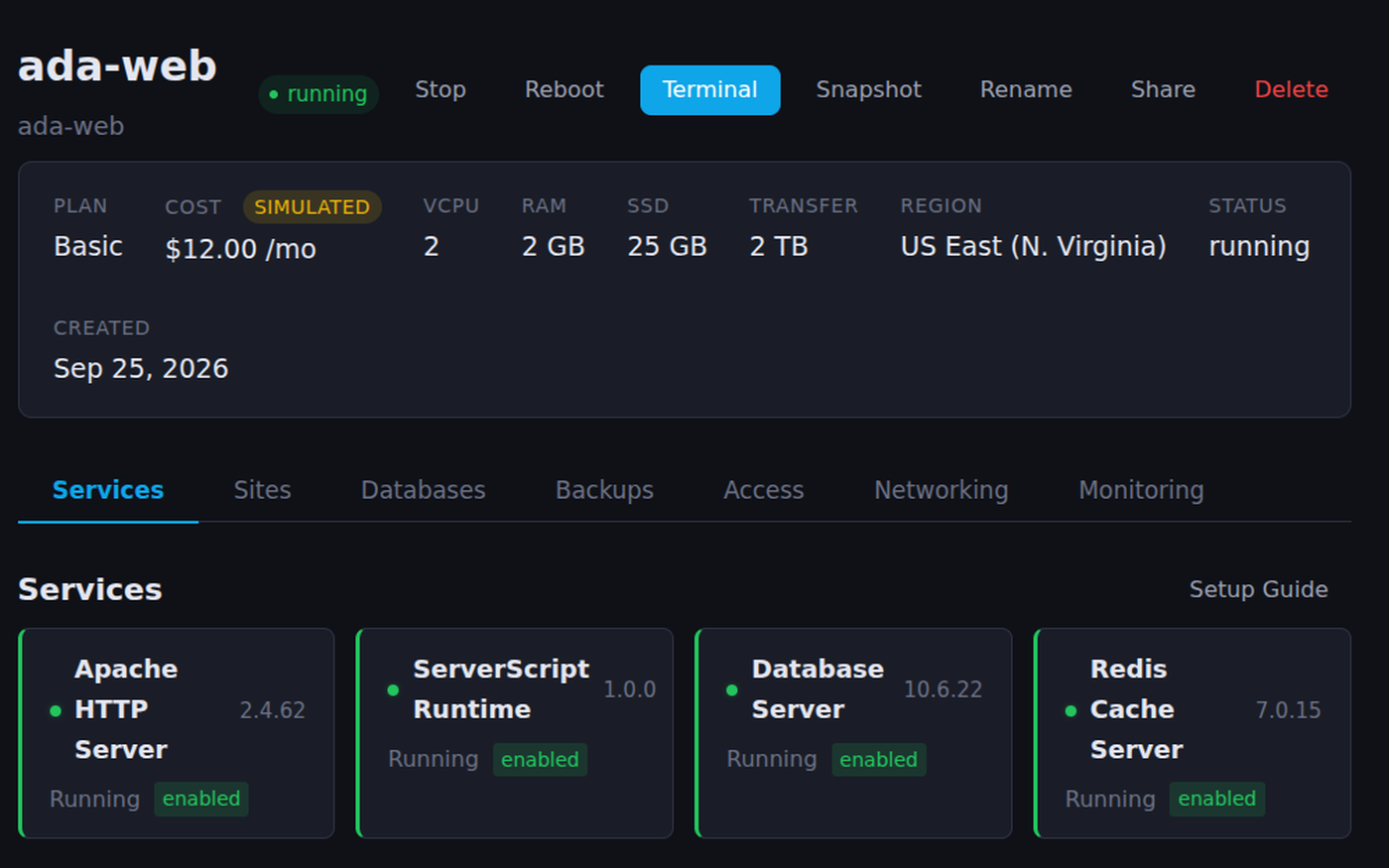
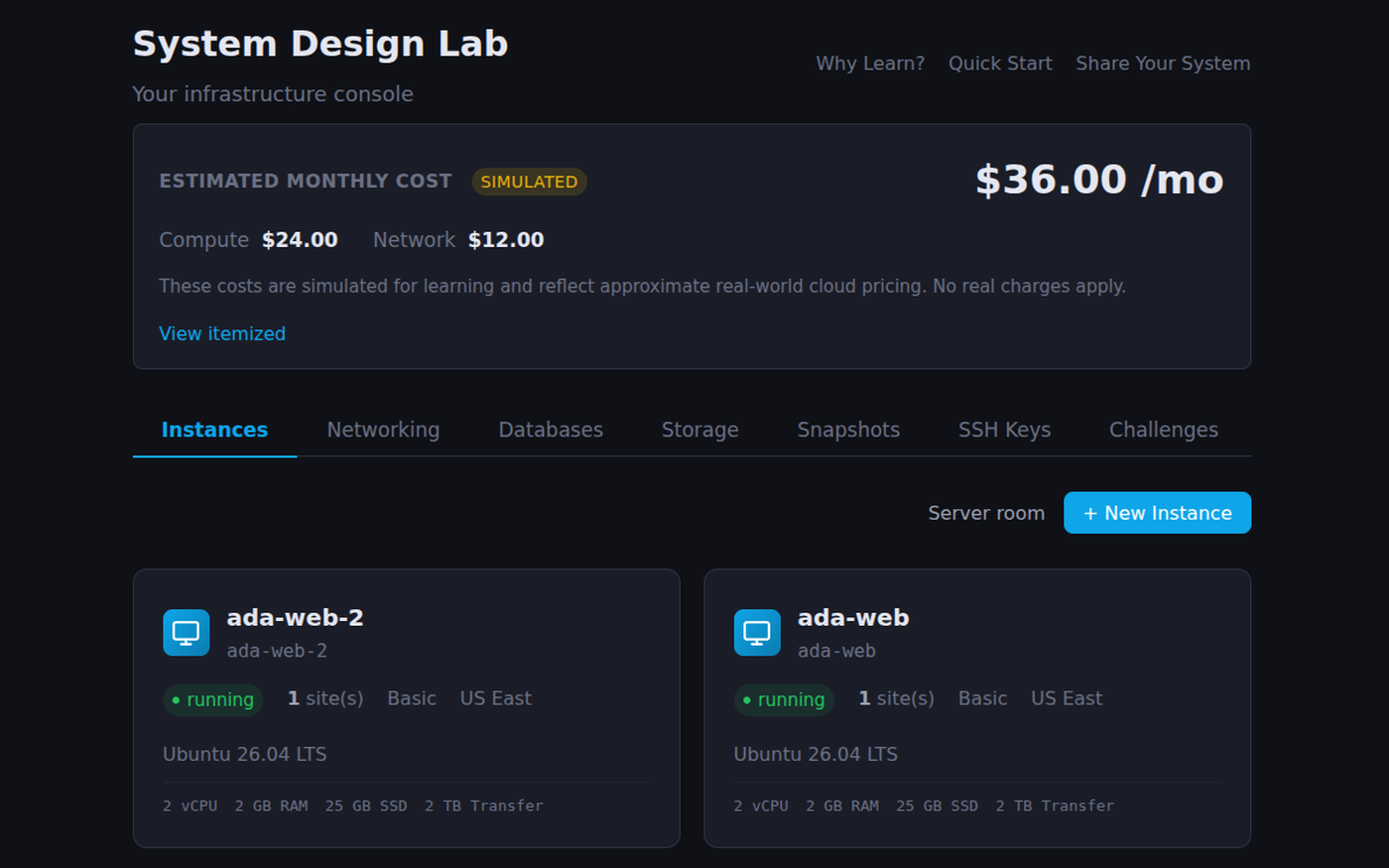
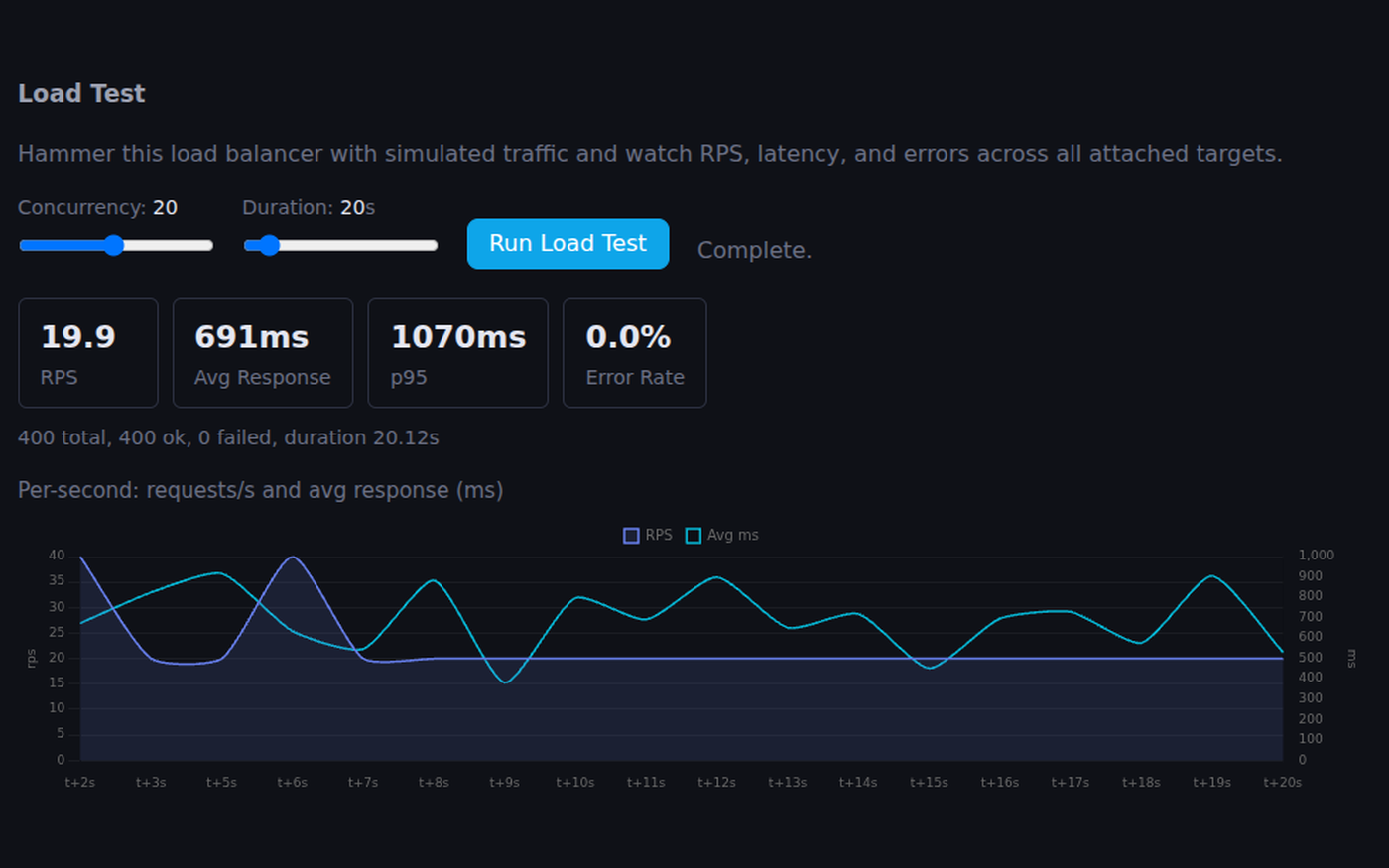
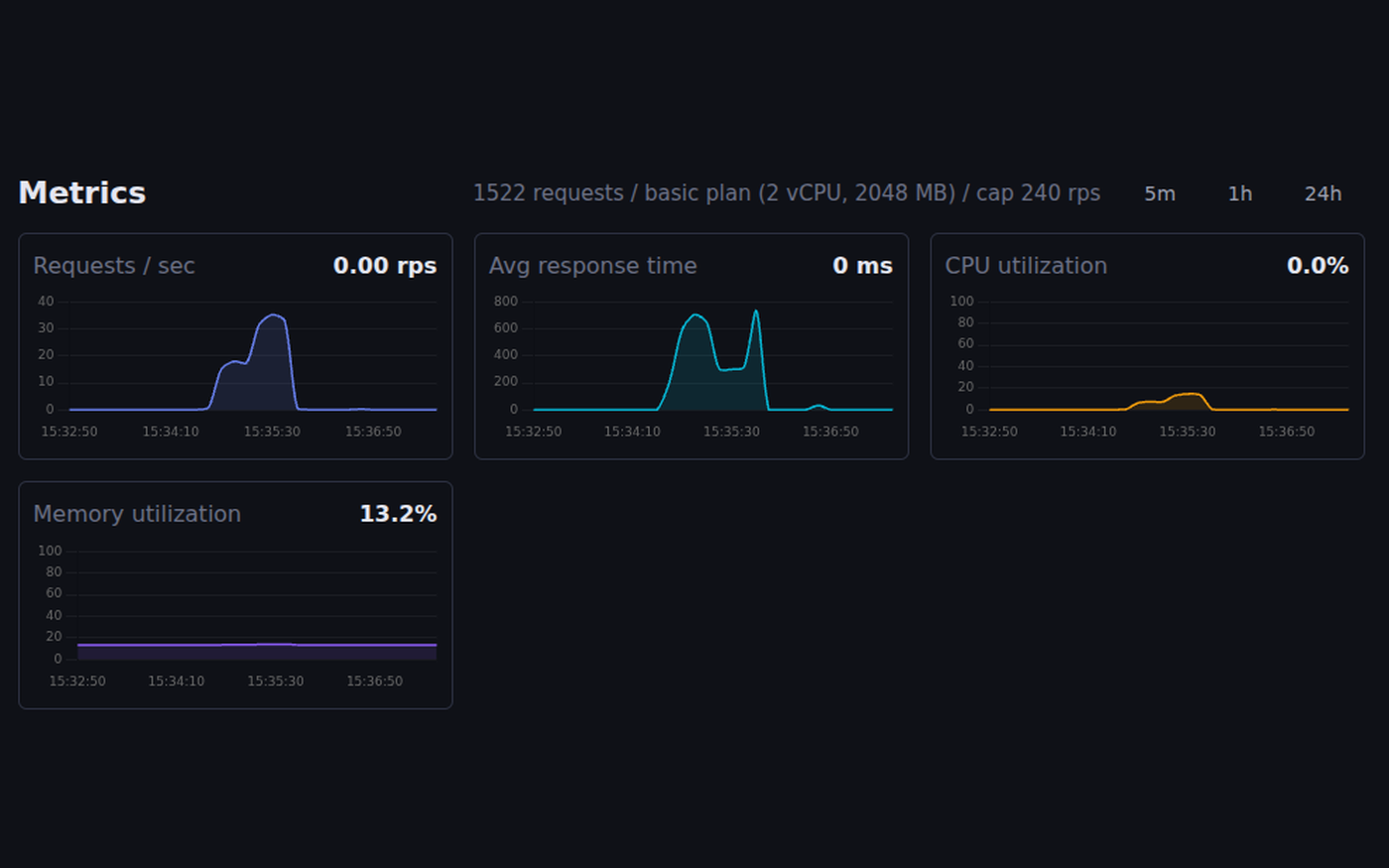
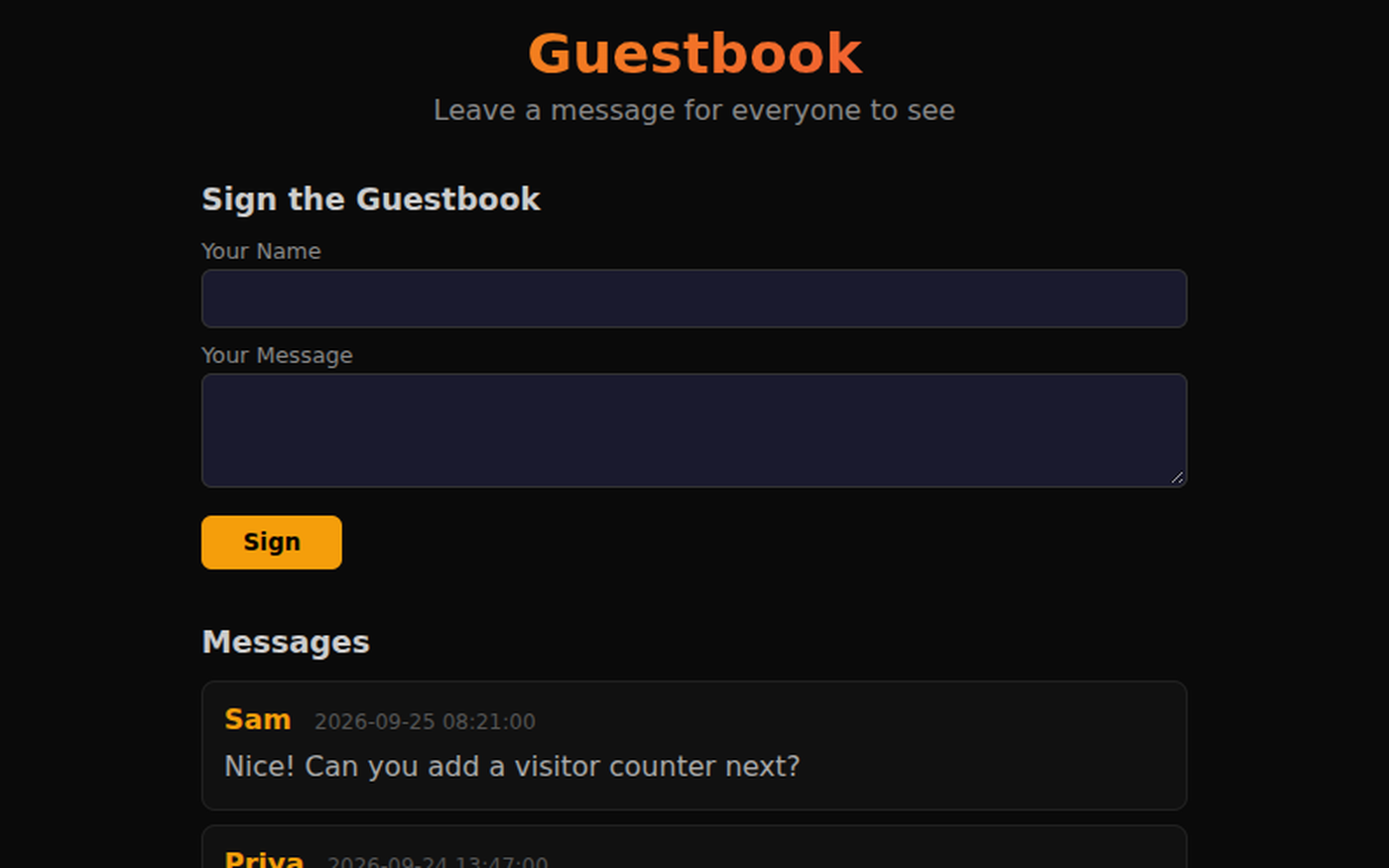
Screenshots from a showcase account. Click any picture to see it full size.
Using this with a class? Make a free class and add your students yourself: each gets a username and password, with no email or Google account needed. Or give them one join code.A first lesson: Everyone publishes the same one-page site, then the teacher load-tests each one and the class works out why the slowest was slow.
Set up a free classWhat a student actually does
They pick a plan and a region, choose Ubuntu, Rocky Linux or Debian, and press Create. A minute later they are in a terminal on their own server, running apt update and installing a web server. They publish a site, open its address on their phone, and send it home. Then they start asking the questions real engineers ask: how many visitors can this take, and what breaks first?
The lab answers with numbers. A load test shows the response time climbing as traffic rises. They add Redis and watch it fall, clone the server and put both behind a load balancer, move the data to a managed database, take a snapshot before a risky change and restore it when it goes wrong. Along the way they write server code in JavaScript, point a domain name at their site with DNS, turn on HTTPS, and plug their machine into a class network to ping the student at the next desk.
Everything in it
Every piece is a simulation run by the platform, so nothing costs money and nothing can be left running. What students do with it, and the numbers it gives back, follow the way the real thing works.
Servers
- Four plans, from 1 CPU and 512 MB up to 8 CPUs and 8 GB
- Six regions across the US, Europe and Asia, with latency that depends on distance
- Ubuntu, Rocky Linux or Debian, each with its own package manager and firewall
- A machine a student built and benchmarked in PC Workshop can be racked as a server
Administering them
- SSH from the terminal, with keys
- apt or dnf, systemctl, journalctl and logs in /var/log
- Users, groups, sudo, chown and file permissions
- A firewall, cron jobs, backups and HTTPS with certbot
Websites
- Published at a real address anyone can open
- An editor with a file tree, live preview and a terminal
- Starter sites: a blog, a guestbook, a to-do list, a poll, a JSON API and a chat room
- Eject to Node: download the site and run it on a real computer
Server code in JavaScript
- ServerScript: real JavaScript that runs on the server
- Express-style routes with app.get and app.post
- Requests, responses, sessions, fetch and environment variables
- Realtime channels for chat, with messages kept for moderation
Data
- A SQL database on each server, with a query console and table browser
- mysql and mysqldump from the terminal
- Managed databases that several servers share
- Redis for caching, from the terminal or from code
Scaling
- Load tests with charts of requests, latency, CPU and memory
- Load balancers with a choice of algorithm and health checks
- Snapshots that restore to a bigger plan or another region
- Block storage volumes to attach and detach
Networks and DNS
- DNS zones and records, served for real, with a countdown for TTL
- A class DNS tree with delegation, and dig +trace that names the broken step
- A class network: students cable their machines into a class switch
- ip, ping, traceroute, arp, netstat and iperf between classmates' servers
Seeing what happened
- Site analytics: live visitors, a histogram and where they came from
- Server metrics over time
- A 3D server room with the student's machines in the racks
- Showcases: a public write-up of an architecture that reads its live state
Learning path
- A guide from a first server to scaling, DNS, HTTPS, regions and recovery
- 11 challenges the lab checks automatically, from Deploy Your First App to Disaster Recovery
- A 12-lesson web application course built on it
- An intro to why this matters, open to anyone
For the teacher
- Turn it on or off for a class, and parents can too
- Inspect any student's servers, sites, databases and files, read-only
- Run the class switch and the class DNS tree
- Students hand in their site's address as an assignment
What they are learning
This is the material of an intro to web development, networking or cloud computing, learned by building something that has to keep working.
| What the student does | What it is |
|---|---|
| Publishes a site at a real address | Client and server. A browser asks, a server answers. Every web page is a request and a response between two computers. |
| Installs and starts a web server | Services. A server is a computer running programs that wait for requests. systemctl starts, stops and checks them. |
| Writes a route that reads the database | Back-end development. The code the visitor never sees: it takes the request, reads and writes data, and builds the reply. |
| Runs a load test and reads the chart | Performance and bottlenecks. Every system has a slowest part. Measuring finds it; guessing usually picks the wrong one. |
| Adds a cache and a load balancer | Scaling. Serve repeated answers from memory, and share the traffic across several machines. Each fix has a cost. |
| Points a domain at the site | DNS. The internet's phone book. A name becomes an address, looked up through a chain of servers that each know a little. |
| Cables into the class switch and pings a classmate | Local networks. MAC addresses, IP addresses, a subnet and a gateway: how machines on one network find each other. |
| Restores from a snapshot after a mistake | Reliability. Things will break. A plan for getting back, tested before you need it, is part of the design. |
How to tell whether it landed
Ask, and let them show you on their own servers.
- What happens, step by step, between typing your site's address and seeing the page?
- Your site got slow under load. How do you find out why, before you change anything?
- Why does a second server not help unless something sits in front of both?
- Your ping to a classmate fails. Name three different things that could be wrong.
- What would you lose if this server disappeared right now, and how would you get it back?
Practical notes
- AgesAges 12 through high school, and adults. Younger students publish and edit sites; older ones go on to servers, databases, scaling and networking.
- TimeA first server and a live site take one class period. The guide, the challenges and the web course fill a semester.
- EquipmentAny computer or Chromebook with a current browser. No cloud account, no credit card, nothing to install.
- CostFree with an account. A free class holds up to 50 students, and teachers get room for a full set of demo servers.
- PrepMake a free class, switch System Design Lab on in the class settings, and add your students.
- In a groupEach student runs their own servers; the class network and DNS tree connect them for group lessons.
For web development, networking and IT classes
Teaching this on a real cloud means accounts, credit cards, bills and a student's forgotten server running all summer. Teaching it on a shared school box means one student's mistake takes down everyone's site. Here each student has their own, the teacher can see inside all of them, and nothing costs anything.
- Real public addresses for student sites, published only when the student chooses.
- Load tests, metrics and analytics that turn design choices into numbers.
- A class network and DNS tree for lessons that need machines to talk.
- A read-only view of every student's setup, for grading and for help.
Common questions
Are these real cloud servers?
No. They are simulated by the platform, so nothing is billed and nothing can be left running. They behave like real servers where it matters for learning: the commands, the services, the way load and distance slow things down, and the websites, which are served for real at an address anyone can open.
Is it free?
Yes. It comes with a free account, and a free teacher account holds a class of up to 50 students. Free student accounts get one server; teachers get room for many.
Can other people see my students' websites?
Only when a student publishes a site, and a teacher or parent can switch System Design Lab off entirely. Chat rooms need the student's social setting on, and every message is kept for moderation.
Do students need to know how to code?
Not to start. Publishing a site from a template and managing a server take no programming. The server code is JavaScript, for students ready for it.
What ages is it for?
It works from about age 12. Publishing and editing sites suits younger students; servers, databases, scaling and networking suit high school.
What subject can I log this as?
Most schools log it as computer science, web development, networking or information technology. The table above lists what is covered.
Where to go next
Start with System Design Lab
Everything on this page comes with a free account. A free class adds your students, each with a username and password and no email needed.
System Design Lab is part of the platform, not a separate product. It is at its best with a teacher who sets the problems and asks the questions above.
Page last reviewed September 2026.