SVG-Edit
Most pictures on a computer are a grid of colored dots. An SVG is different: it is a list of shapes written as text, such as a circle with a center and a radius, so it stays sharp at any size. SVG-Edit is an open-source editor for drawing them. It opens on a club badge built from circles, a few paths and two lines of text. Rename the club, drag the sun, then open Edit Source and see the same badge as code. Free, in the browser, no account needed to try it.
Using this with a class? Make a free class and add your students yourself: each gets a username and password, with no email or Google account needed. Or give them one join code. Using Google Classroom? Post the link there; with a free class, the link also puts each student in your class, so you see their work. mytekDev is also available from the Google Workspace Marketplace, so your school's Google admin can install it for everyone.A first lesson: Everyone gets the same club badge and fifteen minutes to make it their own: one change made with the mouse and one made by typing in Edit Source. Then each student points to the line of text that changed.
Set up a free class Share to Google ClassroomWhat a student actually does
They double-click MAKER CLUB and type their own club's name. They drag the sun to a new spot, give the ribbon a new fill color from the bottom bar, and press Ctrl+Z when a change goes wrong. Then they press the SVG button at the top to open Edit Source and find the whole badge written as text, including a circle with id="sun" and r="36". They change 36 to 60, press Apply Changes, and the sun is bigger.
From there it is a full vector editor. Pencil, line, path, rectangle, ellipse, text, star and polygon tools, plus a shape library of arrows, symbols, animals and more. Students edit a path point by point and switch its pieces between straight and curved, turn shapes into paths, group, align and flip, and move things in front of or behind each other. Layers live in a side panel on the right edge. With a free account Ctrl+S saves the drawing to their projects, and Export turns it into a PNG, JPEG, BMP or WEBP image in their files.
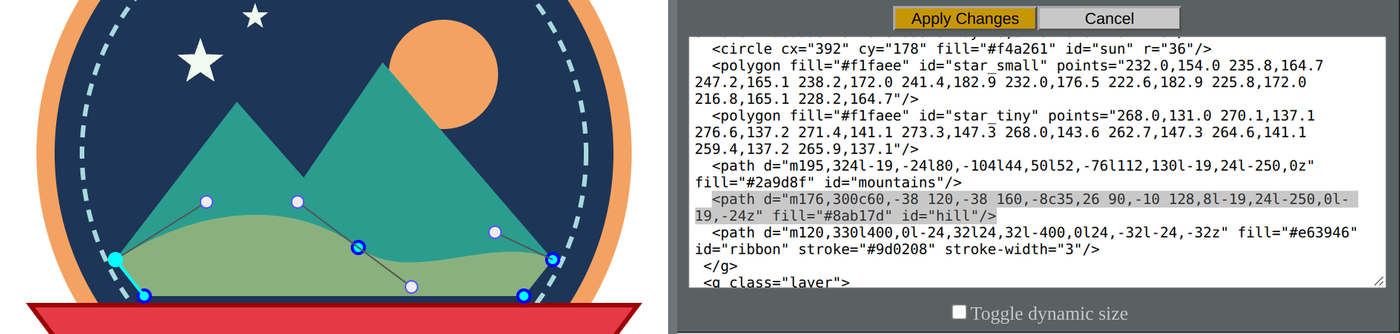
The hill as drawn and as text. Its outline is one path. m puts the pen down at a starting point, and each c draws a curve that bends toward two control points before it lands on its end point. Lowercase means every number is measured from where the pen last stopped. The handles on the left are those control points: drag one, open Edit Source again, and the numbers after c have changed.
What they are learning while they play
Nothing here is presented as a lesson. This is what the activity is made of.
| What the student does | What it is |
|---|---|
| Zooms in on the badge until the ribbon fills the screen | Vectors and pixels. A photo is a grid of dots and turns blocky up close. A vector picture stores shapes, so the computer redraws clean edges at any size. |
| Opens Edit Source and finds the line for the sun | Markup. SVG is text with tags and attributes, like a web page. The picture on screen is drawn from that text, and changing the text changes the picture. |
| Changes the sun's cx and cy and watches it move | Coordinates. Every point is an x and a y measured from the top left corner. x grows to the right and, unlike a math graph, y grows downward. |
| Clicks the hill twice and drags a round handle | Paths and Bezier curves. A path is a list of pen moves. A curve is set by its end points and control points that pull the line toward them. |
| Gives the ribbon a gold fill and a thicker outline | Fill and stroke. Every shape has an inside color, the fill, and an outline, the stroke, with its own color and width. Either can be turned off. |
| Notices the sun is half hidden behind the mountains | Drawing order. Shapes are painted in the order they appear in the text. Later shapes cover earlier ones, so moving a shape to the top means moving its line down the list. |
| Selects both stars and presses G | Grouping. A group is one element that holds others, so they move, resize and change color together. In the source it is a g tag wrapped around them. |
| Hides the Words layer in the side panel | Layers. A layer is a named group for one part of a drawing. Hiding or locking it lets someone work on the art without bumping the words. |
How to tell whether it landed
Ask, and let them show you. A student who has understood it can answer these without help.
- Why do the badge's edges stay sharp when you zoom way in, when a photo would turn blocky?
- In Edit Source, which number would you change to make the sun bigger, and which two would move it?
- The sun is partly hidden behind the mountains. Why, and how could you bring it in front?
- Point to the part of the hill's path that makes it curve. What do the numbers after C do?
- You want a gold ribbon with a dark outline. Which two properties do you change?
Use it in your subject
Not a technology class? Then the app is how students show what they learned in your unit. More projects for every subject.
Math
Place shapes by their x and y coordinates, notice that y counts downward from the top, and work out the numbers for a circle that sits exactly in the middle of the page.
Art and design
Design a badge, logo or sticker with a limited set of colors, and talk about why simple shapes read well at small sizes.
Computer science
Read SVG as markup: find the tag, the attributes and the id for each shape, change a value by typing, and connect it to how HTML describes a web page.
Practical notes
- AgesAges 10 through high school. Younger students recolor and rename the badge and draw with the shape tools; older ones edit paths point by point and change the drawing in Edit Source.
- TimeA minute to the first change. A badge, logo or sticker of their own takes forty-five minutes to an hour.
- EquipmentA computer or Chromebook with a modern browser, a keyboard, and a mouse or trackpad. Nothing to install.
- CostFree. The app has no paid tier.
- PrepNone. Open the page and go. Reading this page first takes about three minutes.
- In a groupEveryone can start from the same badge, so a whole class works from one shared starting point and compares what each change did to the picture and to the text.
For co-ops, microschools, and classrooms
Hand everyone the same badge and the same task: change it once with the mouse and once by typing in Edit Source. The badges that come back look different, and each student can point at the exact attribute that made the difference, which makes the thinking easy to see and easy to check.
- A real vector editor: paths, curves, text, layers and a shape library.
- Edit Source shows every drawing as SVG code that students can change.
- Export saves a PNG, JPEG, BMP or WEBP image into the student's files.
- No install, no per-seat license. Student work is private by default.
Common questions
Is this the original SVG-Edit?
It is SVG-Edit, the free and open-source vector editor by Narendra Sisodiya, Pavol Rusnak, Jeff Schiller, Vidar Hokstad, Alexis Deveria and many contributors, used under the MIT license. This is our hosted copy of version 7.4.1, not the official SVG-Edit site. Our build adds saving each drawing to a free account, private by default, with a preview in the student's project list, and Export sends the image into the student's files. The upstream buttons for opening and saving files on the computer are left out, since drawings save to the account.
Do I need to download anything?
No. It runs in the browser on Chromebooks, Windows, Mac and Linux, with nothing to install.
Is it only for students?
No. It is a full SVG editor for anyone. Much of this page is written for teachers and parents because many of the people who use it are students.
Is it free?
Yes. It runs in your browser and there is no paid tier. A free account adds saving and keeping exported images, but nothing on this page is behind a paywall.
Does my child need an account to try it?
No. The demo on this page is the complete editor with the badge loaded. Saving and exporting an image need a free account, and the drawing you changed comes with you as your first project.
Can I get an .svg file out, or bring one in?
Yes, through Edit Source. The text there is the whole SVG file: copy it into a text editor and save it with the .svg extension. To bring a drawing in, paste its SVG code into Edit Source and press Apply Changes. Some features from other programs may be dropped when the code is checked on the way in.
What ages is it for?
Ages 10 through high school. Recoloring the badge and drawing with shapes works for younger students; editing curves and reading the source suits older ones.
Is my child's work public?
No. Projects are private by default. A student can choose to share a drawing, and in a class the teacher can see students' projects.
What subject can I log this as?
Most families log it as art and design or computer science. Designing a badge or logo is art, reading and changing SVG markup is computer science, and placing shapes by coordinates is math. The table above lists specifically what is covered, so you can pick the label your records need and point at the evidence.
Still have a question? Ask us, and a person will write back.
Where to go next
Start with SVG-Edit
Trying it costs nothing and takes about five minutes. An account is what makes the work last.
SVG-Edit is one of the making apps on the platform. It is a place to make things, not a course, and it is not a substitute for a teacher: it is at its best when an adult asks the questions above and takes the answers seriously.
SVG-Edit is by Narendra Sisodiya, Pavol Rusnak, Jeff Schiller, Vidar Hokstad, Alexis Deveria and contributors, used under the MIT license. Source.
Page last reviewed October 2026.
Google, Google Classroom and Chromebook are trademarks of Google LLC.