Code Editor
Code Editor is a text editor for real web pages. A project is an index.html file plus the CSS and JavaScript files a student adds, each in its own tab, and pressing Run builds the page next to the code. It opens on a small page with a colored square and a button, and the list of colors is one line of JavaScript, so the first edit takes seconds. Free, in the browser, no account needed to try it.
Using this with a class? Make a free class and add your students yourself: each gets a username and password, with no email or Google account needed. Or give them one join code. Using Google Classroom? Post the link there; with a free class, the link also puts each student in your class, so you see their work. mytekDev is also available from the Google Workspace Marketplace, so your school's Google admin can install it for everyone.A first lesson: Everyone adds one color to the list and presses Run. Then each student changes one thing in style.css, and a partner has to find the line that did it.
Set up a free class Share to Google ClassroomWhat a student actually does
They press Run and a small page appears on the right: a colored square, a line of text and a Next color button that steps through four colors. Then they open script.js, add a fifth color to the list, and press Run again. After that it is their page. They swap tomato for a hex code in style.css, round the square into a circle, rename the button in index.html, or make each click color the whole page instead of the square. Every change is typed, and Run shows what it did.
It is a real code editor, not a block tool. Files sit in tabs, up to ten in a project: one index.html, plus as many CSS, JavaScript, JSON and text files as fit. The editor colors the code, matches brackets, and has undo, search (Ctrl+F) and comment-out (Ctrl+/). The console button opens a panel showing whatever console.log prints, and a dot in the corner turns from green to red, with the first error message, when the code breaks. The Libraries menu adds p5.js for drawing and games, Planck.js for physics, TensorFlow.js for machine learning, or A-Frame for 3D and VR, one checkbox each. A finished project exports as a single HTML file.
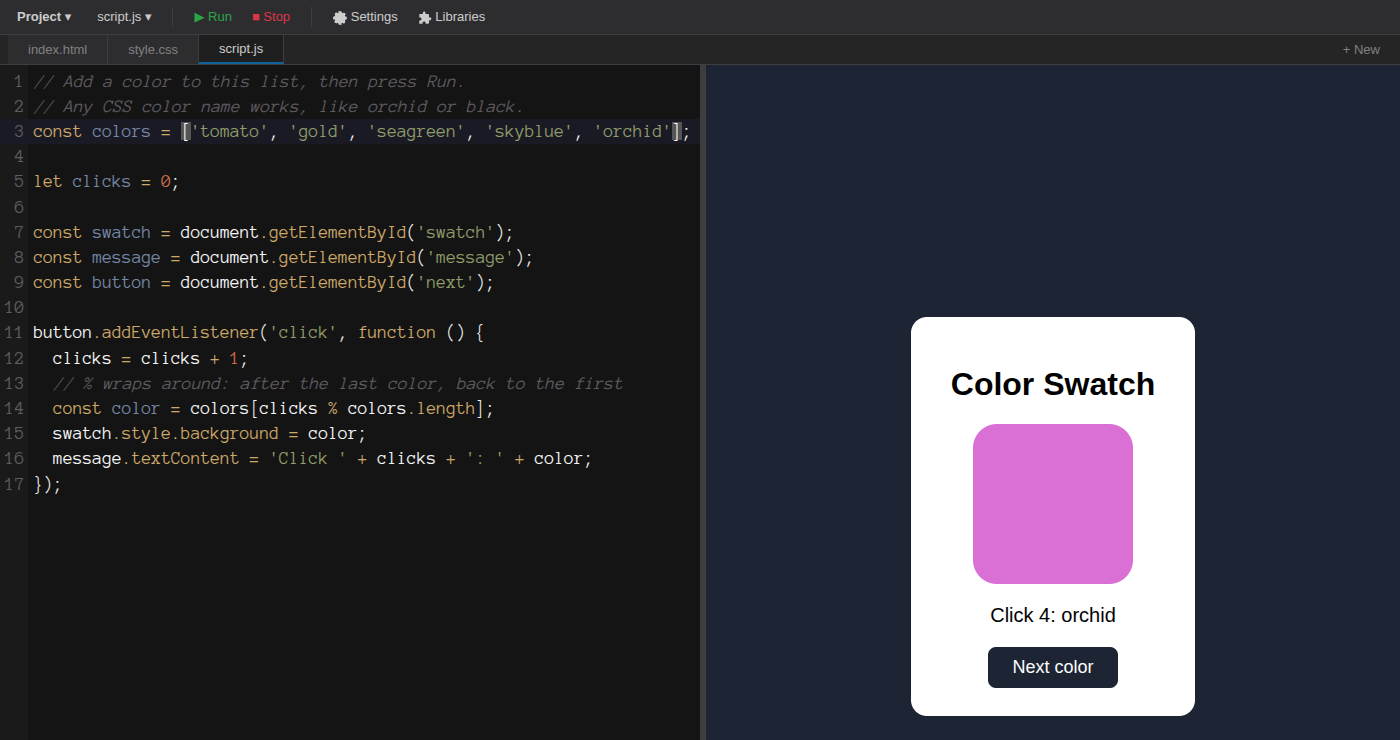
One word added to the list. With four colors, the fourth click went back to tomato, because clicks % colors.length was 4 % 4, which is 0, the first slot. With five colors it is 4 % 5, which is 4, the new last slot. Nothing else in the code changed, since it asks the list how long it is on every click.
What they are learning while they play
Nothing here is presented as a lesson. This is what the activity is made of.
| What the student does | What it is |
|---|---|
| Adds a color to the list | Lists (arrays). colors holds four values in order. Adding a fifth makes the list longer, and the code that reads it keeps working without a change. |
| Works out why the fourth click went back to tomato | Remainders. clicks % colors.length is what is left over after dividing. With four colors, 4 % 4 is 0, the first slot, so the colors go around in a loop. |
| Changes the button's id in index.html only | Names that connect files. getElementById('next') finds the button by the id written in the HTML. Change one and not the other, and the script stops with an error. |
| Makes a click color the page instead of the square | Events. addEventListener('click', ...) runs the same few lines every time the button is pressed. What those lines change is up to the student. |
| Rounds the square into a circle in style.css | Selectors and properties. #swatch picks one element by its id, .card picks by class, button picks every button. Each rule is a selector and a list of property: value pairs. |
| Replaces tomato with #ff6347 | Color values. One color can be written as a name, a hex code or rgb() numbers. The browser reads all three the same way. |
| Reads the red error message after a typo | Debugging. A missing quote or bracket stops the script. The message is the browser describing what it could not make sense of, and the fix starts with reading that sentence slowly. |
| Ticks p5.js in Libraries and draws a circle | Using a library. Someone else's code, loaded before theirs, that adds new commands. The student calls functions they did not write. |
How to tell whether it landed
Ask, and let them show you. A student who has understood it can answer these without help.
- With five colors in the list, which click brings tomato back? Why that one?
- Take the % colors.length out. What will the fourth click show? Say it before you press Run.
- Point at the line that makes the square's corners round. Make it a circle.
- Change the button's id in index.html and nowhere else. What breaks, and where did the editor tell you?
- Make each click change the page background instead of the square. Which one line did you change?
Use it in your subject
Not a technology class? Then the app is how students show what they learned in your unit. More projects for every subject.
Computer science
Variables, lists, events and debugging on a page students can see. Start from the swatch and ask for one new behavior a class: a reset button, a random color, a counter that stops at ten.
Math
Remainders. Predict which color click 10 shows with four colors in the list, then with five, and check by clicking.
Art
Build a palette of five colors as hex codes, put it in the list, and explain in a sentence why the colors belong together.
Practical notes
- AgesAges 11 through high school. Younger students change the starter and build one page; older ones split a project across several files and use the libraries.
- TimeA minute to the first change. A page of their own, with a layout, colors and one thing that reacts to a click, is one or two class periods.
- EquipmentA computer or Chromebook with a keyboard and a modern browser. Nothing to install. This is a typing tool, so a phone or a tablet without a keyboard is a poor fit.
- CostFree. The app has no paid tier.
- PrepNone. Open the page and go. Reading this page first takes about three minutes.
- In a groupEveryone starts from the same three files, so "line 3 of script.js" means the same thing on every screen.
For co-ops, microschools, and classrooms
A shared starter makes a typing class manageable. Everyone has the same three short files, so a student who is stuck can read their error message out loud and the room can find the line together. With a free account each project saves, and a project shared as a link also gets a Live URL that opens it as an ordinary web page, without the editor around it, which is the version students want to send home.
- A project holds up to ten files: index.html plus CSS, JavaScript, JSON and text files.
- No install, no lab setup, no per-seat license. Chromebooks are fine.
- A free teacher account covers up to 50 students.
- Student work is private by default. Sharing anything publicly is a separate, deliberate action.
Common questions
Is Code Editor free?
Yes. It runs in your browser and there is no paid tier of it. A free account adds saving and sharing, but nothing on this page is behind a paywall.
Do students need an account to try it?
No. The demo on this page is the complete editor with the starter project, and it keeps changes inside the browser tab. Make a free account and the project you changed comes with you as your first project.
Is this the editor that used to be called MrCodeEditor?
Yes. It is the same editor under a plainer name, and projects made with it before the change open as they always did.
Why is the right side blank?
The page is built from the code when Run is pressed, and again each time it is pressed. It does not update while a student types. If a change seems to do nothing, pressing Run is usually the fix.
Which libraries can students use?
The Libraries menu has p5.js, Planck.js, TensorFlow.js and A-Frame, plus two small teaching libraries, MrGame for p5.js games and B-FRAME for A-Frame. A student can also load another library with an ordinary script tag, as long as it comes from a large library host such as cdnjs, jsDelivr or unpkg. Scripts from most other sites are blocked.
Can students use pictures?
Yes, by web address: an img tag pointing at an https link shows the picture. A project cannot hold image files of its own, and sound or video files from other websites will not play in the editor.
Can a project have more than one page?
No. Each project has one HTML page, index.html. The other files are CSS, JavaScript, JSON and text that the page uses.
Can we keep the code outside the platform?
Yes. Export to HTML in the Project menu downloads the whole project as one file that opens in any browser. Export to JSON downloads a copy that Open Project loads back in later.
Does it help students with dyslexia?
It has a dyslexia-friendly mode with the OpenDyslexic or Lexend font, wider letter and line spacing, and a dark navy or a light cream theme. It follows the Reading Mode setting in the student's account (Settings, Accessibility), so turning that on there turns it on here.
What ages is it for?
Ages 11 through high school. Changing the starter suits a first lesson; a multi-file project with a library suits students who have done some coding before.
Is my students' work public?
No. Projects are private by default. Publishing to the public gallery is a separate action a student has to take, and public listings mask the display names of younger students.
What subject can I log this as?
Usually computer science, and web design or digital media for career and technical courses. The table above lists specifically what is covered, so you can pick the label your records need and point at the evidence.
Still have a question? Ask us, and a person will write back.
Where to go next
Start with Code Editor
Trying it costs nothing and takes about five minutes. An account is what makes the work last.
Code Editor is one of the making apps on the platform. It is a place to make things, not a course, and it is not a substitute for a teacher: it is at its best when an adult asks the questions above and takes the answers seriously.
Page last reviewed October 2026.
Google, Google Classroom and Chromebook are trademarks of Google LLC.