WebDev
A student builds a web page by snapping blocks together: a heading, a paragraph, a list, and the style rules that color them. The blocks use the real names, head and body, h1 and p, background-color, and the Code tab shows the exact HTML and CSS they wrote. It opens on a short page about octopuses, so the first thing to do is change a word and press Render. Free, in the browser, no account needed to try it.
Using this with a class? Make a free class and add your students yourself: each gets a username and password, with no email or Google account needed. Or give them one join code. Using Google Classroom? Post the link there; with a free class, the link also puts each student in your class, so you see their work. mytekDev is also available from the Google Workspace Marketplace, so your school's Google admin can install it for everyone.A first lesson: Everyone changes the background color and presses Render, then opens the Code tab, finds the one line their change rewrote, and reads it out loud.
Set up a free class Share to Google ClassroomWhat a student actually does
They press Render and the page appears on the right: a heading, a sentence and three facts about octopuses on a pale yellow background. Then they change it. They type a new color into the body block, rewrite the facts, switch the heading from H1 to H2, or drag another list item out of the HTML drawer and snap it under the others, pressing Render after each change. A block left loose on the workspace fades and stays off the page, which is the first lesson in structure: only what is connected counts.
From there the drawers go a long way. There are blocks for links, images, tables and forms, for page sections such as header, nav, main and footer, and for CSS rules on any element, flexbox included. The DOM & Browser drawer adds click and keyboard events, so a button can change the page while it is open, built with the variables, loops and functions in the JavaScript drawer. A student who outgrows blocks can press Edit Code in the Code tab and keep going in plain HTML, CSS and JavaScript. That switch is one way: the blocks do not follow the typed code, and going back to blocks throws the typed changes away. With a free account the page saves as a project, and when a student shares it with a link, the share box also offers a live address that opens the page on its own, as a plain web page.
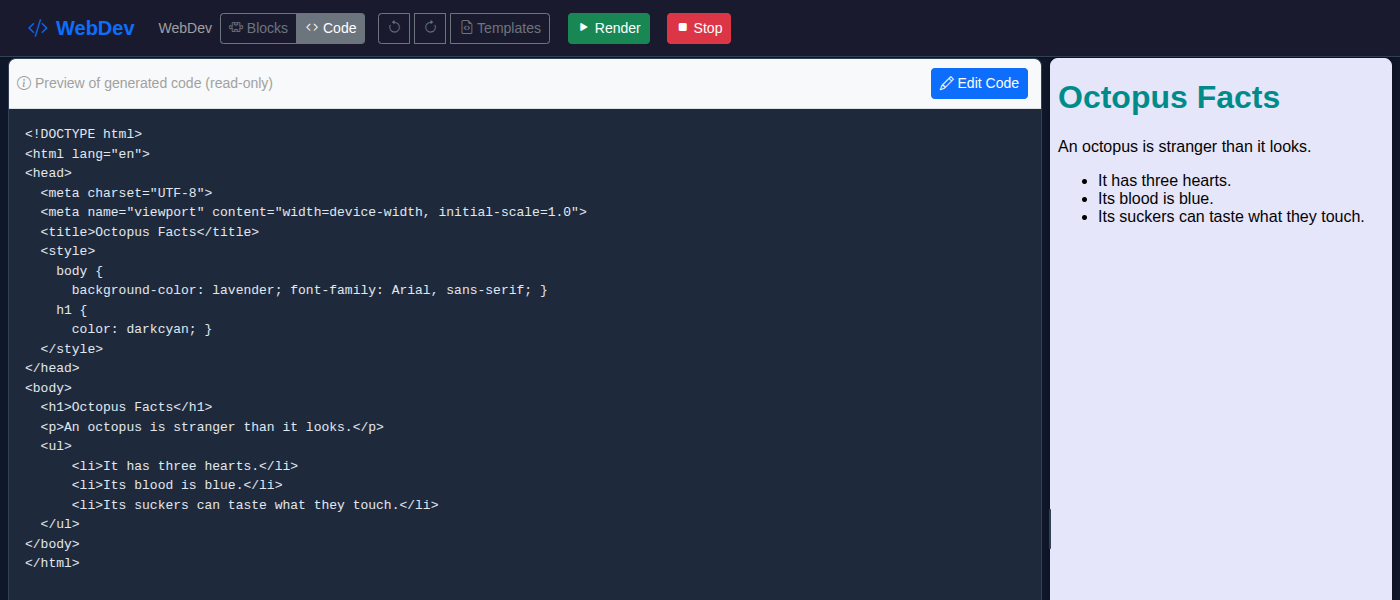
One word changed in one block. The Code tab shows what that block really is: a line of CSS, background-color: lavender, inside a rule that begins with body. Render hands this text to the browser, and the browser paints the page from it. The blocks are a way of writing HTML and CSS, not a separate language to unlearn later.
What they are learning while they play
Nothing here is presented as a lesson. This is what the activity is made of.
| What the student does | What it is |
|---|---|
| Snaps a heading block into the body | Elements and tags. Each block writes an opening and a closing tag, like <h1>Octopus Facts</h1>. A page is boxes inside boxes. |
| Finds Octopus Facts in both the title block and the heading | Head and body. The head holds facts about the page, such as its title and its style rules. The body holds what the reader sees. The title shows in the browser tab, not on the page. |
| Types lavender into the body rule | Properties and values. background-color is the property and lavender is the value. A rule can hold several, each ending in a semicolon. |
| Adds a rule for p next to the one for h1 | Selectors. The word in front of the curly brace decides which elements a rule styles. body reaches the whole page; h1 reaches only top-level headings. |
| Drags the last list item to the top | Order. The order of the blocks is the order of the HTML, and the order of the HTML is the order on the page. |
| Leaves a block loose and watches it fade | Structure. Only blocks connected to the document block are written into the page. Where a piece of code sits decides what it does. |
| Types lightyelow and gets a white page | Debugging. A browser skips CSS it does not understand, with no error message. The misspelled color simply does nothing, and the Code tab is where to spot it. |
| Adds a button and an on click block | Events. JavaScript can wait for something to happen, a click or a key press, and then change the page while it is open. |
How to tell whether it landed
Ask, and let them show you. A student who has understood it can answer these without help.
- Point at the line in the Code tab that your color block wrote. Which word is the property, and which is the value?
- The title block and the heading both say Octopus Facts. Change only the title block and press Render. Why does the page look the same?
- Make the paragraph dark blue without changing the color of the heading. Which block did you need?
- One block on your workspace is faded. Why is it not on the page?
- Someone typed lightyelow and their background went white. What happened, and where would you look to find it?
Use it in your subject
Not a technology class? Then the app is how students show what they learned in your unit. More projects for every subject.
Computer science
Build a page in blocks, then type the same page by hand in a text-based editor, using the Code tab as the answer key. Talk about what the blocks were doing for them.
English language arts
Writing for the web: one H1 for the topic, H2 headings for sections, short paragraphs, and a list only where a list helps the reader.
Science
Each student makes a one-page fact sheet on an animal, a planet or an element, with a short list of sources at the bottom.
Practical notes
- AgesAges 10 through high school. Younger students change the starter's words and colors; older ones build their own pages from the drawers, add events, and read the Code tab closely.
- TimeA minute to the first change. A page of their own, with a few headings, a list and some style rules, takes thirty to forty-five minutes.
- EquipmentA computer or Chromebook with a keyboard and a mouse or trackpad. On a laptop-sized screen the blocks and the page sit side by side; in a narrow window they stack. On a phone the demo shows a note first, because building a page needs a keyboard. Nothing to install.
- CostFree. The app has no paid tier.
- PrepNone. Open the page and go. Reading this page first takes about four minutes. Tell students to stay in the HTML and CSS drawers at first: the toolbox goes much further, and it is easy to wander off.
- In a groupEveryone starts from the same octopus page and changes one thing, then partners compare Code tabs to find the line that each change rewrote.
For co-ops, microschools, and classrooms
A web page is easy to compare across a room. Put one student's page on the projector, open its Code tab, and ask the class to find the line that makes the heading that color. Then let everyone change one thing and show theirs. The differences are visible at a glance, and naming the block, and the line of code behind it, is the lesson.
- Every block writes its opening and closing tags together, so no page breaks over a forgotten closing tag.
- No install, no lab setup, no per-seat license. Chromebooks are fine.
- A free teacher account covers up to 50 students.
- Student work is private by default. Sharing anything publicly is a separate, deliberate action.
Common questions
Is WebDev free?
Yes. The app runs in your browser and there is no paid tier of it. A free account adds saving and sharing, but nothing on this page is behind a paywall.
Does a student need an account to try it?
No. The demo on this page is the complete app with the starter page. Make a free account and the page you changed comes with you as your first project.
Is this real HTML, or a made-up block language?
Real HTML and CSS. The Code tab shows the complete page the blocks wrote, from <!DOCTYPE html> to </html>, and that text is what the browser draws. Students can read it, compare it with their blocks, and later type it themselves.
Why is the page on the right empty?
It waits for the Render button, so a half-built page does not run on its own. Press Render after each change to see the result.
Can students switch from blocks to typing code?
Yes. In the Code tab, Edit Code turns the page into plain HTML, CSS and JavaScript to edit by hand. It is a one-way step: the blocks do not update from typed code, and returning to blocks discards the typed changes, so the app asks twice before doing it.
Can a student put the page online?
With a free account, yes. When a student shares the project with a link, the share box also gives a live address that opens the page by itself, as a plain web page with nothing of ours around it.
What ages is WebDev for?
Ages 10 through high school. Younger students change words and colors in the starter. Older ones build pages of their own, use events and the JavaScript blocks, and learn to read the HTML in the Code tab.
Does it install anything, and will it work on a Chromebook?
It installs nothing and runs in any modern browser, Chromebooks included. It needs a keyboard and a mouse or trackpad, so on a phone the demo shows a note first and suggests a computer.
What subject can I log this as?
Most families log it as computer science, and a page built around a researched topic also counts as writing. The table above lists specifically what is covered, so you can pick the label your records need and point at the evidence.
Is a student's work public?
No. Projects are private by default. Publishing to the public gallery is a separate action a student has to take, and public listings mask the display names of younger students.
Still have a question? Ask us, and a person will write back.
Where to go next
Start with WebDev
Trying it costs nothing and takes about five minutes. An account is what makes the work last.
WebDev is one of the making apps on the platform. It is a place to make things, not a course, and it is not a substitute for a teacher: it is at its best when an adult asks the questions above and takes the answers seriously.
Page last reviewed October 2026.
Google, Google Classroom and Chromebook are trademarks of Google LLC.