Diagram Maker
Diagram Maker is a free flowchart maker and diagram tool that runs in the browser. Add a shape, pull an arrow from it to the next shape, and type the words inside. The arrows stay attached, so moving a box brings its connections along. Here it opens on a Guess the Number game drawn as a flowchart, with two decisions and a loop back to the guess. Free, no account needed to try it.
Using this with a class? Make a free class and add your students yourself: each gets a username and password, with no email or Google account needed. Or give them one join code. Using Google Classroom? Post the link there; with a free class, the link also puts each student in your class, so you see their work. mytekDev is also available from the Google Workspace Marketplace, so your school's Google admin can install it for everyone.A first lesson: Everyone gets the same Guess the Number flowchart and fifteen minutes to give the player only five tries, then two students swap diagrams and follow each other's arrows with a pretend guess to find where the loop goes wrong.
Set up a free class Share to Google ClassroomWhat a student actually does
They drag the Too high box somewhere else and the arrows going in and out of it follow. They double-click Show: You got it! and type a better message, pick a new fill color for the diamonds in the Format panel, and change the Yes and No labels on the arrows. Then they read the yellow note and work out how to give the player only five tries: a box that counts each guess and a new diamond that checks the count, dragged in from the Flowchart section of the shape panel and connected where they belong. Ctrl+Z takes back anything they regret.
From there it is a blank page with a full shape library: the standard flowchart symbols, plus general shapes, arrows and diagram types beyond flowcharts. Students hover a shape and click one of its blue arrows to add the next step already connected, line boxes up with the guides that appear while dragging, put notes on their own layer, and export the finished diagram as a PNG or SVG picture from File, Export as. With a free account the diagram saves to their projects, and a teacher in their class can open it.
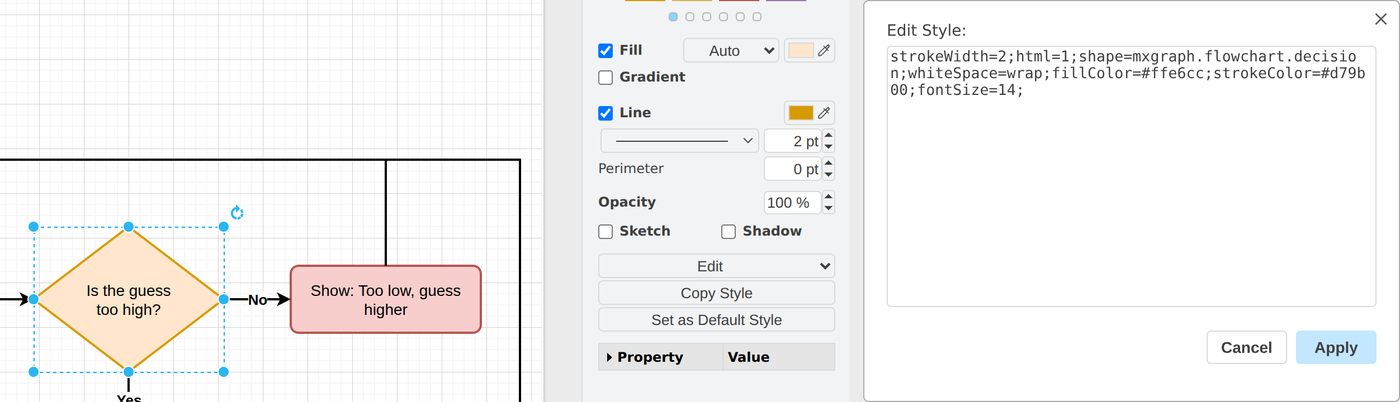
Every shape is stored as one line of settings. Select a shape and press Ctrl+E to see it: shape=mxgraph.flowchart.decision is what makes this a diamond, and fillColor and strokeColor are its orange. The Format panel's color and line buttons write this same line, so a student can change it either way.
What they are learning while they draw
Nothing here is presented as a lesson. This is what the activity is made of.
| What the student does | What it is |
|---|---|
| Uses rounded ends, boxes, slanted boxes and diamonds | Flowchart symbols. Each shape has a job: start and end, a step, an input, a question. A reader who knows the shapes can follow the chart before reading a word. |
| Labels the two arrows out of a diamond Yes and No | Decisions as conditions. A diamond asks a question with exactly two answers. Writing it as a yes or no question is the same skill as writing the condition in an if statement. |
| Follows the arrow back up to Player types a guess | Loops. An arrow that points back to an earlier step means the steps repeat. Something has to change each time around, or the loop never ends. |
| Adds a limit of five tries | Algorithms and variables. A flowchart is an algorithm: steps in order that always finish. A limit takes a number to remember, a step that changes it, and a question that checks it. |
| Moves a box and watches the arrows follow | Connectors. Each arrow is tied to the shapes at both ends, so the chart can be rearranged without being redrawn. An arrow left loose is a step that leads nowhere. |
| Walks through the chart with a pretend guess | Tracing. Following every arrow by hand with real values is how programmers find the path nobody planned for. |
| Puts the notes on their own layer | Layers. Layers keep comments apart from the chart itself, so they can be hidden when the diagram is finished without being deleted. |
| Exports the finished chart as a picture | Exporting. A PNG or SVG goes into a slide, a lab report or a poster. The diagram stays editable in the project; the picture does not. |
How to tell whether it landed
Ask, and let them show you. A student who has understood it can answer these without help.
- What question does each diamond ask, and what happens on each answer?
- The secret number is 4 and the player guesses 7. Which boxes does the game pass through?
- What would go wrong if the loop arrow pointed at Computer picks a secret number instead of at the guess?
- Where did you count the tries, and where does that count go up?
- Could someone turn your flowchart into a program without asking you a single question?
Use it in your subject
Not a technology class? Then the app is how students show what they learned in your unit. More projects for every subject.
Computer science
Plan a program as a flowchart before writing any code, then trace it with two or three test values and fix the chart first.
Science
Draw the steps of an experiment, with a diamond for Did the result match the prediction? and an arrow back for trying again.
English
Map a choose-your-own-adventure story: every diamond is a choice the reader makes, and every path has to reach an ending.
Practical notes
- AgesAges 9 through high school. Younger students relabel and extend the starter; older ones plan a whole program or process as a flowchart before they build it.
- TimeSeconds to the first change. Adding the five-try limit takes ten to fifteen minutes; a flowchart of a whole program or process takes a class period.
- EquipmentA computer or Chromebook with a modern browser and a mouse or trackpad. A wider screen helps, since the shape panel and the Format panel sit on either side of the page. Nothing to install.
- CostFree. The app has no paid tier.
- PrepNone. Open the page and go. Reading this page first takes about three minutes.
- In a groupEveryone can start from the same flowchart, then trace a partner's version with a pretend guess.
For co-ops, microschools, and classrooms
Hand out one flowchart and one change to make. The answers come back different, and the argument about whose loop actually stops is where the computer science gets learned.
- Standard flowchart shapes, arrows that stay attached, layers, and PNG or SVG export.
- Diagrams save to the student's account, and a teacher can open any student's work.
- No install, no lab setup, no per-seat license. Chromebooks are fine.
- Student work is private by default. Sharing anything publicly is a separate, deliberate action.
Common questions
What is Diagram Maker built on?
Diagram Maker is built on the open-source draw.io software by JGraph Ltd, used under the Apache 2.0 license. It is not draw.io's own site, and it is not affiliated with or endorsed by JGraph; draw.io is a trademark of JGraph Ltd. What we add is saving each diagram to a free account, private by default, with a preview in the student's project list, and a view for teachers of their students' diagrams.
Do I need to download anything?
No. It runs in the browser on Chromebooks, Windows, Mac and Linux. Diagrams save to your account rather than to a cloud drive, so there is nothing to connect and nothing to install.
Is it only for students?
No. It is a full diagram editor for anyone. Much of this page is written for teachers and parents because many of the people who use it are students.
Is Diagram Maker free?
Yes. It runs in your browser and there is no paid tier. A free account adds saving, but nothing on this page is behind a paywall.
Does my child need an account to try it?
No. The demo on this page is the complete editor with the Guess the Number flowchart loaded, and it keeps your changes inside the browser tab. Make a free account and the diagram you changed comes with you as your first project.
What ages is it for?
Ages 9 through high school. Moving and relabeling shapes works for anyone; planning a flowchart that a program could follow suits older students.
Is my child's work public?
No. Projects are private by default. Publishing to the public gallery is a separate action a student has to take, and public listings mask the display names of younger students.
Can I open files from other diagram tools?
Diagram files saved in the .drawio or .xml format open with File, Open from, Device, and File, Import from, Device adds one to the page you already have. Once it is open, saving puts it in your account like any other diagram.
What subject can I log this as?
Log it as the subject the diagram is about. A program plan is computer science, the steps of an experiment are science, and a branching story is English. The table above lists what the drawing itself practices, so you can point at the evidence.
Still have a question? Ask us, and a person will write back.
Where to go next
Start with Diagram Maker
Trying it costs nothing and takes about five minutes. An account is what makes the work last.
Diagram Maker is one of the making apps on the platform. It is a place to make things, not a course, and it is not a substitute for a teacher: it is at its best when an adult asks the questions above and takes the answers seriously.
Diagram Maker is built on draw.io, open-source software by JGraph Ltd, used under the Apache 2.0 license. draw.io is a trademark of JGraph Ltd; this site is not affiliated with or endorsed by JGraph. Source.
Page last reviewed October 2026.
Google, Google Classroom and Chromebook are trademarks of Google LLC.