MotionMaker
Animators do not draw every frame any more. They set keyframes, the important poses, and let the computer draw everything in between. MotionMaker is that, for students. It opens on a little scene where a ball drops, a cloud drifts and the sun sets: change the ball's easing from Linear to Bounce, press Play, and the same two keyframes turn into a real bounce. Free, in the browser, no account needed to try it.
Using this with a class? Make a free class and add your students yourself: each gets a username and password, with no email or Google account needed. Or give them one join code.A first lesson: Everyone animates the same ball drop with the same two keyframes, each with a different easing, and the room ranks which one looks most like a real ball and says why.
Set up a free classWhat a student actually does
They press Play and the scene runs: the ball drops, the cloud drifts, the sky slides toward sunset. Then they pick the ball, click the dot on the timeline where it starts, and switch Easing from Linear to Bounce. Play again, and the ball that fell like a brick now lands and bounces. They did not draw a single frame.
From there it is an animation tool. They add pictures from a library of over 300 emoji or from a web address, drag them on the stage to move, scale and rotate them, and set keyframes anywhere on the timeline. There are 17 easing styles, keyframes for the background color, onion skin and motion trails, copy and paste between layers, undo, and export to GIF or video.
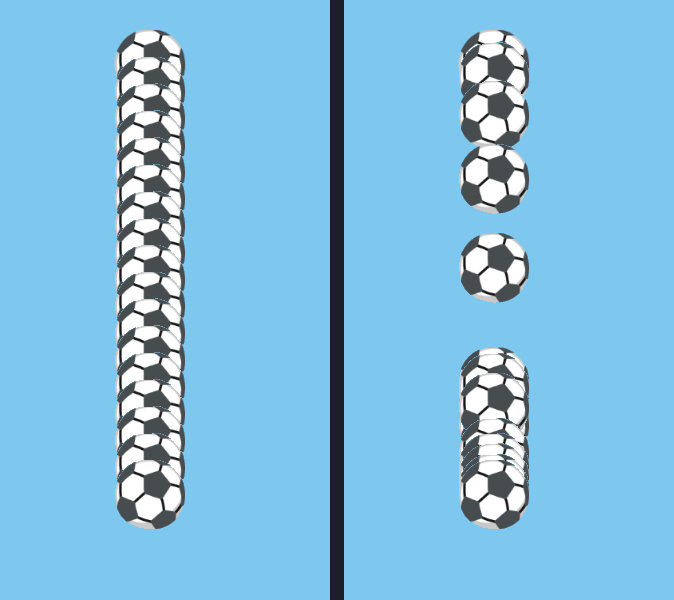
The same two keyframes, drawn every eighth of a second. Linear, on the left, moves the ball the same distance every frame, which is why it looks mechanical. Bounce, on the right, starts slowly, speeds up the way a falling ball does, and bounces at the bottom. Nothing about the start or the finish changed; only the timing in between.
What they are learning while they play
Nothing here is presented as a lesson. This is what the activity is made of.
| What the student does | What it is |
|---|---|
| Sets a start and an end | Keyframes. The important poses of an animation. Everything else is worked out from them. |
| Presses Play and watches the gaps fill in | Interpolation. The computer calculates every in-between frame, which is called tweening in animation. |
| Switches Linear to Bounce | Easing. Easing changes how fast something moves between keyframes. Real objects speed up and slow down; linear motion looks mechanical. |
| Tries Back and Elastic | Principles of animation. Anticipation, overshoot and follow-through are what make cartoon motion feel alive. |
| Drags the playhead | Time. An animation is a function of time: give it a moment and it returns where everything is. |
| Places things by X and Y | Coordinates. The stage is 800 by 600, and every position, scale and rotation is a number. |
| Turns on onion skin | Frames. Ghosts of the frames before and after show how far things move each step, the way animators check spacing. |
| Exports a GIF | Frame rate. A video is still pictures shown quickly. More frames a second means smoother motion and a bigger file. |
How to tell whether it landed
Ask, and let them show you. A student who has understood it can answer these without help.
- Who drew the frames between the keyframes?
- The ball starts and ends in the same place both times. What changed when you picked Bounce?
- Why does linear motion look robotic?
- Which easing would you use for a car pulling away from a stop? For a door slamming?
- Make the ball take twice as long to fall. What did you move?
Practical notes
- AgesAges 8 through high school. Younger students move pictures around and press Play; older ones plan keyframes and choose easing on purpose.
- TimeSeconds to the first animation. A short scene takes twenty to forty minutes.
- EquipmentAny computer or Chromebook with a modern browser. A mouse helps. Nothing to install.
- CostFree. The app has no paid tier.
- PrepNone. Open the page and go. Reading this page first takes about three minutes.
- In a groupEveryone can animate the same drop with a different easing, and the room can compare which feels real.
For co-ops, microschools, and classrooms
Give everyone the same two keyframes and a different easing, then play them side by side. The difference between mechanical and lifelike motion becomes obvious, and students can say exactly which setting made it.
- Over 300 emoji to animate, or any picture from the web.
- 17 easing styles, from linear to elastic and bounce.
- Export to GIF or video to share outside the platform.
- No install, no per-seat license. Student work is private by default.
Common questions
Is MotionMaker free?
Yes. It runs in your browser and there is no paid tier. A free account adds saving, but nothing on this page is behind a paywall.
Does my child need an account to try it?
No. The demo on this page is the complete tool with a starter scene. Make a free account and the animation you changed comes with you as your first project.
Do they need to be able to draw?
No. Animations are built from pictures they choose, and the computer draws the in-between frames. The skill here is timing and motion, not drawing.
Can they keep what they make?
Yes. Animations export as GIFs or videos that play anywhere.
What ages is it for?
Ages 8 through high school. Moving pictures around works for anyone; choosing easing on purpose suits older students.
What subject can I log this as?
Most families log it as art or digital media. Keyframes and the principles of animation are art, interpolation and coordinates are math, and frame rates are computing. The table above lists specifically what is covered, so you can pick the label your records need and point at the evidence.
Where to go next
Start with MotionMaker
Trying it costs nothing and takes about five minutes. An account is what makes the work last.
MotionMaker is one of the making apps on the platform. It is a place to make things, not a course, and it is not a substitute for a teacher: it is at its best when an adult asks the questions above and takes the answers seriously.
Page last reviewed September 2026.