Wi-Fi Lab
Every student has a dead zone at home and a theory about it. Wi-Fi Lab turns the theory into a map. Students drag a router around a floor plan and watch the signal spread through the house as color, while every wall, floor and fridge on the straight line from the router takes its share, the neighbors on the same channel take turns on the air, and each device in the house says whether it can do its job.
Using this with a class? Make a free class and add your students yourself: each gets a username and password, with no email or Google account needed. Or give them one join code. Using Google Classroom? Post the link there; with a free class, the link also puts each student in your class, so you see their work. mytekDev is also available from the Google Workspace Marketplace, so your school's Google admin can install it for everyone.A first lesson: Open the Ranch House and ask the class where the router should go before anyone touches it. Then hover the far bedroom: the line to the router names every wall it crosses and what each one costs, and the water heater beside the router costs the most. Drag the router to the middle of the house and watch the bedroom change color.
Set up a free class Share to Google ClassroomWhat a student actually does
The stage is a floor plan from above, drawn like a real one: rooms with their names, beds and sofas, doors with their swings, windows in the walls, the fridge and the water heater. The signal lies over the floors as a wash of color, deep blue near the router through green and yellow to orange and purple where little is left, with a thin line where each word changes. Devices sit where people use them: a laptop on a bedroom desk for a video call, a TV for a 4K movie, a phone on the kitchen counter. Each has a green check or a red cross, and a counter above the plan says how many are happy.
Dragging the router redraws the map as it moves. Hovering any spot shows the straight line the signal takes from the router, with a number at every wall, floor or appliance it crosses, and a box that says what the spot is good for and which thing cost the most. Under the plan are the band (2.4 GHz, 5 GHz or both), the channel, a helper (an extender, a mesh point, or a mesh point with a cable back to the router), and three views: Signal, Speed, and Walls, which writes each wall's cost on it.
There are six houses, in any order, and each opens with the router where a person would really put it. The Ranch House has it in the closet behind the water heater. Two Stories has it in a concrete block utility room in the basement, two floors below the bedrooms. The Apartment has strong signal everywhere and a movie that still stops, because the router and four neighbors share channel 6. The Kitchen has it between the fridge and a running microwave. The Long House has an extender plugged in where the signal is worst. The Garage Office is behind metal siding and low-E glass, where only a cable gets the speed through.
My home lets a student sketch their own rooms on a grid, put in the fridge, the TV and the devices they use, and mark where the router sits today. Predict first hides the map until the student has picked the rooms they think will be weak. Print the map prints the plan, the colors, the router's spot and a table of rooms with an empty column for what a phone says when the student checks at home.
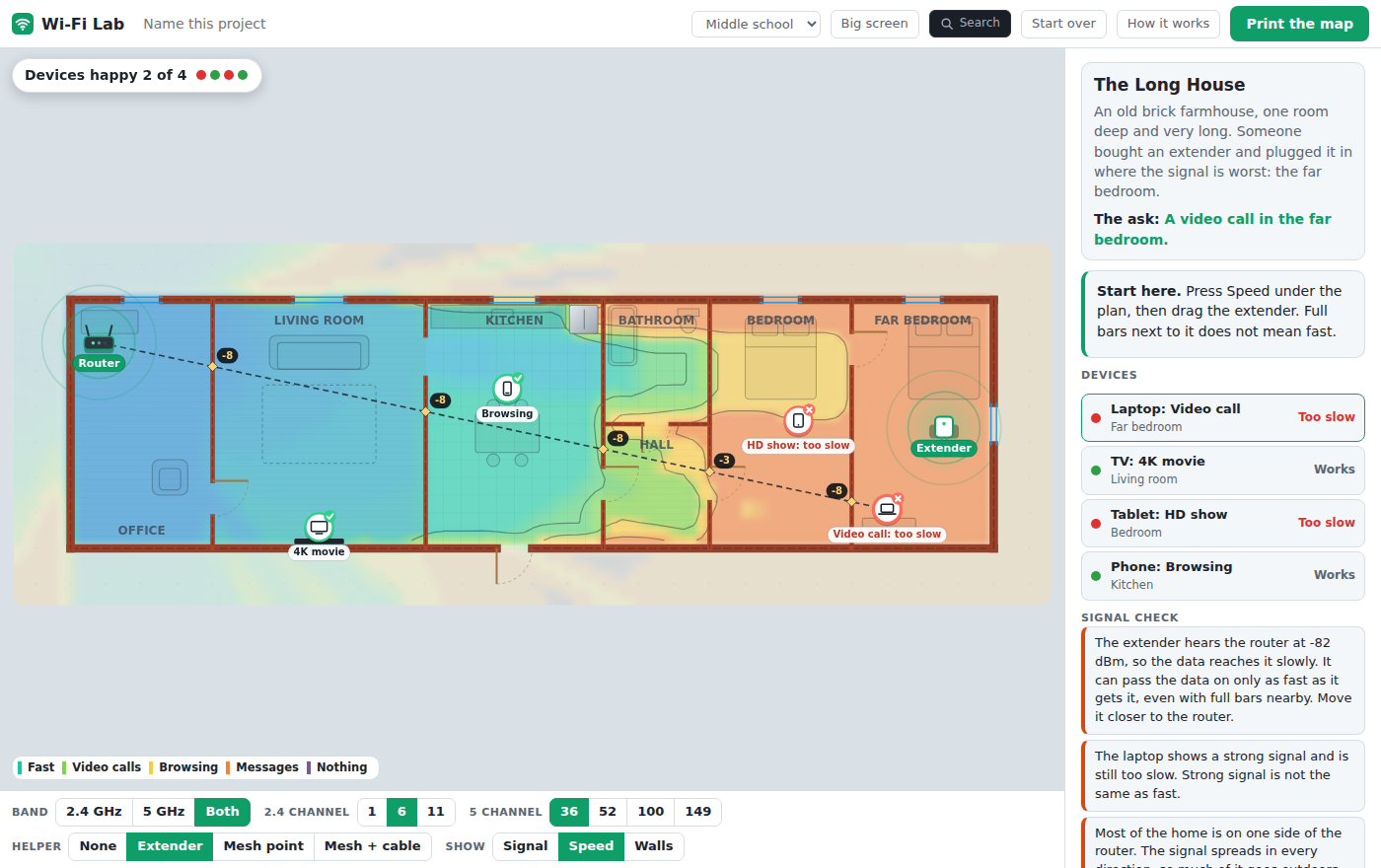
The Long House on the Speed view. The extender was plugged in where the signal is worst, so it hears the router at -82 dBm. A laptop right next to it has full bars and still cannot make a call. Dragged to about the middle of the house, the same extender gets every device working.
What they are learning while they work
Nothing here is presented as a lesson. This is what the activity is made of.
| What the student does | What it is |
|---|---|
| Drags the router out of the closet and watches the far bedroom change color | Distance and obstacles. The signal spreads out from the router in every direction and weakens with distance. Every wall, floor and big metal or water-filled thing on the way takes some away, and the water heater beside the router takes more than all the walls together. Out of the closet almost any spot works; the middle leaves every room the most to spare. |
| Hovers a spot behind the fridge and reads -15 at the fridge | Absorption and reflection. Metal reflects radio waves and water absorbs them, so a fridge or a water heater costs far more than a wall made of wood and drywall. It is the same idea as light through glass, paper and a mirror, with a wave you cannot see. |
| Switches between 2.4 GHz and 5 GHz and sees the same walls cost more at 5 | Frequency and wavelength. 2.4 GHz waves are about 12 cm long and get through walls better; 5 GHz waves are about 6 cm and lose more in every wall, but carry data faster where they reach. |
| Moves the Apartment from channel 6 to channel 11 and sees the speed come back with no change in signal | Channels and shared airtime. Networks on the same channel take turns, so a strong signal can still be slow. On 2.4 GHz, channels 1, 6 and 11 are the three that do not overlap each other in the US. |
| Moves the extender from the dead bedroom to halfway and gets the far laptop working | Repeaters and backhaul. An extender can only pass data on as fast as it gets it from the router, so it needs good signal where it sits. A plain extender sends everything twice on one radio; a mesh point with a cable does not have to. |
| Prints the map of their own home and writes down what the phone says in each room | A model and a measurement. The map is a model: straight lines, average losses, often off by 8 dB or more. A phone in the real room is the measurement. Where they disagree is the interesting part. |
How to tell whether it landed
Ask, and let them show you. A student who has understood it can answer these without help.
- The same router reaches the far bedroom from the hall and not from the closet. What changed on the way?
- The Apartment has full bars and the movie still stops. What is using up the air?
- Why does 5 GHz reach fewer rooms than 2.4 GHz, and why would anyone use it?
- The extender in the far bedroom shows full bars on the laptop beside it. Why is the laptop still slow?
- Which costs more, a floor or an inside wall, and how can you tell from the Walls view?
- Your printed map said your bedroom was weak and your phone said it was fine. Give two reasons that could happen.
Use it in your subject
Not a technology class? Then the app is how students show what they learned in your unit. More projects for every subject.
IT and networking (CompTIA A+ and Network+)
Addresses the wireless objectives: the 2.4, 5 and 6 GHz bands and channel selection, non-overlapping channels, interference, mesh networks, insufficient wireless coverage as a troubleshooting case, and the wireless survey and heat map itself. A site survey in miniature, on a Chromebook.
Middle school physical science
Extends MS-PS4-2, waves reflected, absorbed or transmitted through materials, from light to a wave students cannot see. The standard's assessment stays with light and mechanical waves, so use the app after the light lesson, not in place of it. Comparing one wall at 2.4 and 5 GHz is the frequency point.
Computer science
CSTA 3B-NI-03 on what affects how well a network works (bandwidth, load), with the neighbors' channels and the extender's halving as the examples, and the 2026 draft standards on wireless connections and interference.
Homeschool and co-ops
My home is the project: sketch the house, find a better spot for the router, print the map, and check it room by room with a phone that evening.
Practical notes
- AgesGrades 6 to 12. Middle school mode shows words (Great, Video calls, Browsing); High school mode adds the signal in dBm and the speed in megabits.
- TimeOne period for the Ranch House, the Apartment and the Kitchen, with Predict first on if you want a guess before every map. A second for Two Stories, the Long House, the Garage Office and My home.
- EquipmentA computer or Chromebook with a modern browser. Nothing to install, and nothing in the app touches the school's Wi-Fi: the signal is computed in the page. A projector for Big screen. A printer for the maps, and a phone at home for the check.
- CostFree. The app has no paid tier and no AI.
- PrepFix the Ranch House yourself (drag the router to the middle), then open the Apartment and click channel 11. That is the whole demo, about five minutes.
- In a groupGrade level in the header switches between Middle school (words) and High school (dBm and megabits). Predict first, under the list of houses, hides each map until the class has guessed.
For co-ops, microschools, and classrooms
Every house keeps its own placement, so a class can work through them in any order and pick up where they left off. With a free account each student's work comes back as a saved project, with a line that says how it went, such as "Ranch House: router in the living room, 5 of 5 devices happy", and a shared project lets anyone drag the router in that house without changing the student's work.
Common questions
Is it free?
Yes. Wi-Fi Lab has no paid tier, and it can be tried right on this page without an account. Saving needs a free account.
Does it measure our real Wi-Fi?
No. A web page cannot read Wi-Fi signal strength, and the app does not try. Everything is computed from the plan. The check is done with a phone: on Android a free Wi-Fi analyzer app shows the signal in dBm, and on an iPhone Apple's free AirPort Utility can too once its Wi-Fi Scanner is turned on in Settings.
How accurate is the map?
It is a good guess. It follows a straight line from the router to each spot and adds up the loss over distance and the cost of every wall, floor and appliance on that line, with typical values for each material. For two inside walls at 10 meters it agrees with the ITU's indoor model within about 1 dB at 2.4 GHz and 3 dB at 5 GHz. Real Wi-Fi also bounces off walls and bends around corners, so a real house can be off from the map by 8 dB or more in places.
Where do the numbers come from?
The wall and material losses come from published measurements (NIST, NYU's 6 GHz study, ITU-R P.1238) and vendor survey guides, and the spread between sources is wide, so the Walls view shows them and the help says about. The speed steps come from the minimum signal levels in the IEEE 802.11 standard, with an 8 dB margin for a real room. The video call budget covers Zoom's published figure for a 1080p call.
What does it simplify?
Straight lines only, no reflections. Every device gets the router's sending power, though phones and laptops send weaker, so uploads can be slower than the map shows. 6 GHz (Wi-Fi 6E and 7) is not in this version, and the router's antennas point every way equally. The microwave's strength is a teaching value, set so it drowns out 2.4 GHz near the kitchen as real ovens do.
Is Wi-Fi safe to have in the classroom?
The help says it plainly: Wi-Fi is low-power radio, the same family as FM radio, without the energy to damage cells the way X-rays or ultraviolet can. In the US the FCC sets the safety limits and a home router is far below them, and the World Health Organization says no health effects are expected from Wi-Fi. The app moves the router only for a better signal.
Still have a question? Ask us, and a person will write back.
Where to go next
Start with Wi-Fi Lab
Trying it costs nothing and takes about five minutes. An account is what makes the work last.
Wi-Fi Lab is one of the making apps on the platform. Every color on the map and every device's check comes from the same straight-line model, so what a student sees is what the model says. Wi-Fi is a registered trademark of Wi-Fi Alliance; this lab is not connected to it.
Page last reviewed November 2026.
Google, Google Classroom and Chromebook are trademarks of Google LLC.